Solved Webmeeting disabLed for this extension

Status
Not open for further replies.

Petersang

Forum User
Joined
Jan 21, 2021
Messages
56
Reaction score
4
Hello
A
Hello ,
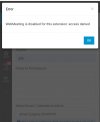
After upgrade to v18 i have this message when im try to schedule a meeting .
But in extension setting there is no option to enable webmeeting

Any help ?


Screenshot_20220124_204917.jpg
 
Check the extension you are using to schedule the meeting with has a first\last name and email address configured.
 
I cannot make webmeeting
 
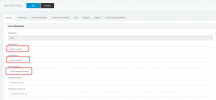
Under the management console > Extensions > extension settings > general tab, make sure that the extension (that you are using to access the management console with) has a first or last name entered in the First Name or Last name in the Last Name section and also that it has an email address in the email address section.

For Example
1643057528507.png
 
  • Like
Reactions: ChrisC_3CX
Still access denied
Its look like i dont have privelege to do webmeeting
 
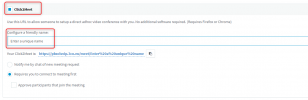
In this case, check the Clcik2Talk/Click2Meet tab and make sure that the Click2Meet section is enabled.

1643057858338.png
 
Thanks it work but i have a litle question
 
sure go-ahead, what's the question?
 
After lunching the meeting its work only on web browser but on my android up it show me this error
 

Attachments

  • Screenshot_20220124_221617.jpg
    Screenshot_20220124_221617.jpg
    101.2 KB · Views: 49
This is due to the fact that the intermediate certificates from your certificate CA are not included in your certificate chain for your custom FQDN certificate.

Please make sure that all the intermediate and root certificates from your provider are included in the certificate chain.

* For Linux:
1/ Connect with a file transfer client such as FileZilla using SSH root credentials to the phone system host.

2/ Go to folder /var/lib/3cxpbx/Bin/nginx/conf/Instance1

3/ Open the YOURFQDN-crt.pem in notepad ++

4/Insert the intermediate certificates and root certificate for the CA one by one separate with the begin and end certificate as follows (Make sure that your certificate for the FQDN is at the top)
-----BEGIN CERTIFICATE-----
Content
-----END CERTIFICATE-----

-----BEGIN CERTIFICATE-----
certificate content
-----END CERTIFICATE-----

Do this for all the intermediates and root certificate

4/ Save the certificate with the same name and re-uploaded it to the location overwriting the existing one.

5/ Connect with an SSH client such as PuTTY using SSH root credentials to the phone system host.
6/ Run commands:

cd /var/lib/3cxpbx/Bin/nginx/conf/Instance1
chown phonesystem: phonesystem YOURFQDN-crt.pem (enter the FQDN in place of the YOURFQDN)
Note: No space between the phonesystem: and phomesystem, here i have to put one as it was changing it to an emoji by default

7/ Then issue the following command: service nginx restart
 
Last edited:
I will try that
 
Thanks it works i hope that threat help someone
 
That's great I am glad that worked for you.
 
Status
Not open for further replies.

Forum statistics

Threads
111,974
Messages
590,081
Members
164,899
Latest member
mazet