


- Joined
- May 2, 2018
- Messages
- 39
- Reaction score
- 5
Steps I used to successfully setup a Level3 / CenturyLink sip trunk with 3CX PBX v15.5.
- Get things preped
- CL/L3 will send you some info on the SIP trunk including "SIP signaling IP", and "RTP IP".
- Setup your ACLs on your firewall to allow traffic from the IP and UDP port provided in the "SIP Signaling IP". So for example if the SIP Signaling IP was 10.10.10.10:5060, then your ACL should allow traffic over UDP port 5060 from 10.10.10.10 to your public NATted IP address of your PBX.
- Then setup ACLs on your firewall to allow traffic from the IP and UDP range provided in the "RTP IP". So for example if the RTP IP was 10.10.10.9:5000-65148, then your ACL should allow traffic from 10.10.10.9 UDP port range 5000-65148 to the NATted IP address of your PBX.
- Note the CODECs supported in your CL/L3 provided document. Mine was listed as G.711 and G.729. And since I live in the US I assume G.711 is U-law.
- You'll probably receive a separate email that lists your assigned DIDs. CL/L3 will list these as TNs
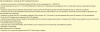
- Here are some other key considerations CL/L3 provided me and yours should look similar:
- CL/L3 will send you some info on the SIP trunk including "SIP signaling IP", and "RTP IP".
- Okay onto setting up the SIP trunk in 3CX. Choose Add SIP Trunk > Generic for "Select Country" and Generic SIP Trunk for "Select Provider in your Country" and your main DID which is the TN that CL/L3 provided you. If you have multiple DIDs then choose the one you want as your main number.
- Stepping through the tabs we'll start with General
- Trunk name, aesthetics so whatever you'd like to call it, but I named mine CenturyLink
- Registrar/Server/Gateway Hostname or IP - Is the IP and port number from "SIP Signaling IP"
- Outbound Proxy - leave blank
- Number of SIM calls - This is your CL/L3 contracted amount that you requested from CL/L3. Mine was 32, so I entered in 32. CL/L3 lists these as "Enterprise CCPs".
- Type of Authentication - set to "Do not require - IP Based"
- Auth ID - leave blank
- Auth Pass - leave blank
- 3 Way Auth - should be unchecked
- Main trunk number - It'll be the TN to which you want as your main number for this trunk. For US it should be 10 digits. You don't need to add the +, the PBX handles this for you via Settings > E164 Processing > Process E164 Numbers selected along with your country code.
- Destination for calls and Extensions - Lots of choices here, and it should be pretty self explanatory
- DIDs
- Add each of your DIDs. These were listed as TNs from CL/L3 and shouldn't include any characters. So mine in the US are 10 digits, so I add each 10 digit DID. It's pretty straight forward.
- Caller ID
- Enter in your main trunk DID, just 10 digits in my case.
- Inbound - you can leave empty
- Outbound - you can leave empty
- Enter in your main trunk DID, just 10 digits in my case.
- Options
- Call Options - Pretty straight forward, I allowed inbound, outbound and disallowed video calls.
- Advanced - I only checked SRTP to secure the RTP traffic from/to CL/L3
- Advanced - Re-Register Timeout set to 600
- Advanced - Select which IP to use - I set to "Use this IP Address" and set the IP address field to the public IP address of my PBX.
- Codec Priority - I set to G729 and G.711 U-law
- Inbound and Outbound Parameters
- Left at the defaults
- Select OK and you should see your new SIP trunk with a green circle.
- Now over to Outbound Rules - note these are processed from top down, so order matters
- I'll just cover the common ones I used. First I created one for Local and LongDistance.
- "Calls to Numbers with a length of 10
- Route 1 CenturyLink
- "Calls to Numbers with a length of 10
- E911
- Calls to numbers starting with "911"
- Calls to Numbers with a length of 3
- Route 1 CenturyLink
- International
- Calls to number starting with 011
- Calls to Numbers with a length of 13-14
- Route 1 CenturyLink
- I'll just cover the common ones I used. First I created one for Local and LongDistance.


