





More flexibility in IP Phone management custom / vendor firmware and better custom template management.
Update 10 is now at the Release Candidate stage. This post covers highlights from this release in comparison to Update 9: AI transcription you can run on a Mac, more control over firmware and templates for your IP phones, and client changes that save time for staff and IT. For each, we explain what it means for your business. Read on for details!
What Changes From Update 9
| What changes in Update 10 | What it means for your business |
|---|---|
| Run AI transcription and call analysis on a supported Apple Silicon Mac, installed in three steps and available with AI Edition from 8SC | Customer conversations stay on your own hardware, starting with a Mac that costs around US$1,000 |
| Upload manufacturer firmware, assign it to selected phones, set a preferred file per model and schedule updates | Increased options if your business can’t wait to fix phone problems sooner without risking the whole fleet or interrupting the working day |
| Create, copy, export and switch custom templates without recreating phones | More choice of phone models, and no rebuilds when configurations change |
| Move, reprovision and reboot phones from the new Phones page | Fewer site visits and faster office moves |
| Sign in to the Windows Softphone with Google or Microsoft 365 | Faster deployment and fewer login tickets |
| Choose the outbound number from the Softphone or Web Client | Customers recognise who is calling, and callbacks reach the right team |
| Pop out the Web Client dialer | Call controls stay in view while staff work in other applications |
Run AI Transcription on a Mac
A Mac costing around US$1,000 is now enough to run AI transcription for your business, and setting it up takes three steps from the 3CX Admin Console. No server hardware, no Linux and no specialist skills required. The new AI Server replaces the old transcription service, which required Linux and expensive, specialised hardware, such as high-end NVIDIA graphics cards. For example, an ASUS TUF Gaming GeForce RTX 5090 OC Edition with 32GB GDDR7 can cost around $4,140. The new solution simplifies deployment and removes the need for such costly hardware.
Your recorded calls hold what customers asked for, what was promised and what needs to happen next. Without transcription, finding any of that means replaying audio. With it, every call becomes text your team can search, read and act on.
Update 10 introduces the standalone 3CX AI Server. Install it on a supported Apple Silicon Mac and your recorded calls are transcribed and analysed on that machine rather than by an outside service. The Release Candidate also lowers the entry point: local transcription now works with 3CX AI Edition licences starting at 8 simultaneous calls, which puts it within reach of smaller teams.
A reminder, for those who don't want to set up a transcription server you still have excellent cloud options with Grok, OpenAI and Google. You choose!
Set It Up in Three Steps
The AI Server requires an Apple Silicon Mac with at least 16 GB of RAM. We recommend 24 GB.
- In the 3CX Admin Console, add an AI Server.
- Copy the installation command.
- Run the command on your Mac.
See the AI Server installation guide for the full setup.
From Transcript to Next Steps
Transcripts feed the improved call summaries in Update 10. Each summary now includes a recap, Notes with the key details and Action Items listing agreed follow-ups, so the sales rep has the next steps after a demo and a colleague taking over a support case can see what was already discussed. Admins can set the summary format with a custom prompt. Read more about the improved call summaries.
What This Means for Your Business
- Your conversations stay with you. Calls are processed on hardware you own, giving you more control over where customer conversations go.
- Easy to deploy. Add the server in the Admin Console, run one command on the Mac, and transcription is running. There is no separate server project to plan.
- An affordable starting point. Apple Silicon Macs with the required 16 GB of RAM are available for around US$1,000. For extra headroom, a Mac mini with the recommended 24 GB of RAM and 512 GB of storage is around US$1,300 (US pricing).
- AI for smaller teams. From 8 simultaneous calls, small businesses get the same call insight as larger organisations.
Faster Rollouts and Smoother Calls in the 3CX Apps
SSO - Sign In to the Windows Softphone With Google or Microsoft 365

Staff with a Google or Microsoft 365 account can now set up the Softphone without separate 3CX login details. After entering the 3CX server address, they pick Google, Microsoft 365 or email, approve the sign-in in their browser, and the Softphone configures itself for their extension.
This requires Windows Softphone V5.8, available from the Microsoft Store, and V20 Update 10. See the 3CX Softphone V5.8 release.
Keep Call Controls in View With the Pop-Out Dialer
Pop the Web Client dialer out into its own window and it stays on screen while you work elsewhere. Staff working in a CRM, helpdesk or spreadsheet can mute, hold or transfer without hunting for the right browser tab. The pop-out dialer works with Chrome and Edge.
Choose Which Number Customers See
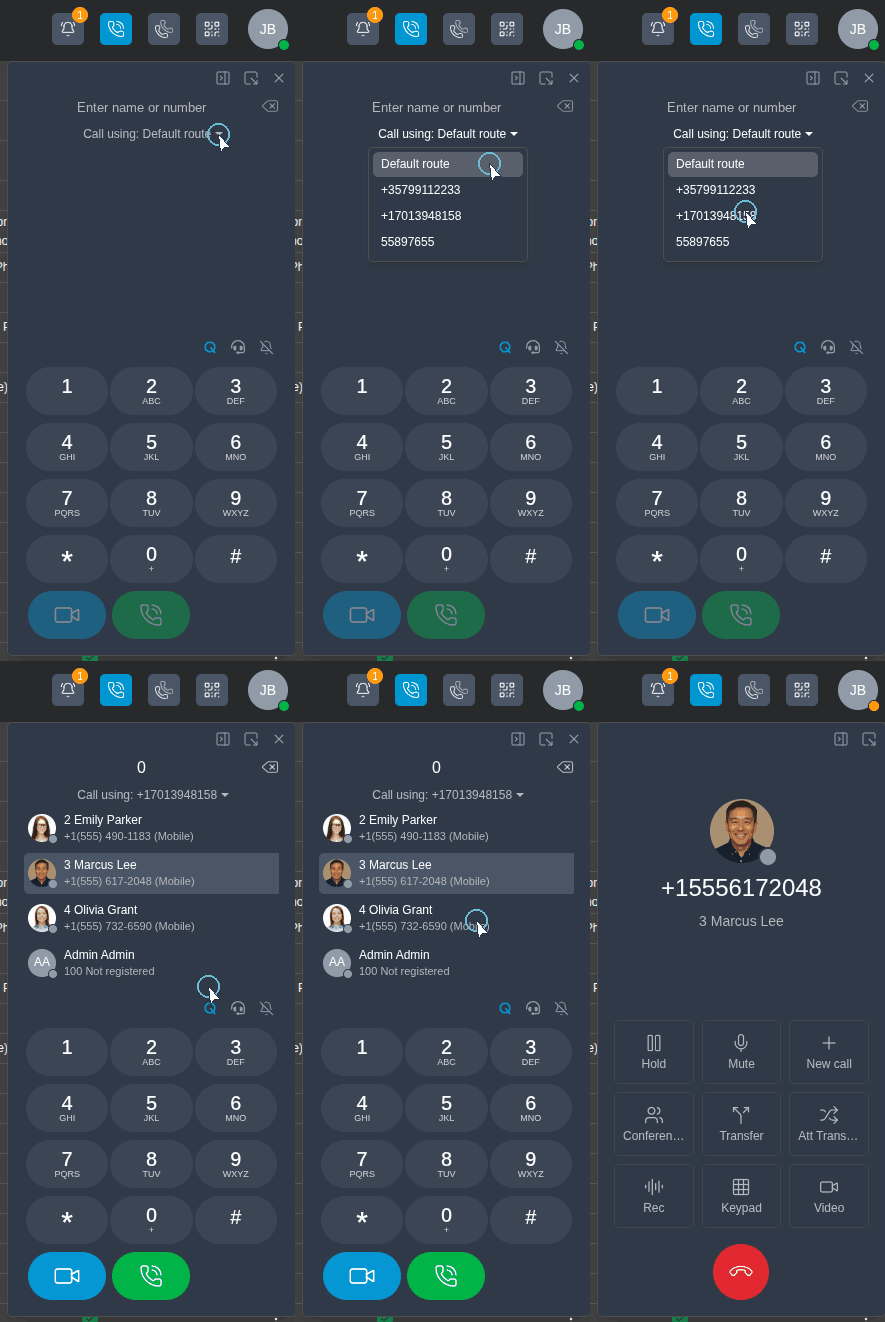
Staff who cover several departments, regions or brands often have more than one number assigned. They can now pick which one to use before dialling, or keep the default route. The matching outbound route and caller ID are applied automatically, and only numbers assigned to the user's extension are offered. This works in the Web Client and supported 3CX Apps, including the Windows Softphone.
The option is disabled by default. Admins enable it under Admin > System > Options > Apps > Permissions & Restrictions by turning on Allow Users to Select Outbound Route & Caller ID. Learn more about outbound number selection.
What This Means for Your Business
- Faster onboarding, fewer tickets. New staff sign in with the account they already use, and access is tied to the identity system IT already manages.
- Less time lost between windows. Call controls stay with staff while they work in the CRM, helpdesk or order system.
- Higher answer rates. Customers see a number they recognise, and callbacks reach the right team.
Manage Phone Firmware and Templates Your Way
3CX Tested is our number one recommendation and is still the best way to go if you don’t have any specific requirements.
We also recognise that there are many situations where the latest update is required. So when one phone model has a bug - and the manufacturer already has a fix - many businesses seek the flexibility to update immediately rather than having to wait for 3CX to validate it.
In Update 10, we are offering you more flexibility than ever before. Now, you’ll be able to upload the vendor's firmware yourself, apply it only to the affected phones and leave everything else on 3CX-tested firmware.
Choose the Firmware Each Phone Runs
The new Firmware library under Phones > Firmware keeps 3CX Firmware and the Vendor Firmware you upload in one place. From there you can:
- Assign firmware to individual phones or groups, so you can test a change on a few devices before a wider rollout.
- Mark the preferred firmware for each model, so every model has a clear default.
- Schedule updates around your business. Because an upgrade can reboot a handset, run updates outside working hours.
3CX-tested firmware remains the default for every supported model.
Custom Templates Without the Rebuild
Custom templates let you adapt provisioning for phone models or configurations beyond the built-in 3CX templates. You can create, copy, edit and export templates, and select a custom template during Plug and Play provisioning so new phones are set up correctly from the start. Start from Admin > Advanced > Templates > Phone Templates.
You can also switch a phone to a compatible template without recreating it. Extension assignments, routing and BLF configuration are kept.
One Page for Every Phone
Phone management now lives on the new Phones page in the Admin Console. Move a phone to another user while keeping its configuration and firmware assignment, reprovision or reboot it, inspect its configuration and manage remote provisioning, all without visiting the desk.
What This Means for Your Business
- 3CX Tested: Assured and thorough testing by 3CX.
- Greater flexibility. Deploy a manufacturer's fix to the specific phones that need it without waiting for the next 3CX release.
The post Deploy Vendor Firmware Directly From 3CX covers the configuration steps and what support applies to vendor firmware.
Also in Update 10
- Quick audio conferences. Start an ad-hoc conference directly from the Web Client dialer to bring a colleague into a call.
- Department-specific Music on Hold. Give each department its own hold audio. Callers parked in a shared parking slot hear the audio of that slot's department. See Shared Parking Gets Department-Specific Music on Hold.
- Longer mobile push lifetime. Android and iOS push subscriptions now last 14 days instead of 7 between app connections, so occasional mobile users stay reachable for longer. See 3CX Extends Push Expiry From 7 to 14 Days.
- Default BLF transfer method. Windows Softphone users can choose Blind or Attended as the default when transferring with a BLF key, under Settings > General options.
- More reliable transcription. Jobs affected by temporary connection, provider or rate-limit problems are retried automatically, and large recordings are split for OpenAI transcription and combined into one transcript.
For the complete list of changes and fixes, see the V20 changelog.
Get Started With V20 Update 10 RC
To upgrade from Update 9, go to Admin Console > System > Updates and install the available updates in sequence, returning to System > Updates after each upgrade until Update 10 RC is installed.
To try V20 Update 10 Release Candidate, build 20.0.10.1716, open the Admin Console and go to System > Updates. Select the Release Candidate when offered and follow the available upgrade sequence.
Use a test system to evaluate the RC ahead of the final release. If you’re using an earlier onboard AI installation, follow the installation guide to migrate to the standalone 3CX AI Server.
After upgrading, update the 3CX apps your team uses, including Windows Softphone V5.8 from the Microsoft Store, to use the new client features.
Join the Discussion
Let us know what you think in the 3CX Partner Forum or Customer Forum. Follow 3CX on X and LinkedIn to stay up to date on the latest news and feature releases.









 Copyright © 2026