You have almost everything perfect for this, but there are a few things I would add to this.
Step 1
Yes to creating Service Objects as you have them listed. But do not create the Service Group. See Step 2.
Step 2
Why create the NAT Policies this way? You missed one NAT Policy that is really important. You should have a loopback policy so that you can use the FQDN assigned to your 3cx server from inside your Network. ie (
https://company.3cx.us:5001)
An Easier way is to use the Wizard for Public Servers. It will do the following:
* Create Server Address Objects for the Internal and External Ips that you provide.
* It will create the Service Group named the Server name you porvided with the services HTTP and HTTPs if you select web server.
* It will Create all 3 NAT rules you need
* It will create your Access rules for you. To Include Zone To Zone rules like from your Private Wifi to the LAN and Public Wifi To LAN using the public address so that the Loopback rule will allow DNS to resolve backe to the 3CX FQDN.
Then Just Edit the Service Object Group created by the wizard to include the 3CX services you created in step 1 and remove the HTTP and HTTPS and edit the Outbound Rule to turn on the Disable Source Port Remap.
To do this
1. Click on Quick Configuration at the top of the Sonicwall 6.5 OS

2. Then Select Public Server Guide and click next
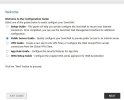
3. On the Next Screen No changes needed just click Next:
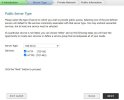
4. Input the Server Friendly Name and Private IP and click next:
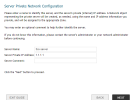
5. Enter the Public IP for your server and click next:
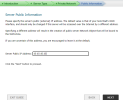
6. Review your Configuration and the Rules it will create. If it is all correct Click Apply:
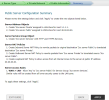
7. Edit the Service Object Group created by the wizard to include the 3CX services you created in step 1 and remove the HTTP and HTTPS Services. I would also add the PING service group for trouble shooting.
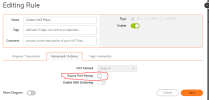
8. Edit the Outbound Rule to turn on the Disable Source Port Remap.
Step 3 Is completed in Step 2 by the Wizard So it is not needed.
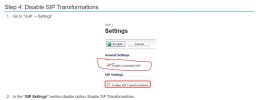
Step 4
add This one to your steps here:
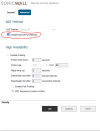
3. Make sure you Check Enable Consistent NAT Screen shot provided.