M365 guest users syncing anyway despite being unticked

Status
Not open for further replies.

brandonc

New User
Joined
Jul 22, 2021
Messages
3
Reaction score
0
I'm currently testing version 18.0.1849 which is the latest beta version of v18. Not sure if the same issue is present in other versions as well.

In the M365 Integration, despite having "Sync Guest users" not selected, guest users in the organization are being synced anyway. I suspect that the below option "Sync All Users" is overriding the former option. I would like to sync all uses except guest users hence why I have the above select as they are. The workaround for now is to manually select all the users and use "Select these users" option.

Can anyone confirm that they have the same issue, and if so, let the moderators know to solve this issue in next releases?
 
I've just tested this but cannot reproduced the issue you are describing.

Provided that you currently have "Sync Guest users" unchecked, if you go to Extensions and search for a guest user, does it say "Microsoft 365" in the "Synced with" column on the right hand side?

What happens if you delete these extensions(guest users) from 3CX? Do they reappear despite "Sync Guest users" not being checked?
 
Do you have sync all users checked as well and running on version 18.0.1849?

Yes, if I delete them they reappear and it does say "Microsoft 365" in the "Synced with" column on the right hand side.
 
Try the following:

1. Go into the "Management Console >> Settings >> Microsoft 365 Integrations".

2. Click on "User Sync" and make sure "Sync Guest Users" is disabled.

3. Disable "User Sync" completely by unchecking "Sync Microsoft 365 users with 3CX Extensions".

4. Make sure that you can see the following message above:
1627037737039.pngThen click on OK.

5. Go to Users/Extensions and make sure that the "Microsoft 365" status has disappeared from the "Synced with" column of the guest extensions. (may take a few seconds)

6. Select all Guest extensions and delete them.

7. Go back to "Settings >> Microsoft 365 Integrations >> User Sync" and enable it by selecting "Sync Microsoft 365 users with 3CX Extensions".

8. Also select "All Users" and make sure "Sync Guest users" is not selected. Confirm you see the same message as seen in step #4 and then click on OK.

9. Go back to the Users/Extensions section and check if the guest users get synced again.
 
  • Like
Reactions: Evolute IT
Yes, and I also have tried enabling and disabling the guest user sync option but in vain.
 
It's important that the above procedure is followed step-by-step without disabling the "Sync Guest users" in between or anything else. Has this been done but still those users appear?

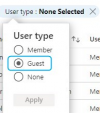
Could you filter the users in Microsoft 365 that have "User Type = Guest" and check whether all guest users in that list are also synced in 3CX?
1627048977564.png
 
Status
Not open for further replies.