Adding V65 as router phone to 3CX 18.0 Update 9

Status
Not open for further replies.

mattbratt

Bronze Partner
Advanced Certified
Joined
Apr 25, 2020
Messages
19
Reaction score
4
I am trying to add a Fanvil V65 (firmware:2.12.16.20 - Current supported by 3CX) to 3CX 18.0 Update 9 (Build 23) Enterprise. This is for a remote office where there will not be a stand-alone SBC.

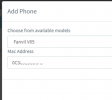
When adding the phone, I get the "Choose from available models" and choose the Fanvil V65 from the choices.

Next, I type in the MAC address.

But I am not seeing a choice to add it as a router phone. It just adds it (either as a STUN phone or SBC).

What am I missing here?
1709765289818.png
 
Last edited:
Well...a router phone is an SBC.
 
Well...a router phone is an SBC.
Sure...but when adding the phone, it only allows me to choose STUN or the currently deployed SBC at the main office.
 
Did you select the router phone option before selecting the model?

Apparently the options will vary depending on whether you are using the webclient admin view, or the management console.

I assume you've read over this...

https://www.3cx.com/docs/manual/ip-phones-v18/
 
Last edited:
Did you select the router phone option before selecting the model?

Apparently the options will vary depending on whether you are using the webclient admin view, or the management console.

I assume you've read over this...

https://www.3cx.com/docs/manual/ip-phones-v18/

Yes, I read that, but it doesn't really match my system 100%.

For example, the link you referenced, says this:
-----

Step 1: Add The Phone to the Extension​

From the admin console in your web client:

  1. Go to “Users” and select the user you want to add a phone for.
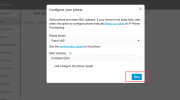
  2. Click on the “IP Phone” tab. Click “Configure a phone” to add a phone.
  3. Now select your phone model from the dropdown menu.
  4. Enter the phone’s MAC address without dashes or colons, and click “Add phone”.

Step 2: Router Phone, SBC or LAN?​

Configuring IP Phone


  1. If 3CX is on the cloud, you must use a router phone or SBC:
  2. If it is not a router phone you need to specify one or an SBC.
  3. If the phone is a router phone you can configure it to connect directly if you prefer.
  1. If 3CX is on premise or self hosted, you have an additional option, you can select “Local LAN/VPN”.
  2. Click “Add Phone” to save the phone configuration for this extension.
-----

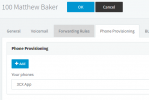
But...what I see is this:
1709769927071.png
So, I clicked on "+Add"
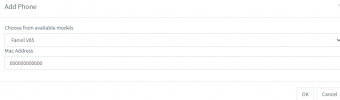
Then I select the V65 model and supply the MAC (real one, not the fake one here)

1709770010867.png
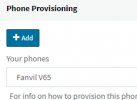
Then it shows up for the user:
1709770042486.png

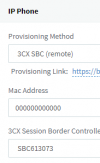
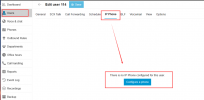
And IP Phone says this:
1709770083237.png

What am I missing?
 
You need to use the /webclient admin to add a router phone.
 
You need to use the /webclient admin to add a router phone.
Indeed, you are right. Once I do that, it works. The use of when to use /webclient and not are not clear in pre v20.
 
The use of when to use /webclient and not are not clear in pre v20
'tis not. I think that's the one time it's required. It also allows changing the license contact email. But that's all I've used it for I think. I expect they didn't want to write the router phone code changes into the old console as it was going to disappear.
 
Yes, I read that, but it doesn't really match my system 100%.

For example, the link you referenced, says this:
-----

Step 1: Add The Phone to the Extension​

From the admin console in your web client:

  1. Go to “Users” and select the user you want to add a phone for.
  2. Click on the “IP Phone” tab. Click “Configure a phone” to add a phone.
  3. Now select your phone model from the dropdown menu.
  4. Enter the phone’s MAC address without dashes or colons, and click “Add phone”.

Step 2: Router Phone, SBC or LAN?​

Configuring IP Phone


  1. If 3CX is on the cloud, you must use a router phone or SBC:
  2. If it is not a router phone you need to specify one or an SBC.
  3. If the phone is a router phone you can configure it to connect directly if you prefer.
  4. If 3CX is on premise or self hosted, you have an additional option, you can select “Local LAN/VPN”.
  5. Click “Add Phone” to save the phone configuration for this extension.
-----

But...what I see is this:
View attachment 40143
So, I clicked on "+Add"
Then I select the V65 model and supply the MAC (real one, not the fake one here)

View attachment 40144
Then it shows up for the user:
View attachment 40145

And IP Phone says this:
View attachment 40146

What am I missing?

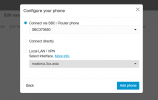
Is this what you're referring to?1709888539865.png1709888548676.png1709888555800.png
 
  • Like
Reactions: OlegR_3CX
On the last step, pick "Connect Directly" which will force the phone to become a router phone.

The above screenshot shows how to connect it via some other router / SBC which is not what you want.
 
  • Like
Reactions: ivank
Status
Not open for further replies.

Members Online Now

Forum statistics

Threads
111,835
Messages
589,288
Members
164,665
Latest member
dominik.pepel