audio options

Status
Not open for further replies.

coreybrett81

Free User
Joined
Jul 25, 2012
Messages
246
Reaction score
30
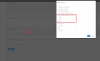
When joining a webmeeting, the system should ask the guest if they want to use "computer" audio, or if they want to dial-in. The way it works now (using computer audio automatically) it almost a deal breaker for us. A simple way to do a normal "phone" based conference call with screen sharing would be much better IMO.
 
  • Like
Reactions: [email protected]
Hi @coreybrett81

This kind of defeats the purpose of the webmeeting - it's implied that you would use PC audio if you want to use screen sharing. So, having the phone act as a headset effectively does not make much sense here.

Regardless, there is nothing preventing you as a participant from dialing in (for audio) and also launching the web meeting in your browser at the same time. You would just have to mute the PC so you don't hear audio twice, but it is certainly doable if you wish to do it this way.

The person you invite will get an email with both options included as well as instructions and they will be allowed to enter the meeting twice (as a caller, and as browser client).
 
  • Sad
Reactions: [email protected]
We have tried using the webmeeting feature for internal use, and the audio is a constant issue. Instead of making everyone use headsets connected to their computer, it would be much easier if they could just use their deskphones.

All the major webmeeting platforms will ask connecting guests how they would like to do audio (computer vs phone). I think this would make the 3cx webmeeting product much better.

Another option, would be adding a “no computer audio/video” option to the list of profiles when scheduling a conference. That way, all voice would be phone based, with screen sharing still available.

I know you can technically do this using the Webinar profile, telling everyone to mute there computer speakers and having the host un-mute everyone’s dial-in connection, but that is not a user friendly solution.
 
  • Like
Reactions: [email protected]
Note by the way you can disable some features at the start of the meeting. The users can simply join with audio disabled, and then they can just call 700 and enter their conference ID.

14236


However, when you say you face audio issues, do you mean:

  • the users have not configured their headset properly?
  • bandwidth limitations affecting the audio quality?
 
I tried using the meeting options to disable the audio and video, but that only seems to affect the guests, not the host. Meaning guest still have to mute their computer's speakers manually. Basically this is the same as using the Webinar profile.

the users have not configured their headset properly? - They usually do not have a headset
bandwidth limitations affecting the audio quality? - Perhaps, or they may be on spoty WiFi, and want to call in with there cell phone

Sometime you just want to share your screen with someone that you are already on the phone with but don't want to have the audio/video features.

Maybe that's what I am actually asking for... a screen sharing only option.
 
For a quick meeting while on a call with a colleague you could click here next to their name and an invite will pop up on their end to click to connect
14257

You can quickly kill the audio as soon as they enter the meeting with 2 clicks on the mics
14258

Hope this helps
 
If I am already on a call with them, that option is not available.

I appreciate the help.

I recommend that one or both of the following be added to the system.
  • a Webmeeting profile that disables all computer based audio
  • a prompt asking how they would like to connect for audio when attendees join a meeting (all the other major webmeeting products have this feature)
 
  • Like
Reactions: [email protected]
Status
Not open for further replies.

Forum statistics

Threads
111,973
Messages
590,077
Members
164,896
Latest member
sameage