- Joined
- Mar 3, 2021
- Messages
- 18
- Reaction score
- 4
Hi all and thanks in advance
Odd issue - brand new Yealink T64U phone we are trying to add to our own instance (Enterprise).
We are trying to replace old Grandstream phones with Yealinks so we can remove all the SBCs we are using.
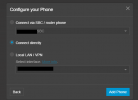
When we add the T46U as IP phone and choose "Connect directly" as shown here:
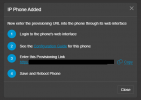
Instead of being told to reboot phone to let it auto provision like I've done for dozens of customer site phones, we get told to manually enter the provisioning URL instead (yuck):
Oddly the same phone MAC works fine if we add it to a customer instance though! So it looks like something on our own instance is stopping this, but I cannot find it.
Is there a setting somewhere in the 3CX instance GUI that prevents RPS?
We are using Version 20.0 Update 2 (Build 715 Release) as is the customer where I tested this but got the expected result. Only difference is we have been using 3CX for years and upgraded along the way, since V16 IIRC, whereas customer instance is a year old and the Pro level not Enterprise like us.
Odd issue - brand new Yealink T64U phone we are trying to add to our own instance (Enterprise).
We are trying to replace old Grandstream phones with Yealinks so we can remove all the SBCs we are using.
When we add the T46U as IP phone and choose "Connect directly" as shown here:
Instead of being told to reboot phone to let it auto provision like I've done for dozens of customer site phones, we get told to manually enter the provisioning URL instead (yuck):
Oddly the same phone MAC works fine if we add it to a customer instance though! So it looks like something on our own instance is stopping this, but I cannot find it.
Is there a setting somewhere in the 3CX instance GUI that prevents RPS?
We are using Version 20.0 Update 2 (Build 715 Release) as is the customer where I tested this but got the expected result. Only difference is we have been using 3CX for years and upgraded along the way, since V16 IIRC, whereas customer instance is a year old and the Pro level not Enterprise like us.