Cannot download remote phonebook

Abe Rieke

Premier Customer
Joined
Jan 9, 2025
Messages
1
Reaction score
0
Hello all,

Here's my environment:
- Self-hosted 3CX server running Professional Version 20.0 Update 4 (Build 487 Release), running on Windows Server 2019.
- Yealink 41S telephone running firmware 66.86.0.15.
- No firewall rules between the phone and the 3CX server.

Ever since I upgraded from v18 to v20 (a couple of weeks ago), my Yealink phones are unable to access the remote 3CX phonebook. On the Yealink phone, I push the soft button for "3CX PBook," the screen presents "1. 3CX Phonebook," and I choose Enter, and then I receive the error message, "Cannot download remote phonebook!"

I checked the telephone's configuration and found the following as the phonebook URL (edited for privacy)...
https://3cx.domain.tld:5001/provisioning/uniquecode/yealink_phonebook.xml

I can access the above URL from my computer without any trouble.

The certificate on the above URL was issued from GoDaddy and won't expire for another 10 months.

The "Team" section and the "Contacts" section of the 3CX mobile app is working just fine. (Probably unrelated, just thought I'd mention it.)


Any troubleshooting ideas? Any other info I can provide?
Thanks in advance for any assistance :)
 
Hi Abe,

1. The URL works so 3CX checks out. Quick test: change a BLF and reprovision, if it fails then you know it's nothing to do with the phonebook in particular but rather with provisioning.

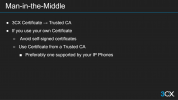
2. My first go to would be whether the CA you use is supported by Yealink, and whether any intermediate certs are missing, this is not necessarily a showstopper for your PC but it will be for IP Phones.

3. Since you've upgraded from V18 to V20, you've probably checked already but make sure the config URL on the extension matches the one on the IP phone since the port may have changed during the upgrade.
 
Last edited:
Ive been wrestling with this issue for 2 weeks now. The 3CX support in the ticket was like "Go ask Yealink".

Although that turned out to be true in the end, A response similar to JohnS_3CX would have been a lifesaver, and would have saved me 2 weeks of digging.

Note: the following steps were done on a SIP-T43U, other models may have a different WebUI)
Try this first:
1. Log in to the Yealink Web UI
2. Go to Security -> Trusted Certificates
3. On that screen locate the option "Module" with a dropdown next to it
4. In that dropdown select "remote_phonebook"
5. Turn off the option "Only Accept Trusted Certificates" below that option.

This enabled the IP phones I am managing to download the remote phonebook.

Now my next step is one of two things. Either creating a custom template for the phones so that this option is turned off by default. Or try to figure out why our cert that is present on the 3cx on premise hosted server didn't work in the first place.

Hope this helps
 
  • Like
Reactions: PD-SII and NJohnson
Ive been wrestling with this issue for 2 weeks now. The 3CX support in the ticket was like "Go ask Yealink".

Although that turned out to be true in the end, A response similar to JohnS_3CX would have been a lifesaver, and would have saved me 2 weeks of digging.

Note: the following steps were done on a SIP-T43U, other models may have a different WebUI)
Try this first:
1. Log in to the Yealink Web UI
2. Go to Security -> Trusted Certificates
3. On that screen locate the option "Module" with a dropdown next to it
4. In that dropdown select "remote_phonebook"
5. Turn off the option "Only Accept Trusted Certificates" below that option.

This enabled the IP phones I am managing to download the remote phonebook.

Now my next step is one of two things. Either creating a custom template for the phones so that this option is turned off by default. Or try to figure out why our cert that is present on the 3cx on premise hosted server didn't work in the first place.

Hope this helps
1736514689448.png

We do cover this in the training, so as an advanced certified engineer, I would assume you have watch at least one training course of 3CX. If not, I would highly recommend them. I've heard our trainer is a good dude who knows his stuff.
 
Some Tips

If you look at the Yealink documentation, they tell you which CAs they support (phones have limited space so they don't support them all like our PCs do). They do allow you to upload your own CA in the device if you wish to do so.

But you must also ensure the certificate chain is complete, if you are missing any intermediate certs the phone will fail to provision even if you use a supported CA.

We recommend you use a 3CX FQDN if possible since the certs we generate are tested to work with all our supported phones on the latest 3CX-certified firmware, no extra work needed for the 3CX Admin and customers ;)
 
  • Like
Reactions: Alejandro_3CX
Thanks for the input guys. Hope this will serve anyone else looking for this info :D
 

Members Online Now

No members online now.

Forum statistics

Threads
111,831
Messages
589,277
Members
164,660
Latest member
RJenkinsROCK