How does 3CX client access 3CX server?

Status
Not open for further replies.

PeterCheng

Forum User
Joined
Jan 5, 2021
Messages
105
Reaction score
11
Hello sir,

I'd like to ask one question:
Now we 're using V16 software and it's on premise server.
When windows app users or mobile users try to register to 3CX server,
I'm wondering the behavior 3CX client will do. If we set "Network interface for registration and provisioning" as 192.168.1.1 and FQDN as 3cx.abc.com
The windows app will try to access both 192.168.1.1 and 3cx.abc.com? or just one of it?
Because I used wireshark to capture the traffic, but it seemed that sometimes it used 192.168.1.1, and sometimes 3cx.abc.com
( To say it exactly, different locations have different behavior)
We hope that no matter where user is, his app can register to 3CX server successfully.

Thanks.
 
Hi @PeterCheng,

The windows app will try to access both 192.168.1.1 and 3cx.abc.com? or just one of it?
When the users try to provision using the QR code in the mobile app, for example, if any of the two replies back first (the IP or the FQDN), it will be the route that's used.

If you take a look at the provisioning file downloaded when scanning the QR code, it will include both the IP and the FQDN.
 
Hi @PeterCheng,


When the users try to provision using the QR code in the mobile app, for example, if any of the two replies back first (the IP or the FQDN), it will be the route that's used.

If you take a look at the provisioning file downloaded when scanning the QR code, it will include both the IP and the FQDN.
Hello @VasilisV_3CX ,

Thanks for your reply.
So first of all, no matter windows app or mobile app installation, when using QR code or download windows app from invitation letter, they will seek for both local PBX IP and external FQDN, right?
How about the behavior after we install the app( windows or mobile )? Every time I turn on the windows/mobile app, it will also check both IP and FQDN?
Basically, only one should be reached (local/internal IP or external FQDN).
But I'm still wondering if I set local IP and external FQDN, what will happen?
Thanks.

Peter
 
Hi @PeterCheng,

So first of all, no matter windows app or mobile app installation, when using QR code or download windows app from invitation letter, they will seek for both local PBX IP and external FQDN, right?
To clarify, yes. If you're scanning the QR code from a welcome email (or provisioning via the file attached for the Windows client), then it will seek both. Scanning from the Welcome Email is best practice.

However something to note, the QR code generation is dynamic, meaning that if you've logged into your WebClient via: https://localip:5001/webclient, it will generate a QR code that seeks the local IP, and if you log in to your PBX via https://myFQDN:5001/webclient, it will generate a QR code that seeks the FQDN.

I hope that clarifies it for you, feel free to ask if you'd like any further information.
 
Hi @VasilisV_3CX
I think I have a closely related issue with IP vs. FQDN provisioning, but for the new Desktop Client.

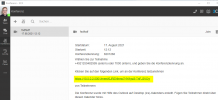
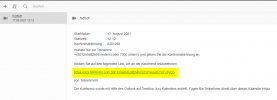
We use the new Windows Desktop Client after the V18 upgrade. I noticed the URL in the link to future meetings have the IP in them most of the time instead of the FQDN, but only if viewed inside the Desktop client. (The URL in the .ics file is correct with FQDN, though.)
This leads to unneccessary certificate warnings when the creator of a meeting start it later. (Since the certificate is issued only for the FQDN and not the IP.)

I find this very strange and would like to find a way to always use FQDN in meeting links, both for the creator of meetings and inside invitations.
 

Attachments

  • Desktop_Client_incorrect.png
    Desktop_Client_incorrect.png
    33.9 KB · Views: 4
  • Webclient-correct_FQDN.png
    Webclient-correct_FQDN.png
    19.3 KB · Views: 4
I find this very strange and would like to find a way to always use FQDN in meeting links, both for the creator of meetings and inside invitations.
This is happening because the client detects that it's on the same network as the 3CX Server and probably can't contact the server using the FQDN (loopback traffic is forbidden by most Firewalls).

Your solution here is to implement Split DNS.
Then, regardless where the Desktop App is, the links will always show with the FQDN.
 
Hello @NickD_3CX,
we already have split DNS in place. In my testing, the client is inside the office, so the FQDN resolves to the same IP value as shown in my example. Outside the office, the FQDN resolves to an external IP.
 
Hello @NickD_3CX,
we already have split DNS in place. In my testing, the client is inside the office, so the FQDN resolves to the same IP value as shown in my example. Outside the office, the FQDN resolves to an external IP.
In that case, during the installation of 3CX, did you select the option of having an Internal DNS Server and settings the FQDN the same to the external one?
That is all that should be required.
I just tried that also in our lab just now to confirm.
 
Thank you for the fast reply!
I'm not sure about the setting made during the installation. (It was 1.5 years ago, I now upgraded to V18 via Admin panel.) Is there any place I can check / correct this now?)
 
Thank you for the fast reply!
I'm not sure about the setting made during the installation. (It was 1.5 years ago, I now upgraded to V18 via Admin panel.) Is there any place I can check / correct this now?)
If you go to Settings --> Parameters, and search for "WEB_ROOT_LOCAL", do you see the Local IP of the 3CX Server of the FQDN?
In case you are wondering, no, changing this will make no difference, it will just break things, but if it is the IP, then during the installation the Internal DNS Server option was not selected.
 
WEB_ROOT_LOCAL shows the FQDN, also for WEB_ROOT_LOCAL_SEC. So I guess it was done right at install time?
 
WEB_ROOT_LOCAL shows the FQDN, also for WEB_ROOT_LOCAL_SEC. So I guess it was done right at install time?
That is strange then. In the Extension Settings of your extension, in the Phone Provisioning tab, select the "3CX App" and then in the Network drop-down, can you check the if the FQDN is selected?
If not, select it, press OK, shut the Desktop App down, then re-launch it again and create a new meeting.

If that still shows you the Local IP, could you send me the Desktop App log file in a PM?
You can find that here: %appdata%\3CXDesktopApp\logs\
 
Thank you, this was the solution!
I never realized I could select the FQDN in that settings tab. I changed it to that (first only for my extension, then with multi-edit for everyone else), then re-provisioned the Desktop App and it now shows the FQDN even for older meetings as well as new ones.

I'm curious - did I miss that in the manual? Can I make the FQDN the default for new extensions somehow?
 
Glad we found it!

Unfortunately not, but at least it is easy to set this globally as you can do this via Multi-select.
 
Hi @PeterCheng,


To clarify, yes. If you're scanning the QR code from a welcome email (or provisioning via the file attached for the Windows client), then it will seek both. Scanning from the Welcome Email is best practice.

However something to note, the QR code generation is dynamic, meaning that if you've logged into your WebClient via: https://localip:5001/webclient, it will generate a QR code that seeks the local IP, and if you log in to your PBX via https://myFQDN:5001/webclient, it will generate a QR code that seeks the FQDN.

I hope that clarifies it for you, feel free to ask if you'd like any further information.
Hello @VasilisV_3CX,
So if user uses welcome mail to install, both webclient and windows app will try to use both ip (local ip and external fqdn?)
An even after provisioning, every time user's windows app turns on, it will find both ip?
Thanks.

Peter
 
Hi @PeterCheng,

So if user uses welcome mail to install, both webclient and windows app will try to use both ip (local ip and external fqdn?)
The Webclient is logged into via a browser. The Windows App and Mobile App will attempt both and which ever responds first will be used. Which leads to your next question:

An even after provisioning, every time user's windows app turns on, it will find both ip?
Yes, it starts the process from scratch each time. If you were to change locations and the previous connection method was cached, it wouldn't be helpful.
 
Hi @PeterCheng,


The Webclient is logged into via a browser. The Windows App and Mobile App will attempt both and which ever responds first will be used. Which leads to your next question:


Yes, it starts the process from scratch each time. If you were to change locations and the previous connection method was cached, it wouldn't be helpful.
Hello Vasilisv,

For example, if in 3CX server I set 192.168.1.1 as internal server and 3cx.test.com as external server.
Every time I turn on the windows app, it will try to reach both 192.168.1.1 and 3cx.test.com.
If I'm in the office, it will reach 192.168.1.1 to register. If I'm then go outside, it will still try to reach both 192.168.1.1 and 3cx.test.com? or it has cached 3cx server was at 192.168.1.1 and won't try to reach both 192.168.1.1 and 3cx.test.com?
Thanks.

Peter
 
Hi @PeterCheng,

For example, if in 3CX server I set 192.168.1.1 as internal server and 3cx.test.com as external server.
Every time I turn on the windows app, it will try to reach both 192.168.1.1 and 3cx.test.com.
If I'm in the office, it will reach 192.168.1.1 to register. If I'm then go outside, it will still try to reach both 192.168.1.1 and 3cx.test.com?
Yes, this is correct.

Each time you open the Windows App it will restart the process and look for both again.

or it has cached 3cx server was at 192.168.1.1 and won't try to reach both 192.168.1.1 and 3cx.test.com?
Making this incorrect.
 
Hi @PeterCheng,


Yes, this is correct.

Each time you open the Windows App it will restart the process and look for both again.


Making this incorrect.
Hello Vasilis,

Thanks for your quicj response.
But for scenario 2, user does not turn off and turn on the winodws app.
He is in the office and 3CX windows app has registered.
If he does not turn off his laptop and go outside with its laptop,
and then the 3CX windows app will still find both or just find its local ip?
Thanks.

Peter
 
Status
Not open for further replies.

Forum statistics

Threads
112,349
Messages
592,027
Members
165,513
Latest member
megalmazan