Import 150 Hotdesking phones

Mickel den Ouden

Silver Partner
Joined
Sep 28, 2017
Messages
49
Reaction score
7
For a customer i need to import 150 Yealink T31P phones as hotdesking phones

For users i can use a CSV file but is it also possible to do it for hotdesking phones (there is no user)

3cx Version 20 Pro edition (Version 20.0 Update 10 (Build 1785 Release - AI 1.6.91)
 
Hi, unfortunately there is not bulk option for Hotdesking Phones.
 
Solution
Oke clear.
Can hotdesking phones be provisioned via 3cx Remote provisioning Server RPS?

I tried this but the phone stays on the change password screen after restart.
The phone is visible in PnP phones but I can not assign them because it says instandly.

"The device is already assigned to a User HD00001. Please delete the phone and try again."

If I delete the phone and restart the phone it wil be back in the PnP phones.

I am using a local SBC on a windows machine.
 
Hi @Mickel den Ouden yes RPS is supported.

  • Check this document regarding the hotdesking provisioning.
  • Make sure the phone is using the supported firmware
  • Factory-reset your phone; once it reboots, it will automatically provision through RPS (Remote Provisioning Server)
  • If your phone does not support RPS, use manual provisioning; for more information see Supported IP Phones
  • Hotdesking is supported for local provisioning or behind a 3CX SBC. If they are remote, make sure you have a connected 3CX SBC.
 
  • Like
Reactions: ivank
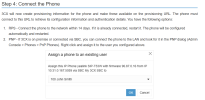
I am using a sbc so i think i can only use the PNP possibility (option2)

3cx hotdesking.png

but then the problem is i can only assign the phone to a user and i don't want that. I want it to be a hotdesking phone.
So I think that only with the DHCP option 66 i can get the Hotdesking phones in 3CX
 
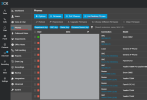
Are you adding the phones from here?

1795155222004.png
 
I can definitely help you with that!

Start by manually adding a phone through Hotdesking.
1- Take a screenshot of the phone model you're adding (make sure you don't share your FQDN and MAC address).
2- In the next step, take another screenshot showing the SBC you're selecting.

3- Share both screenshots here, and I'll provide you with a super simple script that'll let you enter your MAC addresses and import all the phones in bulk.
Guillaume,

Thank you very much.
I will publish the screen shots on monday.
 
  • Like
Reactions: Guillaume Bourgeois
@Mickel den Ouden as a first step ensure that the SBC will be up and connected. If the SBC is not connected to the PBX,
then the phones will never provision.
The PBX will not generate the config files of these phones since these is no endpoint to connect to, if the SBC is down.
 
  • Like
Reactions: JohnS_3CX
I can definitely help you with that!

Start by manually adding a phone through Hotdesking.
1- Take a screenshot of the phone model you're adding (make sure you don't share your FQDN and MAC address).
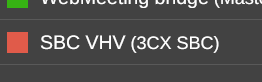
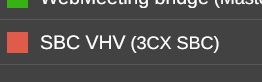
2- In the next step, take another screenshot showing the SBC you're selecting.

3- Share both screenshots here, and I'll provide you with a super simple script that'll let you enter your MAC addresses and import all the phones in bulk.
T31P hotdesking.pngT31P SBC.png

Here are the two screenshots.
If you need more information please let me know
 

Latest Posts

Forum statistics

Threads
112,567
Messages
593,345
Members
165,787
Latest member
SteveBMG