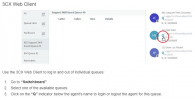
@CashinStudios to be able to see the Q button for each of the agents in the Queue, you will need to be defined as a Queue Manager. Otherwise you will only be able to see the agents as "Logged In" or "Logged Out"
My extension is set as the queue manager but it still doen't change the fact that what the article shows and what the actual webclient looks like are not the same.
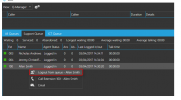
This is in the article.
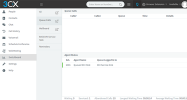
This is the web client.
Not the same at all.
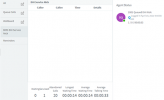
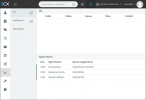
It took forever to figure out that you had to click on the extensions' name to the right of the circle (see image below) to log the agent in (based on the hover box that appeared), but even that did not work. I had to log into the extension that needed to be logged in to log it into the queue.
Please bear in mind that all screenshots in the said guide are from the 3CX App (Windows) and not from the 3CX Webclient. The only screenshots that are not from the 3CX App(Windows), specify where they are from right above them (2nd image: Deskphone, 5th image 3CX Webclient)
Regarding having the Queue Manager Log agents in and out of queues, do note that the article contains the exact steps required to do so via the 3CX Webclient along with a screenshot:
Note: As mentioned at the very end of the article, Queue Managers can only explicitly log agents in and out of queues.