Hi Patrick,
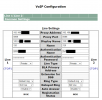
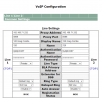
Both supported and unsupported devices will appear this way, this is a normal thing to see.
It won't auto provision because 3CX just doesn't recognize that model so it's not related to any PBX setting or anything like that.
I don't think you missed anything that I can see of, it appears you have set the fields correctly. I think your options are what we mentioned earlier:
- check it did not get blacklisted
- then you have to do your own SIP troubleshooting if you can do so
+ possibly the manufacturer can give you some help if you ask them
General notes for all Forum Members, on unsupported phones:
- While most SIP devices should in theory manage to connect, that is not always the case..
- Some of them have restrictions that make them ineligible ie. you might see what went wrong, but there might not be a setting to adjust for it or the firmware might simply not support what you want.
- This can be more of a problem especially for older End-of-Life products which buyers find in batches and for very low prices
- If you are looking for low cost 2nd hand phones for Business use, don't go for unsupported devices. At the very least look for older gen. supported which models will be more likely to work especially for local server installations
- Weigh the low monetary EOL device cost against the higher time-cost you will spend to support/troubleshoot/maintain and babysit devices that have no future support, warranty, or firmwares updates on the horizon
- Talk to a
3CX Partner who can potentially suggest a better solution than what you currently have in hand. They might surprise you with what you can get!
- Consider using the 3CX client on a desktop computer, or on your mobile phone. It's included with your PBX anyway, and gets regular updates from us for features, bugfixes, and security updates.