On v18, access to the terminal was provided within the management console.
Is this gone now in v20?
The terminal in version 18 didn’t offer the shutdown option. It was simply an API with a few options that were integrated into the graphical interface (reboot, IP, virtual system name, etc.). It was not equivalent to SSH.
In cases where the system is hosted by 3CX, you can shut down the virtual machine via the customer portal at customer.3cx.com.
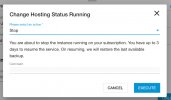
The purpose of this is for migrating systems from one hosting provider to another, to free up the FQDN for the new machine to take over.
My solution:
On the virtual machine to be decommissioned, in 3CX ;
Perform a full backup of 3CX.
Export the custom CRM templates (if applicable) and parameter values, as, if I remember correctly (though I could be wrong), they are not included in the backup.
Same for custom SIP Provider templates
Go to the "Phone" tab and take screenshots to compare after the migration.
This will help you determine if all the phones have registered to the new PBX as expected.
Let’s proceed from here;
go to Admin > Advanced > Network.
Modify the static public IP and insert the new public IP of the new VM (even if it doesn’t actually match the public IP of the current machine).
Save the changes.
Don’t forget to inform your SIP provider that the public IP has changed if the trunk uses IP-based authentication. This is a good opportunity to switch it to "Register / without IP authentication" mode.
Since 3CX uses this value to propagate the IP behind its FQDN, there is no risk of the FQDN pointing back to the old IP.
(Bonus tip: Disable inbound and outbound calls on the SIP TRUNK in 3CX. You’ll thank me later.)
Disable the following services via the services page:
- 3CX PhoneSystem 01 AudioProvider
- 3CX PhoneSystem 01 SIP Server
- 3CX PhoneSystem 01 System Server
- 3CX PhoneSystem 01 IVR Server
- 3CX PhoneSystem 01 Call Flow Server
- 3CX PhoneSystem 01 Queue Manager Server
- 3CX PhoneSystem Media Server
- 3CX Event Notification Manager
- 3CX Gateway Service
Restore the backup on the new virtual machine at the new cloud provider.
Once the migration process is complete, submit a request to delete the old virtual machine to the previous provider.
Use your screenshots to compare and ensure that all the phones have successfully refreshed their DNS resolutions.
If by mistake someone restarts the services on the old machine (By mistake), the impact will be minimal because:
a) The propagated public IP is the same.
b) Your 3CX won’t register with providers since inbound and outbound calls are disabled!
Speaking from experience,
I had to move around 100 3CX virtual machines from one data center to another!

Good luck!


