- Joined
- Oct 4, 2016
- Messages
- 8
- Reaction score
- 0
First, is there detailed documentation that describes each field and it's function?
I need to have users setup their own office hours. With the default group they don't seem to have any options to do that. What permissions are required to allow them to do this? I don't want them being able to change anything else in the system.
When using the Admin console I can certainly set the "Global" office hours. That works fine.
When using the Windows or Desktop client as a Manager of the Default group and with all permissions checked I can see the "Admin" option at the bottom of the screen. Ok, from there I can go to the "Office Hours" tab and set those options. What "Office Hours" are being set there? The Default group's Office Hours? And then how do the options for call routing apply? Do these settings only apply when a DID is configured? Where is the explanatory documentation.
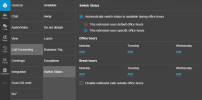
Ok, I can also go to the Users tab, select a user and set a "Schedule" there. My only choice is to enable the "Automatically switch status to available during office hours" option in order to create the "Extension specific Office hours". That works fine until the user goes on vacation. Then what? Or they are out sick? Then what to do?
Would someone please enlighten me on how to get complete documentation on this functionality.
Any assistance would be greatly appreciated as I don't have the time for trial and error learning on this product.
Thank you!
John
I need to have users setup their own office hours. With the default group they don't seem to have any options to do that. What permissions are required to allow them to do this? I don't want them being able to change anything else in the system.
When using the Admin console I can certainly set the "Global" office hours. That works fine.
When using the Windows or Desktop client as a Manager of the Default group and with all permissions checked I can see the "Admin" option at the bottom of the screen. Ok, from there I can go to the "Office Hours" tab and set those options. What "Office Hours" are being set there? The Default group's Office Hours? And then how do the options for call routing apply? Do these settings only apply when a DID is configured? Where is the explanatory documentation.
Ok, I can also go to the Users tab, select a user and set a "Schedule" there. My only choice is to enable the "Automatically switch status to available during office hours" option in order to create the "Extension specific Office hours". That works fine until the user goes on vacation. Then what? Or they are out sick? Then what to do?
Would someone please enlighten me on how to get complete documentation on this functionality.
Any assistance would be greatly appreciated as I don't have the time for trial and error learning on this product.
Thank you!
John