Unlinking M365 Account from 100 System Owner

benb_atlantis

Customer
Joined
Sep 9, 2025
Messages
4
Reaction score
1
I used the default '100 - System Owner' user to do my testing before deciding to switch our company over to 3CX. Now I am in the process of setting up the full company and my email needs to be associated with my normal '205' extension. I have the M365 Integration working and I had tested this on the 100 account with my email. Now, if I set my email to the 205 extension and set a different email to the 100 extension, whenever I enable M365 syncing the 100 account gets reset with my email and M365 information. I'm only syncing selected users and I have only selected myself. No matter what I do, I cannot get the 100 account to not reference my email and attach to the sync. Can anyone help me out here? Is the 100 account tied to my email because my email is the owner of the 3CX license? Thanks!
 
Hello @benb_atlantis ,

For this, i am not 100% sure, but please check in M365, you account will have the '100' there assosiated. Then change this '205' at M365 to correct it with the 3CX setup.

Hope it does help, or that someone knows exactly what it is.

Paulo
 
Do you know where in M365 this would be? I'll poke around in the admin center and see if I can find anything today.
 
Okay, I've figure it out.

  1. Go to 3CX -> Admin -> Users -> Click M365 -> Uncheck Sync Microsoft Users -> Click Save
  2. On the 100 user, change the email to a different user email.
    1. This user has to have a license in M365, it can't be a shared mailbox or a distribution list email.
    2. I used our [email protected] email. At first I couldn't find this in the sync list in the next step. That is because it did not have a First and Last Name set in the user profile on admin.microsoft.com -- make sure the user has both first and last name set.
  3. In 3CX, click M365 again -> Check Sync Microsoft Users -> Configure which users = Sync only -> Select Users -> Select only the user that was just set to the 100 user's email - Click Save
  4. In my case, a new extension was created for the Do Not Reply user on extension 101. Now, both extension 100 and 101 say they're for [email protected], there is a red warning triangle on both extensions that says this email is a duplicate, and only the new 101 extension shows the icon for M365 sync.
    1. This occurred because my 3CX First/Last name did not exactly match my M365 First/Last name. So, I deleted the 101 account and configured the 100 account so that the first and last name fields matched the M365 user. After enabling/disabling M365 sync again, the M365 sync icon is now with the 100 extension and no new extension was created.
  5. Finally, in 3CX, click M365 again -> Check Sync Microsoft Users -> Configure which users = Sync only -> Select Users -> Selected my user -> Click Save.
    1. Now, my 205 account that was setup with my name and email address is properly syncing with my M365 account.

This whole process could be improved by the 3CX team to make linking/unlinking more transparent. The 100 extension cannot be deleted and is the only extension created on startup of a new 3CX instance so I would expect a lot of people will run into this issue. I hope this helps others with the same issue.
 
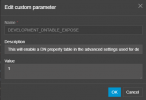
Another thing you can do to fix is go to
https://______/#/office/advanced/parameters

Then search for and set DEVELOPMENT_DNTABLE_EXPOSE to be 1
1758898240991.png
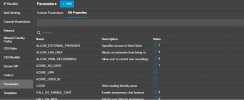
after hitting ok click off the parameters tab and go back to it, click on the new DN Properties tab, search for the user in question, and delete the AZURE_AD_USER, AZURE_UPN, and AZURE_USER_ID parameters.
1758898342808.png

These are what gets used to sync previously mapped users to 365
 
That worked! I was looking around for a way to edit the 3CX config files and figured it had to be possible, but couldn't find these parameters. Thank you!
 
  • Like
Reactions: Colby D.