v20 Softphone - "Microphone not found"

midlandsgingerbread

Bronze Partner
Advanced Certified
Joined
Sep 7, 2023
Messages
3
Reaction score
0
Having this appear as an error on the latest Windows 3CX App. PBX is on V20, the majority of customers are able to use the 3CX app fine. However we are running into the odd few that get "Microphone not found".

Has anyone else experienced this? For reference everything was working fine on V18.
 
Hi @midlandsgingerbread

The "Microphone not found" means that the browser did not detect a microphone on the PC that you are using to log in to the extension.
Have you connected a microphone on that PC?
Also check the browser's permissions, as the permissions for the microphone need to be allowed from the browser's settings.
 
Hi Nikolas,

It is the v20 softphone that is downloaded from the Microsoft Store, not the PWA. Previous v18 softphones were working fine.

Thanks
 
Make sure that 3CX has permission to use the microphone.

Steps for Windows 10
  • Start > Settings > Privacy > Microphone

Steps for Windows 11
  • Start > Settings > Privacy & security > Microphone.
 
@midlandsgingerbread as suggested by @Guillaume Bourgeois, please check that 3CX has Microphone permission.

If not, please enable verbose logs and send them as a private message to me
To enable Verbose logs:
Click on More > About > Click on version 12 times
This will take you to settings page
Enable verbose logs at the very end of the setting page
Close the app and exit from system tray
Launch the app
Go to settings and click on microphone dropdown to confirm it is empty

Extract the log from here: C:\Users\{YOUR_USER}\AppData\Local\Packages\3CXDMCC.3CX_bhm4yemhnd70e\LocalCache\Local\3CXSoftphone
and sent it to me
 
  • Like
Reactions: Guillaume Bourgeois
I am having the same problem. Using Zoom - webcam and mic work perfectly. In v20 3cx webcam works but cannot find microphone! Checked privacy security settings. Need this to work! Had to revert to POTS to make call - embarrasing

FYI - I am using the windows 3cx web interface - Windows 11. Worled fine w/ v18
 
Successfully made a call with my webcam set to Microphone and looks good.

@micro13 could you please send us logs to take a look at this problem from your end?

Please enable verbose logs and send them as a private message to me

To enable Verbose logs:
Click on More > About > Click on version 12 times
This will take you to settings page
Enable verbose logs at the very end of the setting page
Close the app and exit from system tray
Launch the app
Go to settings and click on microphone dropdown to confirm it is empty

Extract the log from here: C:\Users\{YOUR_USER}\AppData\Local\Packages\3CXDMCC.3CX_bhm4yemhnd70e\LocalCache\Local\3CXSoftphone
and send it to me
 
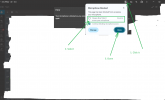
Hello everyone. Windows 11 gives challenges every day. Please check the picture. That is how my problem was solved. Regards.
 

Attachments

  • mic-4.png
    mic-4.png
    123.9 KB · Views: 29

Forum statistics

Threads
111,893
Messages
589,594
Members
164,759
Latest member
mschzias