Solved Webmeeting not working: troubleshooting page is displayed

Status
Not open for further replies.

giox069-b

Forum User
Joined
Mar 27, 2020
Messages
12
Reaction score
3
Suddenly our 3CX webclients are unable to access webmeeting (they are all using Chrome browser, latest version).

When the user clicks on the webmeeting button of 3CX webclient, the Troubleshooting page appears.

See screenshot.
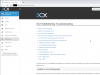
2020-10-13 15_52_46-WebMeeting - 3CX Webclient.png

No other error informations are reported here.

What should we do ?
 
Hello,

If this happened today (and worked fine before) then you will have to check through the troubleshooting guide above and run through all the steps

You can also check on your management console whether the system has synchronized, and if you want you can click here, then you will see a Synchronize button on the next page.

1602598920062.png
 
Yes, it happened today. We noticed that not all clients are affected.

Webmeeting Synchronizazion is OK.

I'm trying to follow the troubleshooting guide now... I will report back later.
 
Sure, let us know how it goes
 
I can't see special problems with troubleshooting guide.
We also rebooted all the 3CX server completely twice.

I can confirm it's a user profile related problem: only some users are affected.

From the same PC, I open chrome, logon as affected user, and the problem appears. I logoff from webapp and re-logon with another user (without closing Chrome browser), and the second user can access webmeeting with no problem.
 
I see, thanks for confirming. You can try the following solution on one of the problematic users and see if this helps:

1. Edit the extension
2. Go to Click2Talk/Click2Meet and disabled them (if enabled)
3. remove email address from extension
4. Press OK to save
5. Edit extension again and add email back
6. Enable Click2Talk/Click2Meet (if needed)
7. Press OK to save

Now check to see if the problem has been solved for that user.
 
Still not working. Tried on two users.
Please note that step 3. cannot be done: e-mail address cannot be blank. So I replaced it with a different e-mail address.
 
Then the procedure was not successful. It's important that the email is removed, then the settings saved.

If you got the message that this email cannot be blank, then perhaps you missed step 2 or perhaps you have Voicemail settings to send email notifications?
 
Yes, it worked: disabling voicemail allowed me to put a blank e-mail address and save. Then I restored e-mail, voicemail and other settings and now it's working.

So the ultimate guide should be:

1. Edit the extension
2. Go to Click2Talk/Click2Meet and disabled them (if enabled)
3. Go to Voicemail tab and disable it
4. remove email address from extension
5. Press OK to save
6. Edit extension again and add email back
7. Enable Click2Talk/Click2Meet and Voicemail (if needed)
8. Press OK to save
 
Thanks for confirming, glad to hear that this solution resolved the issue.
 
And thank you for your support :)
 
Status
Not open for further replies.

Forum statistics

Threads
111,973
Messages
590,077
Members
164,896
Latest member
sameage