3CX Debian Linux - Management Console not reachable (ERR_CONNECTION_REFUSED)

Status
Not open for further replies.

Ryan Fisher

Customer
Intermediate Cert.
Joined
Mar 9, 2018
Messages
6
Reaction score
1
We have a 3CX installation (v16) using Debian Linux (version 9) on a Raspberry Pi that we can no longer reach the management console for. We have had it working for several months but after a recent reboot, the console is no longer accessible. We have used Chrome and Edge but we still get ERR_CONNECTION_REFUSED. We have tried accessing it using its local IP address (so in this case: https://localipaddress:5001/) but the same error occurs. There are other 3CX installations on the same network that are still reachable and we have looked at the entries in iptables and can see that the port rules are there on this instance. I have restarted all 3CX services (sudo 3CXStopServices followed by sudo 3CXStartServices), restarted nginx (sudo service nginx restart) and verified that all services were running but this has also made no difference. Any advice would be much appreciated.
 
Can you try the following and let me know what you see?

• Try running the following command and please provide a screenshot:
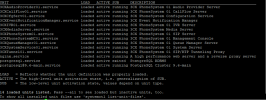
sudo systemctl list-units 3CX* nginx* postgr*

• What do you see if you run:
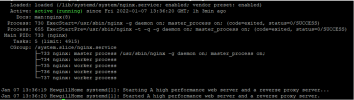
sudo service nginx status
Please provide a screenshot

• Try, from the same network, and access http://<LOCAL_IP>:5000
What happens?

• Try, from the same network, and access http://<LOCAL_IP>:5004
What happens?

• Have you tried restarting the Pi completely?
 
Hi Chris,

See attached screenshots. Same error occurs when attempting to access via http://<LOCAL_IP>:5000 and http://<LOCAL_IP>:5004. We've tried several reboots but this has made no difference unfortunately.
 

Attachments

  • sudo service nginx status.PNG
    sudo service nginx status.PNG
    160.1 KB · Views: 38
  • sudo systemctl list-units 3CX nginx postgr.PNG
    sudo systemctl list-units 3CX nginx postgr.PNG
    259.9 KB · Views: 38
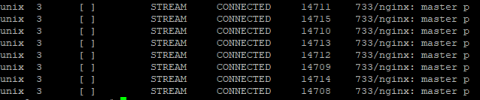
Could you perhaps try the following command to confirm the ports the services are listening to?

netstat -pano | grep '5001\|5004\|443\|5000'

Also, do check the local IP of the Pi and confirm that it is the correct one you are using when trying to access http://<LOCAL_IP>:5000 and that the specific Local IP is actually reachable from the PC you are connecting from.
 
Hi Chris,

I'm definitely using the correct local IP address and can definitely reach it. I'm using PuTTY on my PC to SSH onto the Pi to get the screenshots (pinged the IP for a full minute without any packet loss as well). See attached for the results of netstat.
 

Attachments

  • netstat -pano grep.PNG
    netstat -pano grep.PNG
    21.4 KB · Views: 12
It seems that nothing is listening on port 5001,5000 or 443, try:
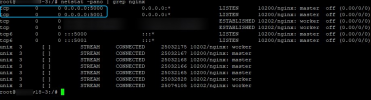
netstat -pano | grep nginx
 
Hi Chris,

See attached for the result of netstat -pano | grep nginx
 

Attachments

  • netstat -pano grep nginx.PNG
    netstat -pano grep nginx.PNG
    14 KB · Views: 19
It should've looked something like this:
1641570516782.png

If you cannot see this at all then I'd recommend, rather than troubleshooting the issue that you simply redeploy using a backup to restore your configuration as it would be much easier and faster.

If you do not have a recent backup, check your backup location for one. The default backup location is:

/var/lib/3cxpbx/Instance1/Data/Backups

If you do not have a recent enough backup you could try creating a new one via CLI. You can find info on how to do this in this guide: https://www.3cx.com/docs/backup-restore-command-line/

Once you've got the backup, move it away from the host and reflash the Pi's SD card with the OS to re-install 3CX. You can find a link to the OS image along with an installation guide here: https://www.3cx.com/docs/installing-pbx-raspberry-pi/

This will install 3CX v18 and Debian 10 so you'll actually be also upgrading both OS and 3CX which you would've had to do at some point anyway so I think this is a good opportunity.

Note: Before you proceed, make absolutely sure that the backup file is v16.0.8.9. You can check this by accessing the file and reading the .xml file in the root directory. The very top of the xml file should say the version. Create a copy of the backup file before accessing it and only access the copy as a precautionary measure to avoid corrupting the backup.
 
Status
Not open for further replies.

Forum statistics

Threads
111,974
Messages
590,083
Members
164,901
Latest member
Silent_Guru