3CX Desktop App doesn't start anymore after restart

Status
Not open for further replies.

Radec

New User
Joined
Jan 14, 2023
Messages
6
Reaction score
0
Hi all,

I have an issue deploying the 3CX Desktop App to our client devices. The devices are managed by Intune. The user accounts on Windows are Standard accounts (no administrator rights). Devices are installed with Windows 10 Enterprise 22H2.

3CX Desktop App version: 18.11.1197

When we install the application manually or by user level deployment through Intune:

1. The Application installs correctly and starts.
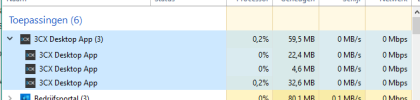
2. When you completely close the application and re-open it again, it does not start anymore (you see it open as a background process in task manager. When you doubleclick the 3CX Desktop App once more the window appears but is completely blank (and in the task manager you see the background process replaced by an application process).
3. When you restart the device, you see that the service starts, but again nothing happens. Only when you doubleclick the 3CX Desktop App once more you'll see the same blank screen.

When we install the application with administrator rights and with the ALLUSERS=1 parameter the same happens as described under 2 and 3 above.

What we notice is that when the useraccount in question is an Administrator of the device, the application just works perfectly fine. It only doesn't work for non administrator accounts. It seems unlikely that a standard user cannot use this application right?

Log file attached.

Kind regards,

Radec

 

Attachments

  • attachment 2.png
    attachment 2.png
    7.7 KB · Views: 32
  • attachment 3.png
    attachment 3.png
    16.5 KB · Views: 32
  • attachment 1.png
    attachment 1.png
    12.4 KB · Views: 31
  • main.log
    main.log
    7.8 KB · Views: 11
I assume you’ve tested a “fresh” install on a machine - client uninstalled, registry entries in HKCU and HKLM cleared, and the following directories deleted (if present): ".\Program Files\3CXDesktopApp", ".\AppData\Local\Programs\3CXDesktopApp", and ".\AppData\Roaming\3CXDesktopApp" ? If not, do so.

Do you have a copy of the previous version of the client (18.10.x) to test with?

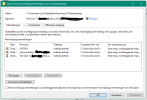
The log shows it’s failing to read a shortcut. You state if the user has admin rights it works fine. So as a non-admin try launching the app “as an administrator” and authenticate with admin credentials. If it works then this is very likely a permissions issue. If this is a per-user install then check which account is the owner of the install directory and the permissions assigned to the user: ".\AppData\Local\Programs\3CXDesktopApp". If it's a machine-install then check the permissions of the user's roaming directory: ".\AppData\Roaming\3CXDesktopApp". For either directory the owner should be the user, and SYSTEM, the Administrators group, and the user should all have full control.
First of all, thank you for helping me out. Yes I am also having this issue with version 18.10.461 unfortunately.

Before installing:

- The machine is freshly installed
- No prior registry keys of 3CX
- Both AppData Local and Roaming don't contain 3CX
- Program Files doesn't contain 3CX

Installation:

I am installing the latest version 18.10.461 by double clicking the MSI as the current signed in user. Installation goes without issue and the application automatically starts and runs without any issues.

Then when you restart your computer/or close the application from the tray icon, it doesn't work anymore, you're getting the problems which I described in the initial post.

- If I launch the application as "Other User" and then sign in with administrator credentials. The same issue arises.
- When I add the current user to the Administrators group (through lusrmgr.msc) and restart the device, the application starts working again with no issues.

Added a screenshot of the folder rights.
 

Attachments

  • attachment1.png
    attachment1.png
    38.3 KB · Views: 16
Are you provisioning the desktop app via the web client first before launching the app? As a standard user, make sure the desktop app is closed then proceed with the normal provisioning steps for the desktop app.
Yes, but that doesn’t make a difference unfortunately.
 
I think I'm up to something. Does 3CX make use of PowerShell in the background? We're blocking the use of administrative apps for standard users:

<RuleCollection Type="Exe" EnforcementMode="NotConfigured">
<FilePathRule Id="fd686d83-a829-4351-8ff4-27c7de5755d2" Name="(Default Rule) All files" Description="Allows members of the local Administrators group to run all applications." UserOrGroupSid="S-1-5-32-544" Action="Allow">
<Conditions>
<FilePathCondition Path="*" />
</Conditions>
</FilePathRule>
<FilePathRule Id="ce9d9fd5-d765-48df-b87b-e1bafd5653ed" Name="All files" Description="Allows members of the Everyone group to run applications that are located in any folder." UserOrGroupSid="S-1-1-0" Action="Allow">
<Conditions>
<FilePathCondition Path="*" />
</Conditions>
<Exceptions><FilePublisherCondition PublisherName="O=MICROSOFT CORPORATION, L=REDMOND, S=WASHINGTON, C=US" ProductName="MICROSOFT® WINDOWS® OPERATING SYSTEM" BinaryName="powershell.exe">
<BinaryVersionRange LowSection="*" HighSection="*" />
</FilePublisherCondition><FilePublisherCondition PublisherName="O=MICROSOFT CORPORATION, L=REDMOND, S=WASHINGTON, C=US" ProductName="MICROSOFT® WINDOWS® OPERATING SYSTEM" BinaryName="powershell_ise.exe">
<BinaryVersionRange LowSection="*" HighSection="*" />
</FilePublisherCondition><FilePublisherCondition PublisherName="O=MICROSOFT CORPORATION, L=REDMOND, S=WASHINGTON, C=US" ProductName="MICROSOFT® WINDOWS® OPERATING SYSTEM" BinaryName="reg.exe">
<BinaryVersionRange LowSection="*" HighSection="*" />
</FilePublisherCondition><FilePublisherCondition PublisherName="O=MICROSOFT CORPORATION, L=REDMOND, S=WASHINGTON, C=US" ProductName="MICROSOFT® WINDOWS® OPERATING SYSTEM" BinaryName="regedit.exe">
<BinaryVersionRange LowSection="*" HighSection="*" />
</FilePublisherCondition>
</Exceptions>
</FilePathRule>
</RuleCollection>


When I unblock these executables, the application starts working. Could someone confirm the use of PowerShell?

Kind regards,

Radec
 
I enabled PowerShell Transcription, and I don't see the app utilizing PowerShell. I think you are on to something... I see you're blocking access to reg.exe. Remove that from the block rules since it's used to both query and write to the registry - where the user has permissions to. This is likely the cause.
Thank you, I have a feeling you are right! I will test this tomorrow for you and post back my findings.
 
I enabled PowerShell Transcription, and I don't see the app utilizing PowerShell. I think you are on to something... I see you're blocking access to reg.exe. Remove that from the block rules since it's used to both query and write to the registry - where the user has permissions to. This is likely the cause.
I couldn't let it go haha. I've removed reg.exe and regedit.exe whilst keeping PowerShell blocked. It works! Thank you a lot for thinking this out with me.

I know there is also a GPO to block regedit instead of using AppLock. Maybe I'll find a nice middle ground so that on one hand the 3CX app will function and that the registry isn't easily available by the end user.
 
Status
Not open for further replies.

Forum statistics

Threads
112,351
Messages
592,041
Members
165,515
Latest member
fngl