3CX Desktop App (Microsoft Store version) closes instantly on startup / flashes for a second

nikolay971

SMB User
Joined
Jul 13, 2026
Messages
4
Reaction score
0
I am having a major issue with the 3CX Desktop App installed from the Microsoft Store. It completely refuses to open on three different laptops.

Symptoms:

  • When I click the app icon, nothing happens on the screen.
  • If I open Task Manager and try to launch the app, I can see the 3CX process appear for a split second, and then it immediately disappears.
  • There are no error messages, no windows opening, and no crash reports shown to the user.
What we already tried:

  • Completely uninstalled and reinstalled the app from the Microsoft Store.
  • Used the "Reset" and "Repair" options in Windows Apps Settings.
  • Tried changing the Windows region.
  • Completely disabled the antivirus software.
  • The Web Client version works fine in the browser, but the Desktop App from the Store just flashes and dies instantly.
All laptops are standard standalone Windows 10/11 machines (not in a corporate domain). Interestingly, if I download the same app from the Store on my personal home laptop, it works perfectly fine. But on these specific machines, it just won't start.

Please help, what could be causing the Store app to crash instantly without any error?
 
I personally would stay within latest stable (currently Version 1.8.11 (1.8.260804001))

did you install? and still get same events in win eventlog?
 
I personally would stay within latest stable (currently Version 1.8.11 (1.8.260804001))

did you install? and still get same events in win eventlog?

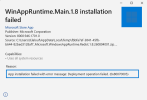
If I try to run the Microsoft.WindowsAppRuntime.Main.1.8.msix file, I get this error message:

1786645823460.png

In case it makes a difference, the logged in user I'm running this with is a local administrator
 
source: https://www.3cx.com/docs/troubleshoot-softphone/#h.cchdnjyc7tbm

As an Administrator, copy msix from unzip SDK ..\Microsoft.WindowsAppRuntime.Redist.1.8.260804001\MSIX\win10-x64\Microsoft.WindowsAppRuntime.Main.1.8.msix to your personal downloads folder

then Run the following command in Powershell with Administrator rights:

$path = "$env:USERPROFILE\Downloads\Microsoft.WindowsAppRuntime.Main.1.8.msix"

Add-AppxProvisionedPackage -Online -PackagePath $path -SkipLicense -LogPath "C:\Temp\Main_Provision.log"
 
source: https://www.3cx.com/docs/troubleshoot-softphone/#h.cchdnjyc7tbm

As an Administrator, copy msix from unzip SDK ..\Microsoft.WindowsAppRuntime.Redist.1.8.260804001\MSIX\win10-x64\Microsoft.WindowsAppRuntime.Main.1.8.msix to your personal downloads folder

then Run the following command in Powershell with Administrator rights:

$path = "$env:USERPROFILE\Downloads\Microsoft.WindowsAppRuntime.Main.1.8.msix"

Add-AppxProvisionedPackage -Online -PackagePath $path -SkipLicense -LogPath "C:\Temp\Main_Provision.log"
The user with the issue is no longer available, but I'll give this a try tomorrow morning and provide feedback.

I appreciate your help @longtimefirsttime !
 

Forum statistics

Threads
112,142
Messages
590,937
Members
165,159
Latest member
Isuru Eranga