3CX PWA: switch microphone audio in active call

Stadt Freilassing

Premier Customer
Joined
Feb 19, 2025
Messages
1
Reaction score
0
Using 3CX PWA on Windows 11/Chrome we want to switch the audio in an active call from Yealink BT51 headset to a Yealink CP700 speakerphone. This works for the audio output but not for the microphone. While a call is active the user navigates to "Settings -> Audio/Video" and changes the settings for "Speaker" to the "CP700" speakerphone. That works. Doing the same for "Microphone" does not work until either the Bluetooth Dongle for the BT51 headset is pulled out of the PC or a new call is made. Is there any other way to achieve that without having to make a new call?

Thanks a lot!
 
While testing an audio issue I had parked calls and then picking it back up again is a new call and uses the new settings. I don't recall if I tried Hold.
 
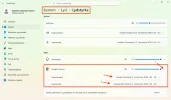
On Windows, I’ve had success selecting the headset/audio source directly in the Chrome browser.
Windows settings for 3CX (applies to Windows only)
  1. Right-click the speaker icon in the taskbar.
  2. Select “Open Volume Mixer.”
  3. Under “Apps,” expand “Google Chrome.”
  4. Under “Output device,” select your headset (Speaker), such as “Headset Earphone - Sennheiser SDW x BS - EU” or “Yealink WH64.”
  5. Under “Input device,” select your headset (Microphone), such as “Headset Microphone - Sennheiser SDW x BS - EU” or “Yealink WH64.”
 

Attachments

  • 6684cdc8-26b3-4c6c-8589-cee5127e801d.webp
    6684cdc8-26b3-4c6c-8589-cee5127e801d.webp
    142.9 KB · Views: 7