3CX Virtualbox Install

Status
Not open for further replies.

scorpuk

Free User
Joined
Oct 22, 2020
Messages
5
Reaction score
4
I just completed an install with the iso in virtualbox.

I now need to go in and create a folder so that I can set that up as a shared folder to pull the backups.

However, I am not sure as to what username and password to enter in the tty1 login screen:
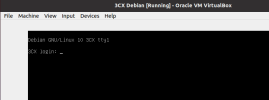
3cx-vm-login.png

I have tried the console username and password, but that fails:
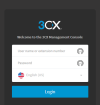
3cx-user-console.png

Also tried SSH and same issue on username and password as above.


Tnx.
 
You should not be using VirtualBox. It's not supported.

There's a Windows version you can install if you wanna run this on your own machine.
 
You should not be using VirtualBox. It's not supported.

There's a Windows version you can install if you wanna run this on your own machine.
Thank you ConceptsWeb for your answer, but why is this url available then?


https://www.3cx.com/docs/debian-linux-using-virtualbox/


My question is on accessing the console via the VM machine. I am guessing that no matter which virtual software i use I would be getting to the exact same question as the debian ISO does not include a desktop and is only accesible via cli on tty.


Thank you.
 
  • Like
Reactions: Evolute IT
The root user is part of the install process, I am not sure how you could have gone through the setup without entering a root password, 3CX can be installed on a VM, but you MUST use the IOS file from this link download the latest 3CX ISO. I have never tried to use Virtualbox, and as @ConceptsWeb pointed out it is not supported. You may want to use the windows installer or change to VMware ESXI
 
  • Like
Reactions: Evolute IT
Or use Hyper-V in Windows 10,11
 
@SnakeRiverWebDevelopment I used the ISO. I gave it an admin password. I remember having to type it in twice. Yet it still doesn't work. It may not be supported for full deployment, but it is supported for testing. If not then 3CX need to remove that article.

@ConceptsWeb I need to deploy in Linux, so not an option.


This is deffo a hold for me going paid!


  • Like
Reactions: Evolute IT
I gave it an admin password. I remember having to type it in twice.
That password is for root, this will allow SSH login. At the end of the install did you see this
heq1DiMqrVqB7jgIe8r8DKuhanRIqhjr7nsWQG7Y5pkGOQb2rIQHkIzoYZmkJhti_WPML_9RjcHgzHNAG2ZgoshQGeiQVacMntn3qt9L6lpUS2nuyUd-2z2eYEJ4jnc4OzXsbXAnrcRSQhHA


if so what did you do next? if you selected 1 you would have had to go to
  1. Use a web browser on http://<ip of machine>:5015 by selecting option 1
SHcY3ARjDGQ7QFwcJIwaTZm66xZrfz5e6NdYKP3xnXSmOvJnir0U2Afn4MsHI5vfI-62KCePrubccVmH3LH3B-Ja7k81hdTHIcvl6_jAEkD8sgV596ipBWKadUTL_O3MPEFXKNihw6X-fiOZ


at the end of this your admin username and password would have bee on the finial screen something like this,

You can access the 3CX Management console here: https://XXXX.3cx.us:5001 or via IP: https://192.168.1.55:5001
Username: admin
Password: password
Public IP: 192.168.1.55
FQDN: XXXX.3cx.us
License key is: XXX-XXXX-XXX-XXX

if you did not see this, your install may not have been complete. You may want to try VMware Player . I hope this helps.
 
Thanks @SnakeRiverWebDevelopment

I selected option 1 and then selected to restore from a backup. I was originally running on a Pi4.

Hmm I think I do remember that screen, but silly me never took a screenshot of it. :rolleyes:

I am now less concerned with gaining access to the base system as I just saw "download" in the backup section. DOH!


Tnx.


Edit: Everything appears to be working as it did on the Pi4. Even the unsupported HT813. :cool:
 
Status
Not open for further replies.

Forum statistics

Threads
111,974
Messages
590,081
Members
164,899
Latest member
mazet