Access to Ideas Forum - Break in messages for Queues

Status
Not open for further replies.

A-A-ron

Bronze Partner
Basic Certified
Joined
Oct 12, 2017
Messages
5
Reaction score
0
How do we get access to the Ideas Forum? I wanted to post this there but I don't have a post button on the Ideas forum but I do in the other forums.

Every phone system I know that has call queue support, also support break in messaging. I can't believe 3cx doesn't have this feature yet. It shouldn't be that hard to implement as all it would be is either 1 messages played every x seconds or a "playlist" style of messages that would be one message from that play list every x seconds. I tried doing something like this with the music on hold playlist but the challenge there is the MOH is always streaming in the background so each caller doesn't start at the beginning of the play list. They already have the announce caller position prompt so just adding another section for break- in messaging should be straight forwards.
 
How do we get access to the Ideas Forum? I wanted to post this there but I don't have a post button on the Ideas forum but I do in the other forums.
From an old blog post and forum post:

In addition to the new forum categories, we have also changed the way that the Ideas forum works so that only Gold, Platinum, Titanium Partners and Premier Customers can contribute ideas. The entire population of the forum will still be able to vote.

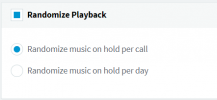
As for your issue, look at the playlists (Settings > MOH > Playlists). You can also configure the MOH to be randomized per-call and not per-day:

1626126329680.png
 
  • Like
Reactions: VasilisV_3CX
We have also discovered it is possible to programmatically barge into a call and play a message on a scheduled basis.
 
  • Like
Reactions: Evolute IT
Yes I have that unchecked so it wont randomize the play list. It is playing the list in order but the problem being is since the MOH is like a radio station it depends what time the caller tunes in on what part of the play list they start to hear. So they could be tuning in at the middle of the second wav file instead of all calls starting at the top of the play list. So it doesn't make it an effective break in announce tool as you never know where the caller is going to start listening from.
 
Yes I have that unchecked so it wont randomize the play list. It is playing the list in order but the problem being is since the MOH is like a radio station it depends what time the caller tunes in on what part of the play list they start to hear. So they could be tuning in at the middle of the second wav file instead of all calls starting at the top of the play list. So it doesn't make it an effective break in announce tool as you never know where the caller is going to start listening from.
That "randomize" feature along with a playlist should have the system start from the top on every call, specially for a queue. MOH during Hold, not sure on that one.
 
They already have the announce caller position prompt so just adding another section for break- in messaging should be straight forwards.
@A-A-ron
You could actually utilize this feature to achieve what you need. All you would need to do is, create a custom prompt set to be used by this specific Call Queue and then replace the prompts used for the "Announce Caller Position" feature with the ones you want to be played every x amount of seconds.

The audio files used by the "Announce Caller Position" feature are:

your_at_position.wav
queue_tobe_connected.wav
All number audio files (1.wav, 2.wav, 3.wav...)


1. Go into "Settings >> System Prompts", make a copy of your current System Prompt and give it a name.
2. In the copy system prompt search for the "your_at_position.wav" audio file.
3. Record your own message on it.
4. Have the "queue_tobe_connected.wav" file replaced with no audio (blank) and do the same for all number .wav files.
5. Click on Manage Prompt Sets and set the "Active Prompt Set" back to your default prompt set.
6. Go to Call Queues, edit the Call queue in question and go to "General >> Options >> Queue Language" and select your newly created prompt set.
7. Enable the "Announce Queue Position" and set the time. Click on OK.
8. You will have to also restart the 3CX IVR service from Dashboard >> Services for the changes to take effect. (Do bear in mind that all system extensions will unregister, including IVR's, Call Queues, etc so we recommend performing this during out of office hours)

Since you will be using a modified system prompt for this call queue, do bear in mind that any functions using the number .wav files will also be affected. For instance, if you enable the "Queue Call Back" for this Call Queue, where the call back number is read out loud to the caller, you will notice that you will hear nothing if you have replaced all number .wav files with silence. It also goes without saying that you will lose the "Announce Caller Position feature". All you will need to do to revert these settings is have the Call Queue use the default System Prompt and the restart the 3CX IVR service again.
 
Status
Not open for further replies.

Forum statistics

Threads
111,982
Messages
590,121
Members
164,909
Latest member
Jacob.Ive