Solved Auto/Manual switching of office hours not working

Status
Not open for further replies.

EzPCConcepts

SMB User
Joined
Apr 17, 2020
Messages
33
Reaction score
1
It seems all of a sudden after setting up a Ring Group and adding 2 extensions the system will not go into OOH. I removed all hours for extensions phones and ring groups then only added it to the ring group but still even though after putting PBX into OOH via *642 calls still route to the extensions in the Ring Group. The only other way I can get the same result is to put both extensions in the ring group to DND. I so far have not located a troubleshooting matrix to help any suggestion s
 
Please explain where you have setup office hours for your system, as you do not set it up for ring groups.

You setup office hours on the sip / trunk being forwarded to the hunt group. Make sure your routing is correct for office hours and outside office hours

The sip / trunk can use the default office hours configured under Settings - Office Hours or specific times for the sip / trunk

Remember to dial *64 to put the system back to defaults when you have finished testing
 
Last edited:
  • Like
Reactions: JohnS_3CX
As @Saqqara you will have to check your trunk or your inbound rules where this can be defined

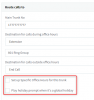
1587543663077.png

Also Check your global office hours under the PBX settings > Timezone & Office hours
 
I have confirmed that I have office hours setup under the SIP TRUNK setup as well as in the global office hours under the PBX settings > Timezone & Office hours. There are also office hours settings available for each DID setup under INBOUND RULES. Do these need to be blank? Also under each extension there is a setting Under AUTOSWITCH > Automatically switch status to available during office hours. Does this need to be active or left in default OFF position.... ?

Also on the INBOUND RULES do you need to setup an INBOUND RULE for each DID or do you just need to have the main trunk setup here?
 
First I would remove the autoswitch settings, as out of hours will be controlled by the SIP out of hours - https://www.3cx.com/3cxacademy/videos/intermediate/time-day-routing/

You only need to specify office hours, it you want different times to the 3cx default times set under Settings - TimeZone / Office Hours. If your DDI numbers should be using the 3CX default times, remove these settings.

If you do not specify an DDI inbound rule, it will use the main SIP routing / office hours. You still need to add the DDI number to the SIP / Trunk under the DIDs tab

Check the timezone of the server - Settings - TimeZone and the server has the correct date and time.

How are you testing, are you ringing the sip / trunk number ?

Check the activity log, to see how the system is handling your incoming call
 
Last edited:
  • Like
Reactions: JohnS_3CX
Finally got to check this out I followed the training video you linked above and I am now working as is should. thanks again to everyone for your time and assistance.
 
  • Like
Reactions: JohnS_3CX
Glad to hear it was sorted!
 
Status
Not open for further replies.

Latest Posts

Forum statistics

Threads
111,945
Messages
589,866
Members
164,835
Latest member
Firefox Technologies