- Joined
- May 31, 2022
- Messages
- 4
- Reaction score
- 0
Hello there,
I'm having some trouble understanding how I need to migrate my system from one host to another. We are currently using an on-premise server running Debian for 3CX.
In my system, I've set up ~50 user accounts, some auto-attendants (digital receptionists), recorded a couple voicemails, phone greeting messages, ring groups, inbound and outbound rules... Basically it's almost ready to replace our overpriced Cisco UCM (of which we use maybe 10% of its features). I then created a couple backups which are stored on an in-house file server.
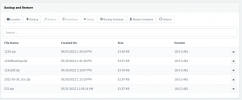
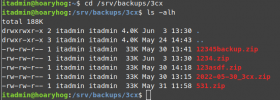
I then shut down this system and did a fresh install on a different one. I configured this second system with the same IP address. During the setup phase it asked if I wanted to continue with a fresh installation or restore from a backup. I uploaded each of the backup files I created and each said the file was invalid. I know we're not supposed to extract the zip file, but I figured I'd at least take a look inside to see how it's laid out. I can't seem to extract it or view the contents either. Were the backups corrupted before they even came out of the oven? I know I don't have much data, but they're only 33.7kb each. Surely even very downsampled audio recordings would take up more space than that? (To be clear, I ticked every box on the backup settings).
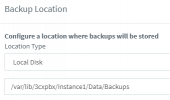
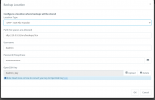
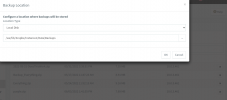
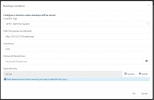
So because the backup restore didn't work at the intro-screen, I proceeded to set up the new system like I did the original. Once I had access to the admin control panel, I went to the Backup and Restore page, pointed the location at my file server, and started restoring the backup. The process kicks me out, and about 20 minutes later it emails me saying the restoration is complete. I log in and find... nothing. The system is still completely blank. No users, no recordings, no rules, not even any SIP Trunks... (Upon re-reading the email, the restore process completed unsuccessfully. ie, it failed.)
At this point, the only backups I can do are from the VM controller. I didn't mention this before, but I'm running the 3cx PBX Debian install with LibVirt. In order to back up, I have to have a cron script that shuts down the VM and makes a copy/tarball of the virtual hard drive from Install #1. Not the greatest solution but it works.
Please tell me what I'm doing wrong... I'm confused.
I'm having some trouble understanding how I need to migrate my system from one host to another. We are currently using an on-premise server running Debian for 3CX.
In my system, I've set up ~50 user accounts, some auto-attendants (digital receptionists), recorded a couple voicemails, phone greeting messages, ring groups, inbound and outbound rules... Basically it's almost ready to replace our overpriced Cisco UCM (of which we use maybe 10% of its features). I then created a couple backups which are stored on an in-house file server.
I then shut down this system and did a fresh install on a different one. I configured this second system with the same IP address. During the setup phase it asked if I wanted to continue with a fresh installation or restore from a backup. I uploaded each of the backup files I created and each said the file was invalid. I know we're not supposed to extract the zip file, but I figured I'd at least take a look inside to see how it's laid out. I can't seem to extract it or view the contents either. Were the backups corrupted before they even came out of the oven? I know I don't have much data, but they're only 33.7kb each. Surely even very downsampled audio recordings would take up more space than that? (To be clear, I ticked every box on the backup settings).
So because the backup restore didn't work at the intro-screen, I proceeded to set up the new system like I did the original. Once I had access to the admin control panel, I went to the Backup and Restore page, pointed the location at my file server, and started restoring the backup. The process kicks me out, and about 20 minutes later it emails me saying the restoration is complete. I log in and find... nothing. The system is still completely blank. No users, no recordings, no rules, not even any SIP Trunks... (Upon re-reading the email, the restore process completed unsuccessfully. ie, it failed.)
At this point, the only backups I can do are from the VM controller. I didn't mention this before, but I'm running the 3cx PBX Debian install with LibVirt. In order to back up, I have to have a cron script that shuts down the VM and makes a copy/tarball of the virtual hard drive from Install #1. Not the greatest solution but it works.
Please tell me what I'm doing wrong... I'm confused.
Last edited: