- Joined
- May 1, 2017
- Messages
- 150
- Reaction score
- 16
Looking for it, cant find it in latest V15. Found below in old post, but I don't even see a preferences under the provisioning Tab.
-----
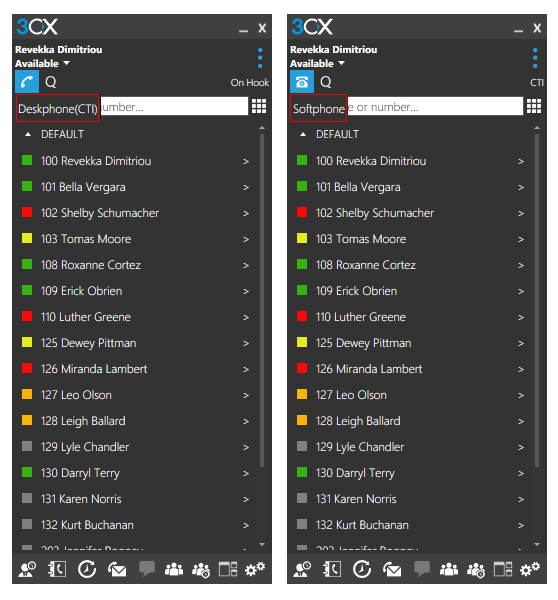
In order for the softphone to start in CTI mode, you will need to change the Call Control Preference in the Extension Settings. Go to Extension Settings >> Provisioning Tab and under Preferences >> Call Control change the option to "IP Phone" and re-provision. This will force the client to start in CTI mode.
As for the client, during the installation of 3CXPhone a shortcut is placed in C:\ProgramData\Microsoft\Windows\Start Menu\Programs\StartUp\ so it will automatically start when user logs in. If this is not happening, check in the above folder and make sure that there is a 3cx client shortcut in there.
-----
In order for the softphone to start in CTI mode, you will need to change the Call Control Preference in the Extension Settings. Go to Extension Settings >> Provisioning Tab and under Preferences >> Call Control change the option to "IP Phone" and re-provision. This will force the client to start in CTI mode.
As for the client, during the installation of 3CXPhone a shortcut is placed in C:\ProgramData\Microsoft\Windows\Start Menu\Programs\StartUp\ so it will automatically start when user logs in. If this is not happening, check in the above folder and make sure that there is a 3cx client shortcut in there.