Solved CALLUS.JS

Status
Not open for further replies.

PAOLO SPAGNOLO

Customer
Joined
May 7, 2020
Messages
10
Reaction score
0
Hi Friends

i have file callus.js
where do i put the file on wordpress hosting?

https://site.com/ ?

many thanks for help

paolo
 
Hi @PAOLO SPAGNOLO,

You're using the 3CX Live Chat plugin for Wordpress? If yes, you can use the plugin directly from Wordpress, after logging in to wp-admin. If you're running a Wordpress site I'd suggest this over downloading the callus.js file and having to upload it.
 
Hi @PAOLO SPAGNOLO,

You're using the 3CX Live Chat plugin for Wordpress? If yes, you can use the plugin directly from Wordpress, after logging in to wp-admin. If you're running a Wordpress site I'd suggest this over downloading the callus.js file and having to upload it.
Hi VasilisV ,

i have this problem
i Have 3cx and plugin in WP , my 3cx is in site local , with ip

https://192.168.1.51:5001/callus/#elettronicsystem

in the plugin I have to insert local ip or my.3cx ....: 5001/callus/#elettronicsystem ?

chat visible non active with my.3cx ....: 5001/callus/#elettronicsystem

thanks for help
 
Hi @PAOLO SPAGNOLO,

in the plugin I have to insert local ip or my.3cx ....: 5001/callus/#elettronicsystem ?
The plugin should work with the FQDN rather than your local IP.

chat visible non active with my.3cx ....: 5001/callus/#elettronicsystem
This would mean that there are no available assigned agents in the Queue linked to the Messaging section within the Management Console. Check the Queue you've made (for Live Chat) and the Messaging section to ensure that it points to your FQDN.
 
Ciao @PAOLO SPAGNOLO,


Il plug-in dovrebbe funzionare con l'FQDN anziché con il tuo IP locale.


Ciò significherebbe che non ci sono agenti assegnati disponibili nella coda collegata alla sezione Messaggistica all'interno della Console di gestione. Controlla la coda che hai creato (per la chat dal vivo) e la sezione Messaggi per assicurarti che punti al tuo FQDN.
Vasilis maybe problem i have 3cx in local standard version ?
 
Hi!

I don't think it has anything to do with the License version as Live Chat is available in Standard.

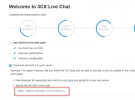
If you are using the Code Generator, the link you have to use here is the link that the WebVisitor can use to access this file:
1643108473342.png

My colleague asked a very good question though, because your site is WP, why aren't you using the Wordpress Plugin?
 
thanks for your help, I'm using 3cx plugin on WP, the problem that I add the link 192.168.1.51:5001 etc. but it doesn't work and in the standard version I have I don't see the queue management ,I was wondering whether to use in plugin ip local or my-3cx etc. I tried in both cases the chat does not open from the site

site in crostruction https://www.myopencash.it/ES/
 
Hi @PAOLO SPAGNOLO,

Using the Wordpress Plugin, use the FQDN (the fully qualified domain name of the PBX).

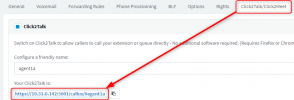
Since you're using a STD license, enable Click2Talk on one of your extensions within the extension options and use that as the link you'll copy in to Wordpress Live Chat under the Advanced section. This means that the extension needs to be logged in to receive chat messages.

1643117429077.png
 
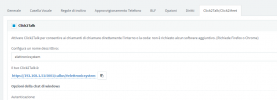
1643118248628.png

if u see in this have a local address ip this is right ?
 
Hi @PAOLO SPAGNOLO,

Log out of your Management Console, change the web address to your FQDN, log back in and then copy the link that will be your FQDN.
 
please if you can help me for change the web address to your FQDN, log back in and then copy the link that will be your FQDN. ( I CANT FIND THE POINT WHERE CHANGE web address )
 
I'll PM you shortly.
 
Update:

After further investigation, the link pasted in the Messaging section contained a problem which once an extra /ES (i.e https://websitename.com/ES) was removed, the Chat began to work.
 
Status
Not open for further replies.

Members Online Now

Forum statistics

Threads
111,832
Messages
589,282
Members
164,662
Latest member
DejanMDS