


- Joined
- Mar 6, 2020
- Messages
- 68
- Reaction score
- 18
Ref: https://www.3cx.com/community/threads/update-renew-certificate.77468/
The subject article has been my guide for the last 5 years on how to update certs on 3CX, specifically:
However, an incident this week forced me to re-examine this. I could not use the latest version of OpenSSL The RC2-40 algorithm is no longer supported by OpenSSL which was erroring out my conversion. I wanted to share my solution as it is a lot easier than using OpenSSL.

After receiving your new cert, import it into the Digicert Certificate Utility for Windows. This is a free tool.
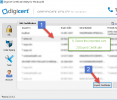
Import your cert using the DCUW software. Then export it.
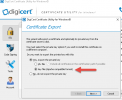
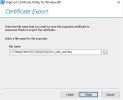
At the export screen, do not export the PFX. Select "key file (Apache compatible format)" option. Enter where you want to save it and the file name for the key, click Finish.
This produces three files:
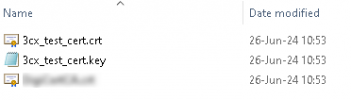
Rename the .crt file to certificate-crt.pem and the .key file to certificate-key.pem (Matching your cert names as appropriate, of course)
Replace the certs on the 3CX server in this folder (Backup the old ones, just in case something does go wrong and you can recover): C:\Program Files\3CX Phone System\Bin\nginx\conf\instance1
Then restart the 3CX Phone System Nginx Webserver service and you are done. Much faster, no terminal typing, no editing of bag attributes and much less chance of error overall.
Hope this can help someone else. Cheers.
The subject article has been my guide for the last 5 years on how to update certs on 3CX, specifically:
Code:
openssl pkcs12 -in [yourfile.pfx] -nocerts -out [keyfile-encrypted.key]
openssl rsa -in [keyfile-encrypted.key] -out [keyfile-decrypted.key]
openssl pkcs12 -in [yourfile.pfx] -clcerts -nokeys -out [certificate.pem]
However, an incident this week forced me to re-examine this. I could not use the latest version of OpenSSL The RC2-40 algorithm is no longer supported by OpenSSL which was erroring out my conversion. I wanted to share my solution as it is a lot easier than using OpenSSL.
After receiving your new cert, import it into the Digicert Certificate Utility for Windows. This is a free tool.
Import your cert using the DCUW software. Then export it.
At the export screen, do not export the PFX. Select "key file (Apache compatible format)" option. Enter where you want to save it and the file name for the key, click Finish.
This produces three files:
Rename the .crt file to certificate-crt.pem and the .key file to certificate-key.pem (Matching your cert names as appropriate, of course)
Replace the certs on the 3CX server in this folder (Backup the old ones, just in case something does go wrong and you can recover): C:\Program Files\3CX Phone System\Bin\nginx\conf\instance1
Then restart the 3CX Phone System Nginx Webserver service and you are done. Much faster, no terminal typing, no editing of bag attributes and much less chance of error overall.
Hope this can help someone else. Cheers.


