Import Active Directory Users via Azure AD & Enable SSO

Hello 3CX Team,

redo the whole setup, I had too as well. Make sure you do the right permissions and all.
Redo and it's working fine right now ...

I notice another issue, when I deleted an M365 account from "3CX M365 integration", the following account is still flag "Sync with M365" on the 3CX user tab.

On v16, the flag is "Sync with M365" is deleted when an M365 account is deleted from M365 or from "3CX M365 integration". It was easy to deleted account from user who has left our compagny...
 
Redo and it's working fine right now ...

I notice another issue, when I deleted an M365 account from "3CX M365 integration", the following account is still flag "Sync with M365" on the 3CX user tab.

On v16, the flag is "Sync with M365" is deleted when an M365 account is deleted from M365 or from "3CX M365 integration". It was easy to deleted account from user who has left our compagny...
Would you happen to have some other Sync option enabled in Settings --> Microsoft 365?

If you don't have "User Sync" enabled, but you have something else enabled like "Sign In", and the email of an extension matches the email of a user in O365, then this flag will show.

I believe this was the same in V16, but not so obvious because Calendar and Contacts sync requires the O365 user to have a license, whereas "Sign On" does not, so it it is more likely for this to occur now.
 
Would you happen to have some other Sync option enabled in Settings --> Microsoft 365?

If you don't have "User Sync" enabled, but you have something else enabled like "Sign In", and the email of an extension matches the email of a user in O365, then this flag will show.

I believe this was the same in V16, but not so obvious because Calendar and Contacts sync requires the O365 user to have a license, whereas "Sign On" does not, so it it is more likely for this to occur now.
Hello NickD,

I thank you a lot for your answer.
In fact, "User Sign In" option is enabled in order to allow SSO.

Once I uncheck "User Sign In", the flag "Sync with M365" is deleted and I can retreive which users are deleted from M365 :-)

After that, I can delete them from 3CX "Users" part and then re-enable SSO again.

Regards,
 
  • Like
Reactions: NickD_3CX
Hello 3CX Team,

redo the whole setup, I had too as well. Make sure you do the right permissions and all.
Hi there... Redo what? The 3CX install? The App registration setup via Ms Portal Azure? Que? ;)
 
Hi there... Redo what? The 3CX install? The App registration setup via Ms Portal Azure? Que? ;)
The app registration setup on both side.
 
Will do! ;) And will let you know about the results. Thanks!
 
Deleted the complete APP reg in Azure, setup the 3cx O365 account again and,... fails once again. After succesfull login on webclient I am rerouted again to the login page... :(
 
After one day of not tending to this anymore, it suddenly works... I guess it needed some bits to fall in the right place or something.

So indeed, redoing the app reg in Azure made it work!
 
I have the 18.0.1608 build.
I am trying to manually import users from Microsoft 365 rather than Auto-sync. Previously in Users page I thought I could choose Import Microsoft 365 and search for users I wish to import, manually assign an extension and then import them. Now when I click the "Import Microsoft 365" it just takes me to the "Microsoft 365 Integration" setting screen where it reports "Status OK. Real Time Notifications to Microsoft 365 and back are working. This means that changes from Microsoft 365 to 3CX will be updated."

I am unsure if I am doing something wrong or if I broke something.
We have on premise Exchange for email/contacts and have Azure AD just for Authentication. I added the "Exchange contacts to 3CX Phonebooks" to sync Contacts and Calendar with our local Exchange server, but the Microsoft 365 Integration settings was complaining even though we don't use it for Contact or Calendar sync, so I removed all the settings from Exchange sync.

Thanks.
 
I have the 18.0.1608 build.
I am trying to manually import users from Microsoft 365 rather than Auto-sync. Previously in Users page I thought I could choose Import Microsoft 365 and search for users I wish to import, manually assign an extension and then import them. Now when I click the "Import Microsoft 365" it just takes me to the "Microsoft 365 Integration" setting screen where it reports "Status OK. Real Time Notifications to Microsoft 365 and back are working. This means that changes from Microsoft 365 to 3CX will be updated."

I am unsure if I am doing something wrong or if I broke something.
We have on premise Exchange for email/contacts and have Azure AD just for Authentication. I added the "Exchange contacts to 3CX Phonebooks" to sync Contacts and Calendar with our local Exchange server, but the Microsoft 365 Integration settings was complaining even though we don't use it for Contact or Calendar sync, so I removed all the settings from Exchange sync.

Thanks.
Hi!

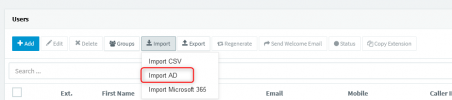
The option you remember is "Import AD":
1626937166092.png

This option always existed only on Windows installations of 3CX. To this day, it's probably one of the only differences between Windows and Linux installations.

When V18 Final release is out, if you install it on a Windows Server, this option should exist.
 
Hi!

The option you remember is "Import AD":
View attachment 23088

This option always existed only on Windows installations of 3CX. To this day, it's probably one of the only differences between Windows and Linux installations.

When V18 Final release is out, if you install it on a Windows Server, this option should exist.

Thanks Nick, that would explain it. I originally installed on Server 2019 but migrated to Debian as I wanted to try v18. That would have been where I saw the Import AD option that I could no longer find.
 
That would explain it. Just an alternative idea, you could sync you on-prem AD with Azure AD, then use the 3CX O365 User Sync:
https://www.3cx.com/blog/voip-howto/import-active-users-azure/
I already have that configured, but there seems to be no way to manually assign extensions. As we are looking at shifting from an existing NEC PABX, staff want to retain their extension numbers.
We are a school so for our 150 staff we have 1200 students we do not want to auto-provision.
There also seems to be no AD group support for SSO so have to specify each account manually, rather than just all users in a particular Azure AD group.
 
I already have that configured, but there seems to be no way to manually assign extensions. As we are looking at shifting from an existing NEC PABX, staff want to retain their extension numbers.
We are a school so for our 150 staff we have 1200 students we do not want to auto-provision.
There also seems to be no AD group support for SSO so have to specify each account manually, rather than just all users in a particular Azure AD group.
Understandable. Although it won't help I think in this case, but just so that you know, if you have an extension in 3CX with email A, if you enable O365 Integration and there is an AD user with Principal Name or Email that also has email A, 3CX will sync the AD information with the existing extension in 3CX, it won't create a new one.

If you would prefer having 3CX on Linux, what you could do is:
  1. Install 3CX on Windows temporarily.
  2. Use the "Import AD" to map all users to the extensions you want
  3. Take a backup of 3CX
  4. Uninstall 3CX on Windows
  5. Install 3CX on Linux and restore the backup
  6. Enable O365 integration and because the email of the already created users should match the Azure AD Email, they will get sync with Azure AD.
 
  • Like
Reactions: accentlogic
Understandable. Although it won't help I think in this case, but just so that you know, if you have an extension in 3CX with email A, if you enable O365 Integration and there is an AD user with Principal Name or Email that also has email A, 3CX will sync the AD information with the existing extension in 3CX, it won't create a new one.

If you would prefer having 3CX on Linux, what you could do is:
  1. Install 3CX on Windows temporarily.
  2. Use the "Import AD" to map all users to the extensions you want
  3. Take a backup of 3CX
  4. Uninstall 3CX on Windows
  5. Install 3CX on Linux and restore the backup
  6. Enable O365 integration and because the email of the already created users should match the Azure AD Email, they will get sync with Azure AD.
Thanks Nick. I managed to confuse myself as that is actually what I originally did by accident. I started my evaluation on Server 2019 and was able to import around 3 test users. Then backed up and restored to Debian for v18 not realising I couldn't bring in more users.
 
Anyone else getting this in the Alpha/Beta releases? I had O365 integration working before update, but now the button is missing from Settings, and if i use the URL I get this?

1627951907572.png
 
@DyCom Group do you login with full admin rights or user rights ?
 
@DyCom Group do you login with full admin rights or user rights ?
Legend, it was staring me in the face, so used to using my Extension account for everything (including updates and such) that I completely forgot about having an admin account.

Cheers.
 

Forum statistics

Threads
111,992
Messages
590,171
Members
164,929
Latest member
Cloudstar