Import/export of (company) contacts

LVL

SMB User
Joined
Oct 15, 2026
Messages
11
Reaction score
2
Hello,
I know this question is not new, but I did not find any reply that answers my problem.

I have Free SMB account.
In the forum it is said that you can export the "company phonebook" to get a .csv file via the admin panel.
However, I do not find this option after clicking on "Admin" left below?

The reason I want to export is that I really want to IMport contacts (csv file) but get error because of wrong format which is bizarre as the file is an export from a 3CX PBX, but anyway...
I found a link to a template in the forum but that link is no longer active (error 404).
So, in fact 2 questions:
1. How can I export contacts (NOT users)?
2. Does anybody have a (correct) template to fill a csv file to import contacts?

Thanks for help
Regards,
LVL
 
Hello,
I know this question is not new, but I did not find any reply that answers my problem.

I have Free SMB account.
In the forum it is said that you can export the "company phonebook" to get a .csv file via the admin panel.
However, I do not find this option after clicking on "Admin" left below?

The reason I want to export is that I really want to IMport contacts (csv file) but get error because of wrong format which is bizarre as the file is an export from a 3CX PBX, but anyway...
I found a link to a template in the forum but that link is no longer active (error 404).
So, in fact 2 questions:
1. How can I export contacts (NOT users)?
2. Does anybody have a (correct) template to fill a csv file to import contacts?

Thanks for help
Regards,
LVL
" Phonebook - Company" option is not available in SMB.
In SMB, you would need to add contacts individually and then assign visibility (Department or Personal).
 
Hello,
Thanks for reply.
However, I am confused...
When going to the "contacts" page, I do see a button that is labeled "import contacts" which is what to do in the end!
The only thing is that I need a correct template for the csv file that I can fill in and then import...
Thanks
LVL
 
Hello,
Thanks for reply.
However, I am confused...
When going to the "contacts" page, I do see a button that is labeled "import contacts" which is what to do in the end!
The only thing is that I need a correct template for the csv file that I can fill in and then import...
Thanks
LVL
Can you share a screenshot of where you see "import contacts" exactly, it may help to better understand which system you are logged in to.
 
I see. In this case, you can create a CSV file to import contacts, you need to format a spreadsheet with clear headers (like First Name, Last Name, and Email, etc.) and save it in the .csv format. Then upload it as needed.
 
That I know, but the problem is that this csv file needs to have the different headers and data in a specific order or it is refused!
So my question is: what is the correct and complete order?
Is there a template somewhere (in .xlx or .csv format) that I can use to complete the data and then import?
Thanks,
LVL
 
Thanks,
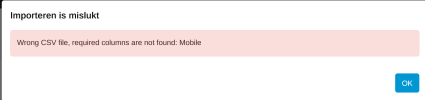
tried it, entered some data, saved in .csv, tried to import and got following error:
1792159988704.png
What's wrong?
 
Hi, found the answer on the net!!
When saving a csv file on excel, it puts ";" iso "," !!! Go figure...
So: create the csv file and then open it with notebook, change all semicolons to commas and hop, you're done!
Works like a charm...
Last remark: since when is tere a limit to 50 characters for the company name?
Had an export from the previous 3CX PBX with the full company name (more than 50 characters) but the import refused those entries...
Greetz,
LVL
 

Forum statistics

Threads
112,270
Messages
591,596
Members
165,376
Latest member
SuperMiles