2021/06/29 21:48:47.807|Dbg|0001|  Setup settings:
{
  "SetupCancelled": true,
  "UseWebWizard": true,
  "WebConfigTool": false,
  "ApplicationStartArgs": [
    "--answers",
    "/etc/3cxpbx/setupconfig.xml"
  ],
  "ApplicationCommandLineArguments": "--answers /etc/3cxpbx/setupconfig.xml",
  "ApplicationPath": "/usr/lib/3cxpbx/PbxConfigTool.dll",
  "AutomaticInstallation": false,
  "CloudInstallation": false,
  "RenewCertificates": false,
  "SetupType": 0,
  "InstallationMode": "SINGLE",
  "Multiinstance": false,
  "AppBin": "/usr/lib/3cxpbx",
  "AppData": "/var/lib/3cxpbx",
  "ConfigurationPath": "/var/lib/3cxpbx",
  "LicenseKey": null,
  "IsRestrictedLicenseKey": false,
  "IsPbxEditionLicenseKey": false,
  "IsEnterpriseLicenseKey": false,
  "AllowCustomFqdn": true,
  "ShouldRetryCallsToErp": false,
  "SkipRequestLicense": false,
  "SkipMangementConsoleLoginRequest": false,
Password Removed
  "BackupFilePath": null,
  "BackupEncrypted": false,
  "BackupVersion": null,
Password Removed
  "PhoneSystemConfiguration": {
    "AdminConsoleUserName": null,
Password Removed
Password Removed
Password Removed
    "CustomerDb": null,
    "TenantId": null,
    "ReportsDirectoryPath": "/var/lib/3cxpbx/Instance1/Data/Http/Reports",
    "SkipPrompsetRequest": false
  },

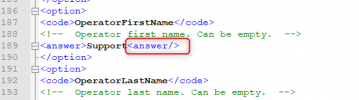
Here my xml file

<SetupConfig xmlns:xsd="http://www.w3.org/2001/XMLSchema" xmlns:xsi="http://www.w3.org/2001/XMLSchema-instance">
<tcxinit>
<option>
<code>InstallationType</code>
<answer>new</answer>
<!-- New install "new", restore Backup  = "restore" -->
</option>
<option>
<code>LicenseKey</code>
<answer>$license</answer>
</option>
<option>
<code>AdminUsername</code>
<answer>itelia</answer>
<!-- Admin Username -->
</option>
<option>
<code>AdminPassword</code>
<answer>$password3cx</answer>
<!-- Admin Pasword -->
</option>
<option>
<code>PublicIP</code>
<answer>auto</answer>
<!-- "auto" means automatically detect the ip address. Useful in most cases. Otherwise you can put "manual" and fill in Manual Public IP below -->
</option>
<option>
<code>StaticOrDynamicIP</code>
<answer>static</answer>
<!-- If your public ip is Static (does not change) use "static" otherwise use "dynamic" -->
</option>
<option>
<code>LocalIP</code>
<!-- Here we ask to choose the local ip of the machine. If you have no nat then the public is taken -->
<answer>auto</answer>
<!-- if auto it takes the first ip on the network stack in the list. If you answer with the "manual" option (in multiple nic adapters you will have more interfaces,) then you need to populate the next option ManualLocalIP with the local IP Address you want" -->
</option>
<option>
<code>NeedFqdn</code>
<answer>no</answer>
<!--  enter "yes" to get a 3CX FQDN. enter "no" to use your fqdn (custom domains) -->
</option>
<option>
<!--
        Select Domain Group:
        (1) Africa
        (2) Asia
        (3) Cities
        (4) Continent
        (5) Europe
        (6) Oceania
        (7) Other
        (8) South America
        (9) United States

        List of available suffixes per Domain Group can be found on:https://activation.3cx.com/apiv2/domains
     -->
<code>DomainGroup</code>
<answer>Europe</answer>
</option>
<option>
<code>FullExternalFqdn</code>
<!-- This should be populated if NeedFqdn = "no".  -->
<answer>$subdomain.$domain</answer>
<!-- User selected needfqdn = no. This means you have an fqdn so enter your fully qualified domain here example pbx.contoso.com -->
</option>
<option>
<code>CertificatePath</code>
<!-- Use if NeedFqdn = "no".  -->
<answer>$certificate</answer>
<!-- This is the certificate file which can be either a path, http link or just copy and paste the whole contents of the certificate - Including the "BEGIN certificate part" -->
</option>
<option>
<code>CertificatePassword</code>
<!-- Use if NeedFqdn = "no".  -->
<answer></answer>
<!-- This is the PFX certificate password. Shows only when you select a pfx file" -->
</option>
<option>
<code>CertificateKey</code>
<!-- Use if NeedFqdn = "no".  -->
<answer>$key</answer>
<!-- This is the certificate key which can be either a path, http link or it can be the whole contents of the pem file.. Including the "BEGIN certificate part Applies to PEM Certs" -->
</option>
<option>
<code>CertificateKeyPasswordRequest</code>
<!-- Use if NeedFqdn = "no".  -->
<answer/>
<!--  It could be that the pem file is encrypted, so without the key, setupconfig will download the file but will not be able to decrypt it unless we enter the password request key here. -->
</option>
<option>
<code>HasLocalDns</code>
<!-- "yes" assumes that you have a manageable local dns example windows dns. "no" assumes that you do not have a dns and therefore will fallback to using IP Addresses  -->
<answer>no</answer>
</option>
<option>
<code>HttpsPort</code>
<answer>443</answer>
</option>
<option>
<code>HttpPort</code>
<answer>80</answer>
</option>
<option>
<code>SipPort</code>
<answer>5060</answer>
</option>
<option>
<code>TunnelPort</code>
<answer>5090</answer>
</option>
<option>
<code>NumberOfExtensions</code>
<!-- How many digits your extensions should have. Default is 3 Digits. Note that the system reserves 30 numbers for system extension. This can not be changed later.  -->
<answer>3</answer>
</option>
<option>
<code>AdminEmail</code>
<answer>[email protected]</answer>
<!--  Email for important system notifications such as 3CX Updates, Service failures, Hacking attempts, Network Errors, Emergencies and other diagnostics. -->
</option>
<option>
<!--
        Mail Server Configuration. One of values: 3CX, Custom or one of SMTP server names from: https://downloads.3cx.com/downloads/v155/templates/smtp/smtpproviders.html . With free key (3CXPSPBX) you can use only 3CX SMTP provider
        You can use a Gmail account. More info here: https://www.3cx.com/blog/docs/gmail-mail-server/. Select mail server type:
        (1) 3CX SMTP server
        (2) Custom SMTP server
        (3) Gmail (smtp.gmail.com:587)
        (4) Outlook.com (smtp-mail.outlook.com:587)
        (5) Office365 (smtp.office365.com:587)
     -->
<code>MailServerType</code>
<answer>Custom</answer>
</option>
<option>
<code>MailServerAddress</code>
<!--  Email server details to be used for notifications, voicemails and invites. You can use a Gmail account. More info here: https://www.3cx.com/blog/docs/gmail-mail-server/ -->
<answer>test.smtp.fr</answer>
</option>
<option>
<code>MailServerReplyTo</code>
<answer>[email protected]</answer>
</option>
<option>
<code>MailServerUserName</code>
<!--  Can be empty  -->
<answer>[email protected]</answer>
</option>
<option>
<code>MailServerPassword</code>
<!--  Can be empty  -->
<answer>password</answer>
</option>
<option>
<code>MailServerEnableSslTls</code>
<answer>yes</answer>
</option>
<option>
<!--
        Continent name one of:
        North America
        South America
        Europe
        Asia and the Middle East
        Africa
        Australia
       -->
<code>Continent</code>
<answer>Europe</answer>
</option>
<option>
<code>Country</code>
<!--  Country name from here http://www.3cx.com/wp-content/uploads/2016/11/Time-Zone-Sheet1-1.pdf   -->
<answer>France</answer>
</option>
<option>
<code>Timezone</code>
<!-- get codes from here http://www.3cx.com/wp-content/uploads/2016/11/Time-Zone-Sheet1-1.pdf  -->
<answer>45</answer>
</option>
<option>
<code>OperatorExtension</code>
<answer>000</answer>
</option>
<option>
<code>OperatorFirstName</code>
<!--  Operator first name. Can be empty.  -->
<answer>Support<answer/>
</option>
<option>
<code>OperatorLastName</code>
<!--  Operator last name. Can be empty.  -->
<answer>Contact<answer/>
</option>
<option>
<code>OperatorEmail</code>
<answer>[email protected]</answer>
</option>
<option>
<code>OperatorVoicemail</code>
<answer>999</answer>
</option>
<option>
<code>Promptset</code>
<answer>French</answer>
<!--  get data from http://downloads.3cx.com/downloads/v150/templates/promptsets/promptsets.xml -->
</option>
<option>
<code>LicenseContactName</code>
<answer>Mycontact</answer>
</option>
<option>
<code>LicenseCompanyName</code>
<answer>MyCompany</answer>
</option>
<option>
<code>LicenseEmail</code>
<answer>[email protected]</answer>
</option>
<option>
<code>LicensePhone</code>
<answer>0000000000</answer>
</option>
<option>
<code>ResellerId</code>
<!--  Id of reseller. Can be empty -->
<answer/>
</option>
</tcxinit>
</SetupConfig>