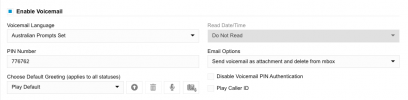
Multi Tenant 3CX V20 User Voicemail Read Date/Time Greyed Out

z4cth3p4c

Bronze Partner
Basic Certified
Joined
Aug 2, 2024
Messages
12
Reaction score
4
We currently have 3cx Multi Tenant setup and when users are indicating voicemail is not reading date or time. When you navigate to the user and select the voicemail tab. the voicemail read date/time is set to do not read. However it is greyed out and you cannot enable it? Any ideas how to enable this?
 
Specific user or all users?

I cannot replicate.. what is the role of the person trying to make this change?
 
The role is currently set to system owner, and is currently affecting all users. Not sure if this option is not editable on a multi tenant deployment.
 
I enabled MCM and its still selectable for me..
 
I had this option greyed out on my trial MCM system, but after disabling MCM and re-enabling it (with a restart of the configuration server in between), I found that it was selectable.

I have found however that the voicemail menu will read out the message time based on the system time, rather than the department timezone the user is set to (at least in the testing I've just done).
 
My production MCM "Read Date/Time" option is greyed out for all my users and cannot be changed. I currently have 7 customers on the license so far and am continuing to add more over the next couple of weeks, so I'm afraid to try and disable MCM and re-enable at this point to see if that does anything. Is it possible that stopping and starting config server would do it?
 
I performed a full backup of my multi-company mode server, then disabled multi-company mode and restarted the system. After the restart, I was able to enable the option to read date/time in 24-hour format. However, when I re-enabled multi-company mode, the option became greyed out again. Despite being selected and unchangeable, the system does actually read the date and time in 24-hour format. Not sure what negative circumstances can arise from turning multi mode off then on again?
 
Last edited:
  • Like
Reactions: GregG_3CX
FWIW, I'm doing my first MCM and it's greyed out for me as well on all users.
 
I can confirm I am seeing the same on v20 U5 and v20 U6 Multi-Tenant
Read Date/Time is greyed out.

Best
Lance

1748406543801.png
 
We are having the same issue on Multi-Company. V20 U6. Has anybody opened a ticket? We are Bronze status, so a ticket would cost us, for what seems like a bug?
 
Please be aware that this option is not available with multi tenant. It will be greyed out. This can not be changed.
 
I already have multitenant customers complaining about this. Can it please be fixed?
 
Please be aware that this option is not available with multi tenant. It will be greyed out. This can not be changed.
This should be incorporated. This is a basic function in phones and phone systems. Hope this issue gets resolved as this makes it hard to have clients happy with 3CX services.
 
I was trying to resolve the issue for over an hour with our MCM and then found this thread. If all the clients are in the same region on an MCM this should be enabled by default. These details were never mentioned when 3CX pushed us to use MCM.
 
I agree that this is a feature that should be able to be turned on in the multi-tenant license. If it needs to be optionally grayed out because departments (customers) are located in different regions, so be it, but I think in most instances partners who are utilizing the MCM option are putting localized customers on that license anyway. If not, spin up a separate MCM license to start building off of for the other region. I've had countless customers complaining about this "lost" feature because they had it before I moved them off of their dedicated 4SC license.

Please consider adding this back in on a future update.
 
This is pretty trivial to workaround by editing the .xml in the backup or the .csv generated with a user export.

For existing users it's better to edit the .xml inside the backup, otherwise you'll end up resetting SIP auth IDs and passwords.
As always edit the .xml within the .zip file and save the .zip, do not attempt to extract the .xml, edit and re-zip as you will be unable to restore the backup.
Search for parameter <VMPlayMsgDateTime> for the extension(s) you want to change and edit as below:
<VMPlayMsgDateTime>None</VMPlayMsgDateTime> = Do Not Read
<VMPlayMsgDateTime>Play12Hr</VMPlayMsgDateTime> = Read in AM/PM Format
<VMPlayMsgDateTime>Play24Hr</VMPlayMsgDateTime> = Read in 24 Hour Format
Save the file within the .zip and restore the backup.

For new users it's easier and non-disruptive to create them in web admin, then export them and edit the extensions.csv file. Look for column 23, VMPlayMsgDateTime and set the value as below:
0 = Do Not Read
1 = Read in AM/PM Format
2 = Read in 24 Hour Format
Save the file. Delete the new users in web admin, then import the extensions.csv file to recreate the users with the desired Voicemail settings.
 

Latest Posts

Forum statistics

Threads
112,283
Messages
591,681
Members
165,403
Latest member
saw-nick