Solved Oddity stopping integration

Status
Not open for further replies.

CSerpent

Silver Partner
Basic Certified
Joined
Jun 22, 2021
Messages
60
Reaction score
9
I've had a few quirks deploying the Teams integration but eventually am getting there.

However, there seems to be a quirk that is stopping the operation. I have the E164 +44xxxx;ext=2001 format in the entry as briefed, but in the activity log I'm getting:

25/03/2022 20:31:04 - Dev(1194836511):[sip:+44xxx2001;ext=[email protected] / +44xxx2001;ext=2001]: PBX contact is public IP: <sip:+44xxx2001;ext=2001@WANIP:5060/UDP>

And of course when an inbound call comes in and sends it to that format, MS returns a 404.

This is a self hosted system on a private FQDN.
 
I've had a few quirks deploying the Teams integration but eventually am getting there.

However, there seems to be a quirk that is stopping the operation. I have the E164 +44xxxx;ext=2001 format in the entry as briefed, but in the activity log I'm getting:

25/03/2022 20:31:04 - Dev(1194836511):[sip:+44xxx2001;ext=[email protected] / +44xxx2001;ext=2001]: PBX contact is public IP: <sip:+44xxx2001;ext=2001@WANIP:5060/UDP>

And of course when an inbound call comes in and sends it to that format, MS returns a 404.

This is a self hosted system on a private FQDN.
That format is to be expected. When you do changes on the O365 side, do you see them in 3CX? Like the OutboundCallerID or the Extension Name.
 
It shouldn't be showing the extension number as part of the number called though should it? This is showing +4416123456782001;ext=2001 is what's the oddity.

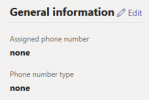
Yes, changes follow into 3CX. Another oddity is when checking Teams admin,

1648453142443.png

And nothing is in Teams client numbering, so no calls can be made.
 
It shouldn't be showing the extension number as part of the number called though should it? This is showing +4416123456782001;ext=2001 is what's the oddity.

Yes, changes follow into 3CX. Another oddity is when checking Teams admin,

View attachment 29016

And nothing is in Teams client numbering, so no calls can be made.
Yes, so the format is correct, you SHOULD see the +44xxxxxxxxxxx;ext=<Ext Number> format.
Also, as you correctly pointed out, these fields in the Teams Admin portal need to be populated.

The first very important thing you need to do if you haven't done so already is upgrade your 3CX to V18 U3 Hotfix, as there were some changes to the Teams Script in this update.

Then I would recommend following the instructions here again:
https://www.3cx.com/docs/microsoft-teams-business-voice/

Special attention to all the Requirements, especially settings the Office Number in e164 for all synced users.
 
  • Like
Reactions: Evolute IT
Hi @NickD_3CX

Should the extension number show on the end of the actual number as well as the ext= part (ie +4416123456782001;ext=2001)?

28/03/2022 14:12:39 - [CM503003]: Call(C:9): Call to <sip:+4416123456782001;ext=[email protected]:0> has failed; Cause: 404 Not Found/INVITE from 52.114.75.24:5061

The examples I've seen on other posts show only the DDI in the main part (ie +441612345678;ext=2001), not the extension number as well as in the ext suffix. I can confirm that it is on 18U3.

Everything is E164 set.
 
Also with regards to following the instructions, I followed Stefan's three videos regarding this. I can't regenerate the user script - which points to the wrong licences, however I have confirmed they're right as I have Business Voice licences along with the E3 licences.

The integration FAQ image points to the E164 number in the user entry, but does not reference the ;ext=xxxx suffix - therefore is the ;ext=xxxx still needed?
 
@CSerpent
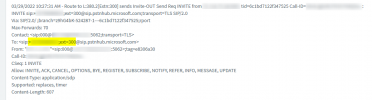
This is a Log from a successful call from a 3CX Extension (Ext 000) to a Teams Integrated Extension (Ext 300):
1648539024671.png

This is what it should look like.

So you are experiencing this, just so others reading this can follow:
https://www.3cx.com/docs/microsoft-teams-integration-faqs/#h.4dm9u5zhjuda

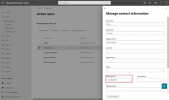
Yes, in the Microsoft Admin console you need to only put the number in e164, not also the Extension Number, as shown in the example:
1648539235349.png
 
  • Like
Reactions: CSerpent
Thank you @NickD_3CX, the ;ext suffix that was mentioned in earlier docs/vids seems to be the confusion point. Inbound calls now working fine - just got to work out the outgoing now!
 
  • Like
Reactions: NickD_3CX
Thank you @NickD_3CX, the ;ext suffix that was mentioned in earlier docs/vids seems to be the confusion point. Inbound calls now working fine - just got to work out the outgoing now!
Great!

So 3CX Extension --> Teams Extension is working now if I understand the "Inbound" reference correctly.

I would suggest to start testing "Outbound" by dialing Teams Extension --> 3CX Extension, of even to system extensions like VMail, *777, etc.
Don't start trying External Numbers first as that might need some other micro adjustments too.

Check the 3CX Teams FAQ doc for some pointers on all this too:
https://www.3cx.com/docs/microsoft-teams-integration-faqs/
 
Inbound internal and calls dialling the 3CX extensions now integrates to Teams and calls Teams extensions, yes. :)

Oubound - nothing works at all, no *777, no 1571, no internal extensions. I haven't got to BinLog yet, however it 'rings' and then comes back 'Declined' in Teams on everything.

Work number does show, but it shows as "Work number: +44 161 234 5678 x2001" versus the "Work number: +441612345678;ext=2001" format showing in the FAQ picture.
 
I think you might be having this problem:
https://www.3cx.com/docs/microsoft-teams-integration-faqs/#h.2vwcpcse4x7e

I would suggest:
  1. Disable MS365 User Sync completely from Settings --> Microsoft 365 --> User Sync tab
  2. Delete the Extension from the "Users" node
  3. Re-create the extension in the "Users" node with the same Ext Number, and make sure to use the correct email. First/Last name enter something random
  4. Re-enable "User Sync" and this time, as a test, also enable the "Sync Microsoft 365 user "Office phone" to extension "Outbound Caller ID"" options as well.
  5. Wait 1-2 minutes and go back to "Users". You should now see:
    - The correct First/Last name pulled from MS365
    - The "Outbound Caller ID" should be set correctly to the +44xxxxxxx number you expect (same as in Teams minus the "ext=xxxx")
    - In the "Synced with" column you need to see "MS 365 + Teams"
  6. Try calling again from the Teams Ext to the VMail Extension or *777
Just to be sure, you might want to also check in the Teams Admin portal that the Dial Plans have been correctly created, they should look something like this:
1648545367721.png


If none of the above helps, the next thing would have to be to enable Verbose Logging, making another Outgoing call from Teams, then check the Activity Log to see if there is anything else that jumps out as an issue.
 
  • Like
Reactions: CSerpent
Thanks for your help so far, Nick. I did what was suggested, the extension was recreated fine, the sync was correct and the +44 number appeared as expected. However, still unable to call from Teams.

There isn't anything obvious hitting the 3CX either, i've had it in verbose and checked the PCAP too - nothing obvious whatsoever to imply that Teams is hitting it. Yet, when you look at Teams admin, the calling plan is as you see above, the users have the 3CX calling plan.

Inbounds work perfectly fine into Teams, internal and external.
 
There isn't anything obvious hitting the 3CX either, i've had it in verbose and checked the PCAP too - nothing obvious whatsoever to imply that Teams is hitting it. Yet, when you look at Teams admin, the calling plan is as you see above, the users have the 3CX calling plan.
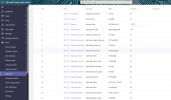
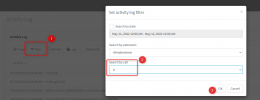
While the system is in Verbose, make a call from the Teams client to *777, then immediately go to Dashboard --> Activity Log and filter with the last call ID (in my example it was 9):
1652688514915.png

Below you should see some logs, the are read from bottom to top, so start from the bottom and don't forget to press the "Load more" button to reveal all logs and until you can't anymore.

You should at least see the attempt coming in.
 
Not even an attempt showing!

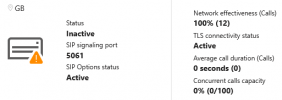
In Teams admin, I see:

1652694483754.png
(5061 correct as using a non-3CX full FQDN with cert)
 
That is really strange, so the FQDN you have used for the 3CX installation is a non-3CX FQDN and you have used the same FQDN for Teams, correct?

If this is the case, can you go to https://www.sslshopper.com/ssl-checker.html and input the <FQDN>:5061, e.g. pbx.mydomain.uk:5061, and check if there are any errors in the Certificate chain?
At this point this would be the only thing that I can think of that could explain not showing anything in the logs, if the TLS connection doesn't even manage to get established.
 
Correct.

The only warning that appears is:
The certificate is not trusted in all web browsers. You may need to install an Intermediate/chain certificate to link it to a trusted root certificate. Learn more about this error. You can fix this by following DigiCert's Certificate Installation Instructions for your server platform. Pay attention to the parts about Intermediate certificates.

3CX does says TLS connectivity status is active, so thought this would be OK, and Teams takes the calls from 3CX OK.
 
Correct.

The only warning that appears is:
The certificate is not trusted in all web browsers. You may need to install an Intermediate/chain certificate to link it to a trusted root certificate. Learn more about this error. You can fix this by following DigiCert's Certificate Installation Instructions for your server platform. Pay attention to the parts about Intermediate certificates.

3CX does says TLS connectivity status is active, so thought this would be OK, and Teams takes the calls from 3CX OK.
Sounds like a cert is missing from the chain.
 
Correct.

The only warning that appears is:
The certificate is not trusted in all web browsers. You may need to install an Intermediate/chain certificate to link it to a trusted root certificate. Learn more about this error. You can fix this by following DigiCert's Certificate Installation Instructions for your server platform. Pay attention to the parts about Intermediate certificates.

3CX does says TLS connectivity status is active, so thought this would be OK, and Teams takes the calls from 3CX OK.
Aha! This may be the reason, Teams not being able to establish a connection with 3CX due to this.

You should fix this by adding all Intermediate Certs to the cert you upload to 3CX and try again, until you stop getting this error at sslshopper.
 
  • Like
Reactions: Evolute IT
Great pointer, thank you both.

What is the correct path on 3CX for the intermediate? I did a combined PEM with primary, intermediate and root in a single file, moved the old one out and restarted nginx however the same warning throws up from the SSL checker. Browser does show the combined one present.
 
Last edited by a moderator:
Great pointer, thank you both.

What is the correct path on 3CX for the intermediate? I did a combined PEM with primary, intermediate and root in a single file, moved the old one out and restarted nginx, however the same warning throws up from the SSL checker. Browser does show the combined one present.
Well you issue is Teams here, so you need to also upload the certificate under Settings --> Microsoft 365 --> Teams tab.
 
Last edited by a moderator:
Status
Not open for further replies.