Solved Start a 3CX Videoconference Now - SSL Error - On-Premise

Status
Not open for further replies.

support.atr.01

Customer
Joined
May 8, 2016
Messages
12
Reaction score
3
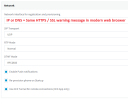
With the new and latest 3CX Windows Client version 16.3.0.264, we have a SSL error when we click on the button Start a 3CX Videoconference Now. This happens inside our corporate network or at home connected with a VPN. On the outside internet, no problem, the button uses our DNS.

The 3CX Windows Client opens a Chrome or an Edge browser to the private IP of our PBX in HTTPS port 5001. So the browser shows an error about the SSL certificate. Of course, our SSL certificate is bound with our FQDN.

We have a split DNS design. So the button Start a 3CX Videoconference could just use the same DNS.

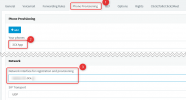
I tried to manually change the Network interface for registration and provisioning in the PBX without success.
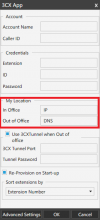
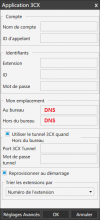
I tried to manually change the My location / In Office setting in the 3CX Windows Client Account setting without success.

Let me know what I can do, if there is another setting or if my users are the only ones to complain about SSL Certificate alerts in the web browsers.

Thank you

1648239917427.png
1648240059320.png

1648239969684.png
 
That client doesn't support WebMeeting v18. You must use the DesktopApp or Webclient to use it.

Also, I'd recommend switching to the DesktopApp as this legacy client will not be developed anymore (only bugfixes.)
 
  • Like
Reactions: VasilisV_3CX
Your setup should change to a split DNS configuration whereby the internal hosts under the same FQDN resolve to the local IP of your 3CX and external client to the public IP of 3CX.

During the installation of 3CX, you can set this config behaviour and it is becoming the only supported way in the future for all 3CX installs.
 
  • Like
Reactions: VasilisV_3CX
Hi StefanW,

Our installation is using split DNS since 2017. In fact, we have two 3CX On-Premise in two different buildings. They are connected with a 3CX bridge. This is perfect for the company. In the second 3CX, I get the same exact result.

The button Start a 3CX Videoconference Now use the internal IP with HTTPS, so we go directly to an SSL error in Chrome and Edge. Of course, we can accept the risk and reach the Web Conference hosted on the PBX. This happens only when the 3CX Windows Client version 16.3.0.264 detects that we are inside the building.

As ConceptsWeb told me, the new 3CXDesktopApp version 18.8.508.0 is working fine. No issue at all.

Is this situation is normal? Is there a workaround? Am I missing something?

Thank you
 
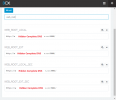
When you see in the client provisioning settings an internal IP, then you may have managed the FQDN in your network correct but 3CX still "thinks" it should tell internal clients to use an IP.

Please check (BUT DONT CHANGE)
Settings --> Parameter -->
  • WEB_ROOT_LOCAL
  • WEB_ROOT_EXT
  • WEB_ROOT_LOCAL_SEC
  • WEB_ROOT_EXT_SEC
 
Both On-Premise 3CX PBX have DNS inside those parameters

WEB_ROOT_LOCAL --> DNS
WEB_ROOT_EXT --> DNS
WEB_ROOT_LOCAL_SEC --> DNS
WEB_ROOT_EXT_SEC --> DNS

I've included a screenshot of the actual configuration.

I tried to "Regenerate provisioning file" after double-checking those parameters but I get the same result. I even tried to delete and re-import the new provisioning file without luck. Just to help the operating system of our clients PC is Windows 10 Pro 20H2 x64 French.

Thank you
 

Attachments

  • Sans titre.png
    Sans titre.png
    18.3 KB · Views: 9
  • Sans titre2.png
    Sans titre2.png
    21.3 KB · Views: 9
Last edited:
Both On-Premise 3CX PBX have DNS inside those parameters

WEB_ROOT_LOCAL --> DNS
WEB_ROOT_EXT --> DNS
WEB_ROOT_LOCAL_SEC --> DNS
WEB_ROOT_EXT_SEC --> DNS

I've included a screenshot of the actual configuration.

I tried to "Regenerate provisioning file" after double-checking those parameters but I get the same result. I even tried to delete and re-import the new provisioning file without luck. Just to help the operating system of our clients PC is Windows 10 Pro 20H2 x64 French.

Thank you
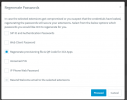
To make the 'legacy' client use the FQDN for both internal and external communication, edit the Extension and in the Phone Provisioning tab, in the Network Interface drop-down select the FQDN and press OK.
1648632737722.png


After this, Exit the 'legacy' Windows Client and re-launch it so that it "pulls" the new settings.

Now if you check in the Account settings, you should see the FQDN for both local and remote fields.
Also the WebMeeting should open with the FQDN.
 
Hi NickD_3CX,

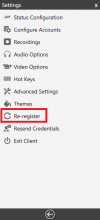
You're right. In my first attempt to switch the "Network interface for registration and provisioning" I did not completely closed the 3CX 'legacy' Windows Client. I just tried to use the "Re-register".

Our installation(database) is from 2016. So it's probably why everything was set to the IP. Now, when I create a new user, this "Network interface for registration and provisioning" is automatically set to our "Split DNS"

That's exactly the source of this situation.
Excellent! Problem solved! I knew there was a little something that make me fall in between.

Thank you very much
 

Attachments

  • Untitled-3.png
    Untitled-3.png
    20.3 KB · Views: 2
  • Untitled-4.png
    Untitled-4.png
    14.4 KB · Views: 2
  • Like
Reactions: N_G and NickD_3CX
Status
Not open for further replies.

Latest Posts

Forum statistics

Threads
111,973
Messages
590,075
Members
164,895
Latest member
jasonkkrause