Unifying 3CX with Microsoft 365 - Single Sign-On (SSO) - Part 2 of 3

Status
Not open for further replies.

Keith Winhall_3CX

Product Communicator
Free User
Joined
Aug 3, 2021
Messages
60
Reaction score
67
Continuing with our 3 part video tutorial, last week, Stefan Walther, 3CX CEO, highlighted what initial steps are required to get your 3CX instance syncing with Microsoft 365. If you missed it, click here. Now with Part 2 in mind, Hands up who has ever wished that their car key and house key were the same? This short video highlights how the sync c...
Continue reading the Original Blog Post.
 
Last edited by a moderator:
For some reason I can't get this to work, I've added an account as administrator, that works fine, I can login to the admin console. I've added the same user as a webclient user, but when I login it keeps returning to the webclient login page.
 
For some reason I can't get this to work, I've added an account as administrator, that works fine, I can login to the admin console. I've added the same user as a webclient user, but when I login it keeps returning to the webclient login page.
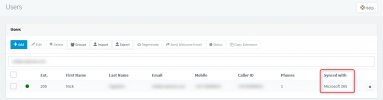
The Email you are authenticating with, does it exist as an email for an Extension? And if yes, have you synced that user from the "User sync" tab and in the "Users" node it shows as "Synced with Microsoft 365"?
1629207055732.png
 
The Email you are authenticating with, does it exist as an email for an Extension? And if yes, have you synced that user from the "User sync" tab and in the "Users" node it shows as "Synced with Microsoft 365"?
View attachment 23705
Yes, I can also login with that user to the 3CX admin console, just the webclient is not working.
 
In case this happens to others, upon checking for some reason 3CX hadn't synced the UPN value, which was causing this to happen.

The simplest thing to try is:
  1. Disable MS365 User sync and Sign In
  2. Delete the Extension
  3. Recreate the extension manually and put the email address that the user has in MS365
  4. Re-enable User Sync and Sign In and the information of the users should populate the newly created extension
  5. Try logging into the WebClient again.
 
  • Like
Reactions: Natassia Allery
I experienced this issue, but for me, disabling and re-enabling the MS365 User Sync (Settings->MS365 Integration->User Sync->Toggle "Sync Microsoft 365 users with 3CX Extensions") was enough to resolve.

In my case, I have had MS365 sync running since it was first introduced some time back in V16, so I guess resetting was enough to get webclient SSO working.

EDIT TO ADD: The user principal names in the "Principal Name" column were already present before I toggled User Sync Off/On.
 
Last edited:
Hello, I am experiencing a different issue after setting up SSO. I have confirmed the settings on the APP registration in Azure and in 3CX. When I sign in with a user account, I get a notice stating that admin consent is needed to be granted by the admin. I have already done this though. I also confirmed that ID Tokens is enabled. Any Ideas?
 
Hello, I am experiencing a different issue after setting up SSO. I have confirmed the settings on the APP registration in Azure and in 3CX. When I sign in with a user account, I get a notice stating that admin consent is needed to be granted by the admin. I have already done this though. I also confirmed that ID Tokens is enabled. Any Ideas?
Sometimes you need to wait a bit. However, if you recently changed the permissions (like, for the most recent update), you need to redo the "Grant Admin Consent" to have it updated. Also, you need to redo the sign-in/authorize after that
 
  • Like
Reactions: NickD_3CX
I have done both. I even tried clearing the whole setup from Azure and 3CX and starting over. Still prompting for admin consent even though it has been granted with the admin account.
 
I have done both. I even tried clearing the whole setup from Azure and 3CX and starting over. Still prompting for admin consent even though it has been granted with the admin account.
Any update on this?
 
Any update on this?
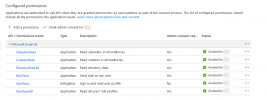
These are what the permissions should look like:
1635147729288.png

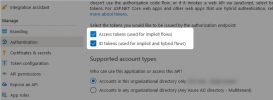
Also don't forget these options:
1635147769578.png


If you haven't tried this, try deleting the App in the Azure Portal completely and creating a new one.
 
  • Like
Reactions: hwsknudsen
These are what the permissions should look like:
View attachment 25399

Also don't forget these options:
View attachment 25400


If you haven't tried this, try deleting the App in the Azure Portal completely and creating a new one.
Ah we did not have the User.read. system admin must have removed as that was not one of the listed permissions when looking at 3cx system 365 integration page. Also did not have "Access Tokens" enabled only "ID Tokens". It is now working for us
 
Ah we did not have the User.read. system admin must have removed as that was not one of the listed permissions when looking at 3cx system 365 integration page. Also did not have "Access Tokens" enabled only "ID Tokens". It is now working for us
Glad to hear!
The User.Read is not listed in the requirements as that is there by default.
 
  • Like
Reactions: Evolute IT
These are what the permissions should look like:
View attachment 25399

Also don't forget these options:
View attachment 25400


If you haven't tried this, try deleting the App in the Azure Portal completely and creating a new one.
Hi,

This has given me login/SSO error until "User.Read" permission has been enabled/granted on Azure Active Directory. If it's a required permission 3CX should edit the configuration guide to add it.
 
Hi,

This has given me login/SSO error until "User.Read" permission has been enabled/granted on Azure Active Directory. If it's a required permission 3CX should edit the configuration guide to add it.
Hi! The User.Read permission is there by default, that is why it isn't mentioned in the guide.
It's something we can consider though.
 
  • Like
Reactions: Evolute IT
Hi! The User.Read permission is there by default, that is why it isn't mentioned in the guide.
It something we can consider though.
Hi @NickD_3CX, I can confirm that permission it's not shown by default in the list of API Permission. I don't know if it's included by default and hide, but the SSO integration was not working until I added that User.Read permission to the list and then granted, and I've followed the configuration guide step by step.
 
Hi @NickD_3CX, I can confirm that permission it's not shown by default in the list of API Permission. I don't know if it's included by default and hide, but the SSO integration was not working until I added that User.Read permission to the list and then granted, and I've followed the configuration guide step by step.
This is something that should be investigated, if true; without delegated User.read, ad app will not be able to know details of the user that is currently logging in. When creating ad app registration, it should really include this permission by default, and usually it does.
 
Hi,

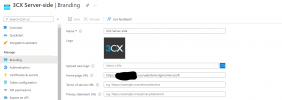
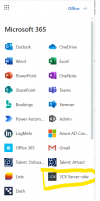
just something that might help, once you register 3cx as an azure app,

you can also upload the Logo and it will show in the office 365 app launcher for users,

if you also use the below URL if users click on the app (they will be auto signed in via sso with the o365 details) directly to the web app

Thanks,


https://FQDN3cx.us/webclient/signin/microsoft


sso1.pngsso2.png
 
We have the same issue, but even we can't log in with m365 in the admin console. It just loads and goes back to the login screen.

We tried disabling m365 and recreating the app. Our certificate is correct, the API rights are ok: https://prnt.sc/26tuh8w And status is ok: https://prnt.sc/26tuio8 All syncs are active, also for selected admin users. And synced with m365 is active: https://prnt.sc/26tukd2
 
Status
Not open for further replies.