Just to be sure, let's check that the cable is connected as per Yealink's instructions:
- Use the back USB port of the phone (as shown here on phone)
- Do not use the top camera-USB port (not shown here on phone)
- Use the included USB cable which plugs into the mini USB port of the EXP50
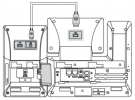
If the above is ok, then factory reset the phone
while the EXP50 remains plugged in.
Now edit the extension and delete the phone from the Provisioning tab entirely and then press OK to save.
Assign your phone to extension as before from the "Phones" page but using the "Add Ext" button so we can create a brand new all-defaults extension. It should take you straight to the provisioning tab of the new extension now.
Before your press OK to save, navigate to the BLFs tab and keep adding "Empty" BLFs all the way to 29.
Choose type "BLF" for positions 28 and 29 only, and choose any extension you want.
Finally, press OK and give it a moment to auto-provision itself. The device should auto-provision and reboot.
The EXP50 should now end up auto-configured along with the phone, and should come back online with the expected config so long as you have followed the above instructions.


