3CX Desktop App (Microsoft Store version) closes instantly on startup / flashes for a second

nikolay971

SMB User
Joined
Jul 13, 2026
Messages
4
Reaction score
0
I am having a major issue with the 3CX Desktop App installed from the Microsoft Store. It completely refuses to open on three different laptops.

Symptoms:

  • When I click the app icon, nothing happens on the screen.
  • If I open Task Manager and try to launch the app, I can see the 3CX process appear for a split second, and then it immediately disappears.
  • There are no error messages, no windows opening, and no crash reports shown to the user.
What we already tried:

  • Completely uninstalled and reinstalled the app from the Microsoft Store.
  • Used the "Reset" and "Repair" options in Windows Apps Settings.
  • Tried changing the Windows region.
  • Completely disabled the antivirus software.
  • The Web Client version works fine in the browser, but the Desktop App from the Store just flashes and dies instantly.
All laptops are standard standalone Windows 10/11 machines (not in a corporate domain). Interestingly, if I download the same app from the Store on my personal home laptop, it works perfectly fine. But on these specific machines, it just won't start.

Please help, what could be causing the Store app to crash instantly without any error?
 
I personally would stay within latest stable (currently Version 1.8.11 (1.8.260804001))

did you install? and still get same events in win eventlog?
 
I personally would stay within latest stable (currently Version 1.8.11 (1.8.260804001))

did you install? and still get same events in win eventlog?

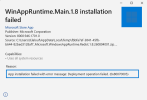
If I try to run the Microsoft.WindowsAppRuntime.Main.1.8.msix file, I get this error message:

1786645823460.png

In case it makes a difference, the logged in user I'm running this with is a local administrator
 
source: https://www.3cx.com/docs/troubleshoot-softphone/#h.cchdnjyc7tbm

As an Administrator, copy msix from unzip SDK ..\Microsoft.WindowsAppRuntime.Redist.1.8.260804001\MSIX\win10-x64\Microsoft.WindowsAppRuntime.Main.1.8.msix to your personal downloads folder

then Run the following command in Powershell with Administrator rights:

$path = "$env:USERPROFILE\Downloads\Microsoft.WindowsAppRuntime.Main.1.8.msix"

Add-AppxProvisionedPackage -Online -PackagePath $path -SkipLicense -LogPath "C:\Temp\Main_Provision.log"
 
source: https://www.3cx.com/docs/troubleshoot-softphone/#h.cchdnjyc7tbm

As an Administrator, copy msix from unzip SDK ..\Microsoft.WindowsAppRuntime.Redist.1.8.260804001\MSIX\win10-x64\Microsoft.WindowsAppRuntime.Main.1.8.msix to your personal downloads folder

then Run the following command in Powershell with Administrator rights:

$path = "$env:USERPROFILE\Downloads\Microsoft.WindowsAppRuntime.Main.1.8.msix"

Add-AppxProvisionedPackage -Online -PackagePath $path -SkipLicense -LogPath "C:\Temp\Main_Provision.log"
The user with the issue is no longer available, but I'll give this a try tomorrow morning and provide feedback.

I appreciate your help @longtimefirsttime !
 
Hi all,

We hit this across our own estate after the Store app updated to 20.0.1277.0 (6-8 October), and have found the cause. Posting in case it helps others.

Build 1277 moves the app onto Windows App Runtime 2 (2.5.1.0). The Store installs the runtime framework, but not its companion package, MicrosoftCorporationII.WinAppRuntime.Main.2. The app then tries to install that itself as the signed-in user at launch, fails, and exits without an error. You can see it in Event Viewer under Applications and Services Logs > Microsoft > Windows > AppXDeploymentServer > Operational, event 403:

error 0x80070005: Failure to get staging session for: file:///C:/Program%20Files/WindowsApps/Microsoft.WindowsAppRuntime.2_2.5.1.0_x64__8wekyb3d8bbwe/MSIX/Main.msix

The fix is to provision that package for all users from an elevated PowerShell (or as SYSTEM through your RMM). The installer is already on the machine:

$f = 'C:\Program Files\WindowsApps\Microsoft.WindowsAppRuntime.2_2.5.1.0_x64__8wekyb3d8bbwe\MSIX'
Add-AppxProvisionedPackage -Online -PackagePath "$f\Main.msix" -LicensePath "$f\main_license.xml"

On some machines it shows as Staged rather than Installed for the user afterwards. If so, run this as the user, or have them sign out and back in:

Add-AppxPackage -RegisterByFamilyName -MainPackage MicrosoftCorporationII.WinAppRuntime.Main.2_8wekyb3d8bbwe

The app opened straight away on every machine we fixed this way. The Singleton fix earlier in the thread targets runtime 1.8, which is why it hasn't worked for everyone on the newer build. If you block non-admin app installs through Intune (BlockNonAdminUserInstall), every user on 1277 will hit this, so it's worth pushing the fix out centrally rather than waiting for tickets.

@KyriacosS_3CX, @Pierre_3CX, could R&D look at having the app, or the Store package, deploy the runtime's Main package properly rather than relying on a user-context install at first launch? As it stands, any future runtime bump will break it again for anyone on a managed device.

Happy to share logs if useful.

Nick
 
  • Like
Reactions: SweetAction
Hi @Nick W , thank you for the detailed writeup, the team is checking this.
 
  • Like
Reactions: Nick W