3CX System Office Hours Settings in TRUNK Issues

Status
Not open for further replies.

OXXODATA

Silver Partner
Joined
Aug 18, 2021
Messages
14
Reaction score
3
Hello,
I'm currently experiencing an issue with 3CX office hours. Here are the 3cx details:
  • 3CX Version, Enterprise Annual 18.0 Update 9 Build 31
  • Server OS, Debian 10
  • Is the 3CX Server Hosted and where? On-premises
  • Has the Firewall Checker passed: YES

Problem:

I have set a time range on the TRUNK from 08:00 to 17:00, but it does not seem to be working. Please note that there are no inbound rules, no system-wide office hours, no group hours, and no extension hours defined. The NTP server is correct, and the time in Linux is also correct. Could you please help us identify where the error might be?

How can I debug the office hours settings on the trunk, and what logs can I check to help diagnose the issue?

Thank you.
 
Have you ensured that the PBX is not forced to use In Office Hours?
Dial first the *640 to ensure that default office hours are followed.
 
  • Like
Reactions: OXXODATA
Thank you for your help. The *640 worked perfectly. Could you please provide a link to a doc about the *640?
 
https://www.3cx.com/docs/pbx-dial-codes/

This page explains the dial codes available in 3CX. The Emergency override dial code is not shown in this document as it is not availabkle in Version 20.

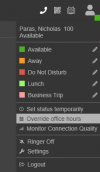
The dial code puts the entire system globally to out of office, and this could clash with the department setup. The office hours can be manually overriden by the web client only now.

1722840938125.png
 
  • Like
Reactions: Evolute IT
Yesterday, I performed the operation, and it worked, but it was undone, so I had to redo it. Could you please let me know what I need to do to make it persist?
 
Which operation did you do? Youre going to have to be more specific? The dial code? Or the overriding of the office hours through the web client?
 
Ultimately you should be creating your office hours through the department office hours configuration and not just controlling to entirely through the manual override.
 
Which operation did you perform? You’ll need to be more specific. Are you referring to the dial code or overriding the office hours through the web client?
---------------------------------------------------------------------------------------------------------------------------------
Issue:

I defined office hours in the Trunk/Inbound Rule, but it did not work.

Resolution:

In the web client with the admin extension, I used *64, and it worked.

Additional Issue:

Office hours did not work again.

How can I check ?
 
In Version 18 the office hours are based on the PBX time zone. Check what timezone you have defined.

Then define your office hours on your rule.

You will have to ensure that your rule is actually being triggered.

Dial *64 to ensure that your office hours are following the schedule.

Dialling *641 will force the Office to IN office hours. This will ignore your office hours and will be IN office hours indefinitely.
Dialling *642 will for the PBX to OUT of office hours indefinitely, ignoring your office hours totally.

Also ensure that your office hours are properly set. Ensure that you do not have overlapping opening and closing times etc.
 
  • Like
Reactions: OXXODATA
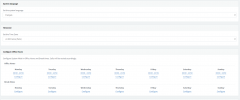
@NicholasP_3CX here my config :
1722932620578.png

Also, once again today, the office hours were closed even though the inbound rule was set to open. I used *64 again, and everything is back to normal. How can I fix this permanently?
 
You need to press the *640 dial code for the PBX to follow the Default office hours.
 
  • Like
Reactions: Evolute IT
@TheodorosG_3CX Yes, I already did that, and it worked great! But the next day, the issue came back. In your opinion, what could be the issue? Which log can I check to locate the issue?
 
This might need a combination of logs.
Are you restoring any backup?
 
@TheodorosG_3CX I did not fully understand your question. No, I do not restore any backup.

AND I found that a couple of minutes ~30min after I dial *64, the office hours defined inbound rules stop working again.
 
After a thorough investigation, I found out that a regular 3CX user has dialed *642 (blf) and closed everything. How can I prevent this?
 
  • Like
Reactions: Evolute IT
After a thorough investigation, I found out that a regular 3CX user has dialed *642 (blf) and closed everything. How can I prevent this?
Upgrade to v20. The dial code is gone there.

You could also change it for something super complex in the Settings > Dial Codes section.
 
Upgrade to v20. The dial code is gone there.

You could also change it for something super complex in the Settings > Dial Codes section.
Kind of. The dial codes are also possible in v20. In version 20 you can enable the dial codes for system mode by adding the prefix (eg. *64) as the value to the DIALCODEOUTOFFICE parameter (Admin | Advanced | Parameters). Then the dial codes can be used as before and assigned as custom speed dial entries to DSS buttons.
 
Kind of. The dial codes are also possible in v20. In version 20 you can enable the dial codes for system mode by adding the prefix (eg. *64) as the value to the DIALCODEOUTOFFICE parameter (Admin | Advanced | Parameters). Then the dial codes can be used as before and assigned as custom speed dial entries to DSS buttons.
Does it affect the default department or all of them?

@Guillaume Bourgeois interesting...
 
  • Like
Reactions: Guillaume Bourgeois
Change the dial code so users are not aware.
 
Status
Not open for further replies.

Forum statistics

Threads
111,953
Messages
589,913
Members
164,847
Latest member
mike.carter.991