Solved AWS Marketplace Image

Status
Not open for further replies.

DaveB-Opt

Free User
Joined
Aug 2, 2019
Messages
35
Reaction score
5
I've just created an AWS instance using these settings https://www.3cx.com/docs/pbx-amazon-aws-marketplace/
I've allowed both 443 and 80 for 0.0.0.0/0 (default settings) but it when I connect using http using the public DNS, I get

nginx error​

401 Authorization Required​

 
I'll be honest as well. No-one is going to pay you for support when you patronize them - just a thought.
Good luck to you also! You're going to need to brush up on your customer skills if you actually want people to pay for your service (we would have happily paid), but your attitude stinks
People do pay for my services, because they get the knowledge I have. Support isn't free. Free support is this forum. If you need direct assistance, then yes, I will ask to be paid for it. As anyone would.

I have set up 3CX multiple times on our internal infrastructure. The Debian VM works a charm.
Then why do you have a regular free user account, instead of a reseller account with certifications?

But, yet again, I repeat - the official KB for the AWS image is incorrect. I've followed the article to the letter, and you (unknown person on the internet) are telling me to use the public IP address (not in the article), and then asking me to DM you to pay you for assistance?
Here's a thought, use 3CX Hosted and they'll take care of it.
 
@DaveB-Opt type https://yourpbxfqdn:5001
Like : https://xxxxx.-xxxx-xxxx.3cx.co.uk:5001

forget amazon domain names and these things, FQDN of your license key.
Or if you are not using port 5001, then just dont put it.
 
People do pay for my services, because they get the knowledge I have. Support isn't free. Free support is this forum. If you need direct assistance, then yes, I will ask to be paid for it. As anyone would.


Then why do you have a regular free user account, instead of a reseller account with certifications?


Here's a thought, use 3CX Hosted and they'll take care of it.

We're going round in circles here. I'm not sure what you're talking about regarding the reseller account. We have an on-prem Debian instance linked to our corporate email [email protected]. I am logged into my personal account here.
I completely understand support is not free.
Let's stick to the basics - the official article for AWS is wrong (not your article). The one regarding the AWS marketplace AMI is wrong. https://www.3cx.com/docs/pbx-amazon-aws-marketplace/ No mention of port 5015. No mention of public IP. We can reach the server, but it won't accept the username as per the KB article. Let's just stick to the AWS AMI for now shall we? I've used the article you've linked before (for on-prem) and that worked. This is not on-prem. This is AWS and the AMI is not working as per the KB https://www.3cx.com/docs/pbx-amazon-aws-marketplace/

Instead of making a customer, you told me I 'didn't know what I'm doing' and therefore, we won't be paying you.

Good day to you. There's no point in us discussing this any further. Yes you know what you're doing, obviously I'm an amateur. Well done.
 
@DaveB-Opt type https://yourpbxfqdn:5001
Like : https://xxxxx.-xxxx-xxxx.3cx.co.uk:5001

forget amazon domain names and these things, FQDN of your license key.
Or if you are not using port 5001, then just dont put it.
His PBX isn't setup yet. He can't access the setup wizard (as per the 3CX AWS deployment docs.)
 
Here's an idea: try using the PBXExpress from your customer portal. It allows to deploy to AWS EC2 and configures it for you (it asks the questions in the wizard.)

This might help.
 
  • Like
Reactions: N_G
@DaveB-Opt to clear things up.
We have thousands of users who used this guide and I think its more than straight forward if you follow all the steps.
@Frederick Marcoux is not wrong here since you have not setup the PBX yet, i thought you had on the beginning.
Instructions are not wrong here as steps 9 and above are absolutely correct and specifically step 10 says this.
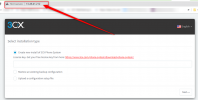
Check 3rd screenshot i have which works.
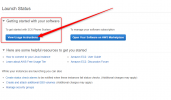
Also if you don't want to read the instructions then when you click Launch then you have Launch Status there are also additional instructions, check attached screenshots.

Now for the fact that you get error " 502 Bad Gateway from nginx/1.10.3 " I can not replicate it as if Nginx was stopped then it wouldn't even open the browser.
Something went wrong here with your case and the machine that has been deployed on the background has an issue with nginx. On this stage, no 3cx service is yet installed, only PbxWebConfigTool in order to put your key.
I would recommend to delete the machine and make a new one, 5 minutes and the machine is up and running.
Unless if you want to ssh and tshoot nginx.
Since there is no config no nothing on this one, just delete it and in 10 min you can have a PBX.

More preferable, spin up one to be hosted by 3CX and you wont have to worry for any of these as all are managed by our Cloud Team on the fly.


https://www.3cx.com/docs/pbx-amazon-aws-marketplace/
  1. When the new VM is deployed, go to EC2 Console > “Instances” and click on the new VM’s “Instance ID” to select. Optionally click edit under the “Name” column to give a name to the new VM.
  2. Copy the “Public DNS (IPv4)”address for your new instance and open it in a browser, e.g.
    http://example.eu-west-1.compute.amazonaws.com
    .
  3. Login using the username
    3CX
    and the new VM’s “Instance ID” as password.


    View attachment 22455

View attachment 22456
 

Attachments

  • 1.png
    1.png
    50.8 KB · Views: 5
  • 2.png
    2.png
    22.5 KB · Views: 5
  • 3.png
    3.png
    60.5 KB · Views: 5
@DaveB-Opt to clear things up.
We have thousands of users who used this guide and I think its more than straight forward if you follow all the steps.
@Frederick Marcoux is not wrong here since you have not setup the PBX yet, i thought you had on the beginning.
Instructions are not wrong here as steps 9 and above are absolutely correct and specifically step 10 says this.
Check 3rd screenshot i have which works.
Also if you don't want to read the instructions then when you click Launch then you have Launch Status there are also additional instructions, check attached screenshots.

Now for the fact that you get error " 502 Bad Gateway from nginx/1.10.3 " I can not replicate it as if Nginx was stopped then it wouldn't even open the browser.
Something went wrong here with your case and the machine that has been deployed on the background has an issue with nginx. On this stage, no 3cx service is yet installed, only PbxWebConfigTool in order to put your key.
I would recommend to delete the machine and make a new one, 5 minutes and the machine is up and running.
Unless if you want to ssh and tshoot nginx.
Since there is no config no nothing on this one, just delete it and in 10 min you can have a PBX.

More preferable, spin up one to be hosted by 3CX and you wont have to worry for any of these as all are managed by our Cloud Team on the fly.


https://www.3cx.com/docs/pbx-amazon-aws-marketplace/
  1. When the new VM is deployed, go to EC2 Console > “Instances” and click on the new VM’s “Instance ID” to select. Optionally click edit under the “Name” column to give a name to the new VM.
  2. Copy the “Public DNS (IPv4)”address for your new instance and open it in a browser, e.g.
    http://example.eu-west-1.compute.amazonaws.com
    .
  3. Login using the username
    3CX
    and the new VM’s “Instance ID” as password.


    View attachment 22455

View attachment 22456

Hi Nikos,

Created the AMI again using the same instructions (I didn't do anything different).
Seems to be working now. Not sure why Nginx didn't initialise properly - with AWS you simply spin up the system, and don't really have any control over the services deployed within the image - thought there may be a wider issue with the image.

Thanks for your help also @Frederick Marcoux.
 
  • Like
Reactions: Evolute IT
Hi Nikos,

Created the AMI again using the same instructions (I didn't do anything different).
Seems to be working now. Not sure why Nginx didn't initialise properly - with AWS you simply spin up the system, and don't really have any control over the services deployed within the image - thought there may be a wider issue with the image.

Thanks for your help also @Frederick Marcoux.
Sometimes it happens. AWS images are flacky at best lol

Glad you could get it to work! In the future, I strongly suggest you use PBXExpress just because it makes it all much easier, and supports multiple cloud providers.
 
Status
Not open for further replies.

Forum statistics

Threads
111,974
Messages
590,081
Members
164,899
Latest member
mazet