@DaveB-Opt to clear things up.
We have thousands of users who used this guide and I think its more than straight forward if you follow all the steps.
@Frederick Marcoux is not wrong here since you have not setup the PBX yet, i thought you had on the beginning.
Instructions are not wrong here as steps 9 and above are absolutely correct and specifically step 10 says this.
Check 3rd screenshot i have which works.
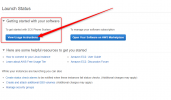
Also if you don't want to read the instructions then when you click Launch then you have Launch Status there are also additional instructions, check attached screenshots.
Now for the fact that you get error " 502 Bad Gateway from nginx/1.10.3 " I can not replicate it as if Nginx was stopped then it wouldn't even open the browser.
Something went wrong here with your case and the machine that has been deployed on the background has an issue with nginx. On this stage, no 3cx service is yet installed, only PbxWebConfigTool in order to put your key.
I would recommend to delete the machine and make a new one, 5 minutes and the machine is up and running.
Unless if you want to ssh and tshoot nginx.
Since there is no config no nothing on this one, just delete it and in 10 min you can have a PBX.
More preferable, spin up one to be hosted by 3CX and you wont have to worry for any of these as all are managed by our Cloud Team on the fly.
https://www.3cx.com/docs/pbx-amazon-aws-marketplace/
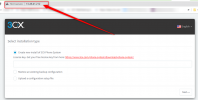
- When the new VM is deployed, go to “EC2 Console” > “Instances” and click on the new VM’s “Instance ID” to select. Optionally click edit under the “Name” column to give a name to the new VM.
- Copy the “Public DNS (IPv4)”address for your new instance and open it in a browser, e.g.
http://example.eu-west-1.compute.amazonaws.com
.
- Login using the username
3CX
and the new VM’s “Instance ID” as password.
View attachment 22455
View attachment 22456