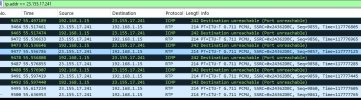
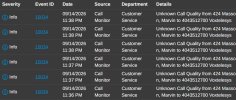
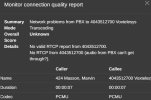
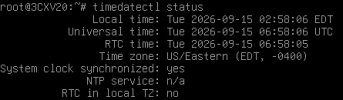
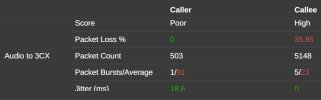
Any ideas on how to troubleshoot this? I've had Fortigate look at it and they feel like the PBX is the issue.
Classic ..
That’s the kind of answer you typically get from network administrators who aren’t specialized in telephony.
Just to make sure I understand correctly, the PBX is located behind the FortiGate, right?
Validate what
@TheodorosG_3CX suggested.
Otherwise, follow the procedure below.
1. Important Infrastructure and Network Checks
Windows / Hyper-V Host
Make sure only
one network adapter on the physical Windows host has a default gateway.
Multiple default gateways can cause intermittent packet loss and disconnections.
3CX VM
The 3CX VM should have only
one virtual network adapter.
Dedicated PBX
The VM should be dedicated exclusively to 3CX. Don’t install unrelated third-party software or services on the PBX.
FortiGate Configuration for a 3CX PBX
2. Remove the SIP Session Helper
Open the FortiGate CLI from the web interface:
Code:
config system session-helper
show
Find the entry containing:
Note its
edit number and delete it.
Example if SIP is under
edit 13:
Code:
config system session-helper
delete 13
end
The entry number may be different, so verify it first.
3. Disable SIP ALG / Helper
Run:
Code:
config system settings
set default-voip-alg-mode kernel-helper-based
set sip-helper disable
set sip-nat-trace disable
end
Very important: reboot the FortiGate after applying these changes.
Don’t skip the reboot.
4. Configure the 3CX Firewall Policy
Go to:
Code:
Policy & Objects > Firewall Policy
Create or edit the policy used by the 3CX PBX:
Code:
Incoming Interface: PBX LAN / Voice VLAN
Outgoing Interface: WAN
Source: 3CX PBX
Destination: Internet
Action: ACCEPT
NAT: Enabled as required
*Use the PBX IP address as the source.
For this policy:
Code:
Security Profiles: OFF
SSL Inspection: No Inspection
VoIP Profile: NONE
All Security Profiles must be
disabled:
- Antivirus: OFF
- Web Filter: OFF
- DNS Filter: OFF
- Application Control: OFF
- IPS: OFF
- File Filter: OFF
- Email Filter: OFF
5. Verify the Firewall Policy Order
Place the dedicated 3CX policy before generic LAN-to-WAN policies.
6. Configure QoS if Required
If QoS is required, configure a Traffic Shaper:
Code:
Type: Shared
Apply Shaper: Per Policy
Traffic Priority: High
Apply it to the 3CX firewall policy and adjust the bandwidth according to the site’s Internet connection.
7. Run the 3CX Firewall Checker
Run the
3CX Firewall Checker.
It should complete successfully.
If it reports NAT or port-mapping errors, fix those before continuing.
8. Test Calls
Test several inbound and outbound calls and confirm that audio works in both directions, calls aren’t dropping unexpectedly, SIP registrations remain stable, and audio quality is normal.
After a FortiOS update, verify that the SIP Helper is still disabled and that the 3CX firewall policy still has all Security Profiles disabled.