• We do not provide troubleshooting help for unsupported phones. Please try with a supported phone.
  • V20 Update 10 Alpha Learn more

Extensions that are part of Ring Group cannot see 3CX phone book

Status
Not open for further replies.

big.LITTLE

Free User
Basic Certified
Joined
Feb 1, 2018
Messages
60
Reaction score
3
Hi there,

Any idea why extensions that are part of ring group cannot see the 3CX phone book?

Must be permission issue, but I seems can't find it?

Cheers
 
  • 3CX Version: Enterprise Annual 16.0.8.9
  • Server OS: 3CX Debian 9 ISO (vanilla install)
  • Is the 3CX Server Hosted and where? On-premise
  • IP Phone Make/Model/Firmware: Yealink T33G, firmware version: 124.85.0.40
  • Provisioning Method: Local / VPN / STUN / SBC: Local, using 3CX hostname provided FQDN
  • Trunk Provider or Gateway Make/Model: 2Talk NZ
  • Has the Firewall Checker passed: YES
  • Are custom Phone Templates being used: NO
I was looking for the 3CX PBook button on the Yealink T33G, but didn't find anything.
 
Hi,

The fact they are part of a ring group does not make any difference actually. It appears what you have here may be a provisioning issue since we give the same phonebook always to all devices regardless of groups etc.

Try this:

A) Upgrade your firmware from the management console, your version is not supported (should be 124.86.0.5)

B) Reprovision one of those phones properly with the correct interface:
  1. Factory reset one of those phones
  2. Delete the phone entry from the extension and press ok
  3. Go to the phone's section after the phone has reset, and select it from the list
  4. Click Assign Ext and select the extension you want
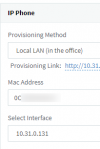
  5. You will be taken to the provisioning page, make sure you pick the interface and provisioning method like the screenshot below and then press OK
1618562604305.png

The above is our default which should work for everyone, but you mentioned you used "Local, using 3CX hostname provided FQDN" and I'm afraid this will not work for most people, the phonebook will fail to download.
 
  • Like
Reactions: Evolute IT
@JohnS_3CX: The Deskphones are connected through the WAN, so what's the best way of connecting then?
 
When the phones are not on the same LAN as 3CX, the recommended (because there are less things that can go wrong) is using a 3CX SBC.

But in your case, as the issue you are having is that the Phonebook is not being populated, it shouldn't really matter whether it is Direct SIP/STUN or SBC, because in both cases, the phone downloads the settings and phonebook over a direct HTTPS request to the 3CX Server.

Back to the issue you are having, because I have a feeling we are missing something here.
You say "extensions that are part of ring group cannot see the 3CX phone book".

Could you please be specific what you are pressing on your Yealink T33Gs and what you are seeing?

In the 3CX Management Console --> Advanced --> Contacts, you should see your Contacts. Do you have a First/Last Name AND a number in the "Mobile" column? If yes, do you see any of these contacts on the "3CX Phonebook" on your Yealink phone?
 
  • Like
Reactions: Evolute IT
This is for the Company-wide default phonebook.

No softphone app in use for users of desk phone

From deskphone, key press is: 3CX PBX / Update / Error msg = cannot download remote phonebook
 
Then what is happening is clear:
The phones cannot download the 3CX Phonebook and that is why there are no contacts in the phone.

What I would suggest what @JohnS_3CX said above:
  1. Factory Reset a phone
  2. Make sure you are using the Default Template, not custom template
  3. Re-provision the phone using the instructions from here: https://www.3cx.com/sip-phones/ (not manually)
If the phone provisions, but the phonebook is still not available and you get the same, it may be a good idea to either contact a 3CX Partner or the 3CX Support Team if you are already a partner, to have a closer look.
 
I can confirm that resetting the phone back to factory default and then reprovisioning it does work.

Apparently, it's a bug since 2018: https://www.3cx.com/community/threads/phonebook-not-downloading-v15.53675/post-220250

Here's what we had to went through to get it sorted:
  1. Reset the desk phone to the factory default;
  2. Log into the 3CX Portal;
  3. Change the working provisioning type from “Local LAN” to “STUN” - “Local LAN” type doesn’t hand out any provisioning;
  4. Re-provision the desk phone;
  5. Re-boot the desk phone;
  6. On the desk phone, press 3CX PBook / Update;
  7. Change the provisioning type from “STUN” to “Local LAN ” - for some reason, “STUN” doesn’t work with our setup.
We have numbers of desk phones to do with this workaround.
 
I have to disagree, neither the mentioned post nor your case points to a bug. Instead it points more to deploying your phones in an unsupported way, based on two things you mentioned so far:

a)the phones are local

b)but provisioned via WAN which does not make sense in a LAN environment


You need to use the supported way of provisioning your phones otherwise it will not be expected to work as it was designed:

LAN phones = must access PBX via LAN, not WAN

STUN phones = must access PBX via WAN

If you do it the wrong way round then the phone will receive invalid provisioning instructions, making the phonebook unreachable as per your description above, and requiring the workaround method you described in order to get them working (for now, they will likely fail again later)


Do you want to give us a description of your network layout? Perhaps there is a better way of doing it than the current method you are using.
 
  • Like
Reactions: NickD_3CX
This makes perfect sense now, due to selecting the wrong option (LAN). This is not an on-premise system so the link is invalid, but also selecting LAN in the phone provisioning is equally invalid regardless of the link. It will generate the wrong phone settings for your type of setup.


Based on your Cloud-setup, you have two options that will work as intended:

a) use an SBC ( I highly recommend this - really )

b) use STUN mode ( not recommended - more complicated network setup is required)


The SBC can easily be installed on an existing PC or VM or even a Raspberry Pi, and must be deployed at the same site as the phones. We highly recommend this, it is very robust, quick to deploy, and maintenance free.

STUN does not require extra equipment, but it can be a pain to manage if you have more than a couple of phones (you need firewall access, static IPs, SIP port forwards, RTP port forwards per each phone, not just once) just to keep it stable and reliable in the long term.


Now that you are aware of your choices, let me know which path you prefer and I can guide you.
 
  • Like
Reactions: big.LITTLE
Status
Not open for further replies.