How to change 3cx hostname IP?

Status
Not open for further replies.

perez.koh

Bronze Partner
Joined
Sep 23, 2019
Messages
46
Reaction score
0
HI,

May I know we can change the 3cx hostname IP?

Eg: test.elastix.com

Thank you in advance
 
the 3CX FQDN will update the IP address according to the current WAN address of the machine.

https://www.3cx.com/docs/fqdn-management-allocation/

The TTL will depend on the license type.

  • Standard and Professional licenses have a TTL of 6 hours
  • Enterprise Editions set the TTL to 300 seconds (lowest possible value)
 
The IP of the machine is not assigned to the FQDN, it's been weeks now, still the same, no changes,
 
Check that your license is correct in the mgmt portal and the license matches your FQDN from the customer portal.
 
As @kieferschild mentioned, make absolutely sure that the License Key used for this machine shows as bound to the correct FQDN in the customer portal. Then access the Management Console, go to "Dashboard >> Services" and restart the "3CX System Server".

Navigate to "Settings >> License", click on "Edit >> OK" and then "Refresh License Key Information", make sure you get no errors. If you do get an error you will have to make absolutely sure that the 3CX PBX at hand can resolve and contact activation.3cx.com with no interference from security services that might be running on the network's firewall.
 
Hi,

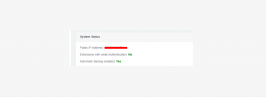
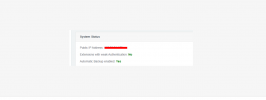
From the management console, I could see the public IP is different, may I know if can be changed


Thank you
 

Attachments

  • screenshot-app.slack.com-2021.11.25-21_09_03.png
    screenshot-app.slack.com-2021.11.25-21_09_03.png
    28.8 KB · Views: 33
Log in to the management console and press on the IP to update it.
 
Access the Management Console and go to Settings >> Network.

Is the IP configuration set to static or dynamic?

If static, make sure that the IP is correct, if it is not, correct it and restart the 3CX System Server again. Also, if you have a dynamic IP on that network, select dynamic configuration instead.
 
May I know what did you mean by Management Console?
is this customer admin console login?
because we have already confirmed the IP but when checking the A record it shows a different IP address.
 
  • Like
Reactions: ChrisC_3CX
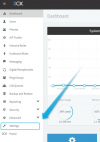
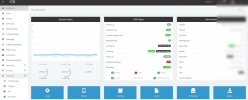
By Management Console I mean the actual PBX's console:
1637914392335.png

You should be able to access it as @kieferschild mentioned.


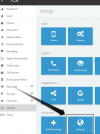
Access it and go to Settings:
1637914522987.png


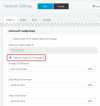
Click on Network:

1637914621014.png


Edit the IP settings as I mentioned previously:

1637914710581.png
 
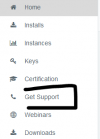
I have already added the IP address but it is not reflected. May I know is there any way to contact the 3cx support through the ticket?
 
  • Like
Reactions: ChrisC_3CX
I have already added the IP address but it is not reflected.
Once you've added the correct IP make sure you've then restarted the 3CX System Server in "Dashboard >> Services".

If you wish to purchase a support ticket, you can do so from the customer portal as @kieferschild mentioned above. Alternatively, you might also want to consider reaching out to one of our partners who should be able to help you with this or at least submit a 3CX Support Case on your behalf.
 
Just to confirm, is this a 3CX provided FQDN or are you using a custom FQDN?
 
Hi,

It is 3cx provided fqdn hostname.elastix.com


Thank you.
 
Hi,

Still, no help, IP still not changing, the hostname is pointed to the IP that is showing on the customer portal, not the dashboard, the IP from the customer portal is wrong but there is no option change

Thank youn
 

Attachments

  • screenshot-app.slack.com-2021.11.25-21_09_03.png
    screenshot-app.slack.com-2021.11.25-21_09_03.png
    28.8 KB · Views: 10
Will server restart help on this case?
 
Will server restart help on this case?
Normally a "System Server" restart will suffice.

Do me a favor, try this:
  1. Go to https://117.xxx.x.xxx:5001/ and login (I believe this is your Public IP right?)
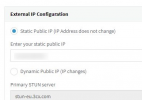
  2. Go to Settings --> Network, and here select "Dynamic Public IP" and make sure the STUN server values below are default, then press OK.
    1638181161713.png
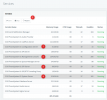
  3. Go to Dashboard --> Services, select the:
    - 3CX PhoneSystem 01 Configuration Server
    - 3CX PhoneSystem 01 System Server
    - 3CX PhoneSystem 01 SIP Server
    - 3CX PhoneSystem 01 Management Console
    And press "Restart"
    1638181940943.png
  4. Wait 10 minutes
  5. Reboot Server
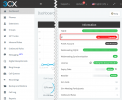
  6. Check in the Dashboard, is the IP correct?
    1638182037374.png


Also, consider upgrading to V18 because if the information I found is correct, you are still on V16.
 
Status
Not open for further replies.

Forum statistics

Threads
111,974
Messages
590,083
Members
164,901
Latest member
Silent_Guru