


- Joined
- Apr 6, 2011
- Messages
- 92
- Reaction score
- 4
It would be nice if the SBC (Windows) app had a system tray icon to confirm that it's running and connected, but until there is, here's a handy tip!
Run the "Resource Monitor" app
Go to the Network tab
Open the "TCP Connectivity" and "Listening Ports" panels.
If the SBC is up and running, in the "Connectivity" tab, you should see an active connection on port 5090, with the PC's address in "local" and the PBX's address in "remote".
In "Listening ports" you should see the SBC app listening on port 5060!
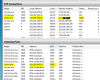
In the attached screenshot, you can see a happily running 3cxsbc.exe app connected on port 5090 from the local address (192.168.100.50) to the PBX address (104.obscured) and the app also listening away on port 5060 (highlit)
Run the "Resource Monitor" app
Go to the Network tab
Open the "TCP Connectivity" and "Listening Ports" panels.
If the SBC is up and running, in the "Connectivity" tab, you should see an active connection on port 5090, with the PC's address in "local" and the PBX's address in "remote".
In "Listening ports" you should see the SBC app listening on port 5060!
In the attached screenshot, you can see a happily running 3cxsbc.exe app connected on port 5090 from the local address (192.168.100.50) to the PBX address (104.obscured) and the app also listening away on port 5060 (highlit)

 If it can't log in to the PBX for any reason, there'll be no active TCP Connection on port 5090.


