Solved I don't know where I will find "3CX Click2Talk URL"

Status
Not open for further replies.

Eva2021

New User
Joined
Mar 25, 2021
Messages
3
Reaction score
0
Hello!

I hope you are doing well!

I am using the 3CX live chat plugin for my website in WordPress.
I made an account on 3CX yesterday and I want to use the 3CX chat server to communicate with my clients instead of WordPress.
If I choose in WordPress the 3CX chat server, I need to add the "3CX Click2Talk URL".
This message appearing below: (Obtain this from the Messaging > Add Live Chat in the 3CX Management Console).
My problem is I can't find Messaging.

I would appreciate it if you can help me.
 
Hi @Eva2021,

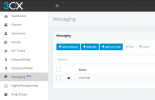
You should attempt to add a Live Chat from the 3CX Management Console. You'll name the chat then copy the link and paste it into the Wordpress >> Live Chat >> Settings >> Advanced Features >> Chat Server.

1616675139350.png

For more information - you can read the documentation here: https://www.3cx.com/docs/manual/live-chat/
 
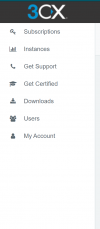
These are the only things that I can see.

1616679714225.png
 
wrong portal.

that is your customer portal.

you need to log in to the 3CX management console which is typically https://<FQDN>:5001

example: https://your3cxdomain.3cx.co.uk:5001
 
  • Like
Reactions: Evolute IT
Thank you for your quick reply and your help!
 
Hi @Eva2021,

You should attempt to add a Live Chat from the 3CX Management Console. You'll name the chat then copy the link and paste it into the Wordpress >> Live Chat >> Settings >> Advanced Features >> Chat Server.

View attachment 21315

For more information - you can read the documentation here: https://www.3cx.com/docs/manual/live-chat/
Hi Vasillis,

Something I couldn't find for clarity when dealing with the Live Chat URL. Can I take the Click2Talk that is already enabled for a queue or extension? Or do I have to go to the messaging section and create a live chat link there? If the already enabled queue/extension Click2Talk will work will I lose anything from reporting or any other benefits?

Thanks,
Adam
 
Hi @aschildmeyerSTR,

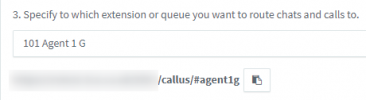
You have to enable the chat feature from the Messaging section, but from within that section, you can select which extension (or queue) should receive the chats. For example, I enable Click2Talk on "Agent 1 G" and then under Messaging I specify 101 Agent 1 G as the extension which should receive the chats and calls via Wordpress.

1617259154843.png

While on Wordpress all I configure is the chat server using the same Click2Talk link I copied from 3CX, for Agent 1 G.

1617259221541.png

So to summarise, by going to Messaging and adding a new Live Chat, you're not creating a new Click2Talk link, you're just specifying which link should be used and which website it should apply to.
 
  • Like
Reactions: aschildmeyerSTR
Hi @aschildmeyerSTR,

You have to enable the chat feature from the Messaging section, but from within that section, you can select which extension (or queue) should receive the chats. For example, I enable Click2Talk on "Agent 1 G" and then under Messaging I specify 101 Agent 1 G as the extension which should receive the chats and calls via Wordpress.

View attachment 21438

While on Wordpress all I configure is the chat server using the same Click2Talk link I copied from 3CX, for Agent 1 G.

View attachment 21439

So to summarise, by going to Messaging and adding a new Live Chat, you're not creating a new Click2Talk link, you're just specifying which link should be used and which website it should apply to.
This is great Thanks Vasillis!
 
  • Like
Reactions: VasilisV_3CX
Status
Not open for further replies.

Forum statistics

Threads
112,147
Messages
590,961
Members
165,167
Latest member
Finatra.us