M365 User sync only bringing through some accounts

Status
Not open for further replies.

James Reed

Bronze Partner
Advanced Certified
Joined
Dec 17, 2018
Messages
20
Reaction score
3
Hi All

Having used 3CX with M365 integration a number of times successfully we are testing for another use case scenario and have come across a strange problem.

M365 sync has been configured successfully and some accounts are brought across from M365 in to 3CX, these accounts all have both their M365 username and default email address set to the same value and are in the format [email protected] so no problem there...

However, there are users within this M365 tenant that have their username set to [email protected] as they use the original tenant id for authentication but then have their default email address set as @companyname.co.uk. This users do not sync across despite being selected within the user sync options (we need to use the 'only sync these users' option.)

We've tried manually creating extensions with the email address set to the @company.onmicrosoft.com address and also just leaving there being no extension but these 'onmicrosoft' accounts just never sync.

I appreciate that we 'could' change the user name elemet in M365 but there are a couple of instances where this is currently not possible for a number of reasons.

Also, we need to use M365 signin as in this instance we need to enfource MFA at signin (obviously it would be really great for 3CX to delivery the essential MFA for both admin and user signing asap as a separate item!)

So, anyone got any suggestions on this?

Thanks

J.
 
Regarding your question, and to be able to sync contacts and calendars specifically, users must have a domain email address and not the default on-microsoft.com address. Additionally, regarding the MFA, this is set up on the Azure side and not through 3cx. This Part, though, does require the configuration of SSO within 3cx so that when users log in to their webclients using their email address, they will be prompted for the MFA method, 2FA, that has been configured on their Azure user accounts.
 
Last edited:
Hi @James Reed,
Users are not Synching if they are missing a First and Last name in their MS 365 Tenant Contact settings and only have a Display Name. As a first step can you confirm if this is the case or not?
 
Regarding your question, and to be able to sync, users must have a domain email address and not the default on-microsoft.com address. Additionally, regarding the MFA, this is set up on the Azure side and not through 3cx. This Part, though, does require the configuration of SSO within 3cx so that when users log in to their webclients using their email address, they will be prompted for the MFA method, 2FA, that has been configured on their Azure user accounts.
Thanks, yes we are familiar with the whole M365 MFA, what I was getting at is that 3CX need to bundle in MFA for admin and direct users. Particularly now the the UK Cyber Essentials standard includes cloud systems in scope and to be compliant admin accounts must have MFA enabled.

I'd like a 3CX view on why the .onmicrosoft domain will not sync as they are seen in the selection window so it is not clear why they would show and be selectable but not come across in the sync?
 
@GeorgeK_3CX I can confirm the user in M365 is correctly set up with display name etc.
 
  • Like
Reactions: Charles_3CX
@GeorgeK_3CX I can confirm the user in M365 is correctly set up with display name etc.
@GeorgeK_3CX yes, all other elements of the M365 user, display infor, first/last name, department, numbers etc. etc. are all configured. The only difference between a user that does sync and one that does not is the username as detailed previously.
 
Hi @GeorgeK_3CX

Thanks for this it was exactly this causing the problem. For anyone else having this problem I recomend removing the users failing to sync from within 3CX and leaving it an hour or so while you go and correct the user type within M365. Then go back and readd and all should be well.
 
Last edited by a moderator:
Hi Folks, we appear to be having similar issues, I've tried the KB link but appears to be dead, would anyone be able to advise the updated link please?

Thanks in advance
Shaun
 
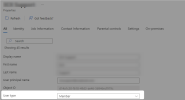
Simply access the azure portal and under users, Edit the affected user account and under the section, user type make sure it is set to member, and save. Then try adding the user within the user sync section of the management console > settings > microsft 365.

1665670835914.png
 
@Charles_3CX

Amazing that's what was missing, thanks for your quick response.

Much appreciated!
 
  • Like
Reactions: jed and Charles_3CX
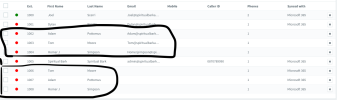
I'm having the same issue but the user type is set to member for all. Emails and names all match up too. The top 2 merged just fine but the bottom 3 are all duplicates. any ideas?Screen Shot 2022-10-24 at 2.11.56 pm.png
 
You are welcome
I’m glad i found this thanks. I’ve been missing one user for ages. They were missing First/Last Name in 365.

Can you get that added to the Notes section at https://www.3cx.com/docs/manual/microsoft-365/ I’ve been through that document a few times trying to work out why this user wasn’t visible. (Here I was wanting to set Admin Sign-In.)

EDIT: typos
 
I'm having the same issue but the user type is set to member for all. Emails and names all match up too. The top 2 merged just fine but the bottom 3 are all duplicates. any ideas?View attachment 32494

I'm having the same issue but the user type is set to member for all. Emails and names all match up too. The top 2 merged just fine but the bottom 3 are all duplicates. any ideas?View attachment 32494
It seems the top 3 are with the email addresses but are without the Microsoft 365 tag, whereas the top 3 are with the email address and are not tagged.

Not sure how this came about. Did you, by any chance, create the extensions without the email address and then add them to the user sync section of the Microsoft 365 integration?

Here I suggest deleting all the duplicated extensions and choosing the users specifically under the user sync section, then allowing them to be created via the user sync.
 
  • Like
Reactions: jed
Simply access the azure portal and under users, Edit the affected user account and under the section, user type make sure it is set to member, and save. Then try adding the user within the user sync section of the management console > settings > microsft 365.

View attachment 32346
Old post but figured I would try. What happens if the User type is greyed out but the office 365/domain account works?
 
Status
Not open for further replies.