Unable to provision 3CX Desktop App (V 18.7.10)

Status
Not open for further replies.

daveh82

Customer
Joined
Apr 25, 2012
Messages
27
Reaction score
0
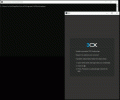
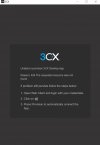
I just updated from V16 to V18. I am unable to provision the newest windows client app. I get the following error that I have attached.

Reason: 404 The requested resource was not found.

If the problem persists follow the steps below:

1. Open Web Client and login with your credentials.
2. Click on (Windows Icon)
3. Press Provision to automatically connect the App.

I do those things, but nothing happens.
 

Attachments

  • 3cx.jpg
    3cx.jpg
    58.9 KB · Views: 43
Hi!

Where is your 3CX Server installed? Is it on-premise, or installed on a Hosting Provider?

If it is on-premise, try accessing your Webclient with the following URL format:
https://<Local LAN IP of 3CX Server>:5001/webclient

Of course if you are using a different port than 5001, change the port accordingly.
Also the browser will probably throw a warning, accept it and proceed, and do the rest of the provisioning process of the Desktop App as you did before.
 
We host 3cx on premise. I can access the webclient just fine. It is the Windows 3cx Desktop client that will not provision and gives the error that is in the original post.
 
We host 3cx on premise. I can access the webclient just fine. It is the Windows 3cx Desktop client that will not provision and gives the error that is in the original post.
Yes, I guessed that you could access the WebClient just fine, but could you please tell me what URL you are accessing it with in your browser? Is it with an IP or an FQDN?

Also, internally on the LAN, to you have any HTTP Proxies for the traffic? If you are not sure, you would need to ask the person who setup the network.
 
I am accessing it via FQDN, no HTTP proxies setup for traffic.
 
I am accessing it via FQDN, no HTTP proxies setup for traffic.
OK, if then the PC you a re trying to provision the Desktop App on is on the same LAN/premise as the 3CX Server, try accessing the WebClient using the IP instead of the FQDN, then try again, like I suggested here.
 
Same issue using the IP address. I have tried on 2 different workstations. Same results.
 
When I click on the link you posted I get the following error:

You do not have permission to view this page or perform this action.
 
When I click on the link you posted I get the following error:

You do not have permission to view this page or perform this action.
Ah sorry, wrong section of the forum. This is the content I wrote:

Technically you could use the same mechanism the browser uses to launch the app.
What the browser does is invoke the EXE and pass as argument the HTTP/S link that the QR code resolves to.

To be more precise, you could load a config like this:
Code:
3CXDesktopApp.exe tcx+app:<HTTP/S link of QR code>
DesktopApp_prov.gif

Now, to get the QR code link, just take a screenshot of it, crop it and use an online service like this one to get the link.
 
Status
Not open for further replies.