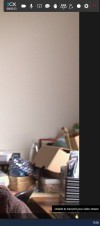
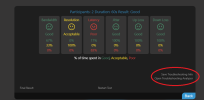
unable to transmit your video stream

Status
Not open for further replies.

FragFranz

Premier Customer
Joined
Jan 26, 2023
Messages
22
Reaction score
4
Hello,
Today in the morning the weekly meetings in our company take place.
Its the first time this Yellow symbol appeared in the right bottom of the screen "unable to transmit your video stream"
1674739342733.png
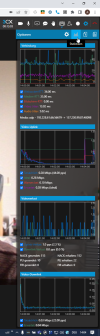
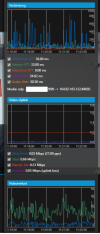
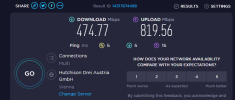
Video stream was there but the quality was really bad. I have a screenshot of the statistics
1674739352907.png
Version Number 18.0 (Build 418)
Region Europe

Can you tell me what is wrong here?

BR
 
good morning
today no webmeeting possible at all (quick/scheduled)
1674801852262.png
 
Hi, the issue has been fixed by the Webmeeting Team, can you please try again and provide us feedback?
 
  • Like
Reactions: N_G
Hy
First test worked (it internal)
I will make a meeting with the business and let you know.
Can you please tell me what was wrong?
 
meeting with business was also good
hopefully it will work next week also, would be interesting what caused that issue
thank you!
 
Hello,
today we had the same problems as last week. meeting quality was bad - video/audio
1675334769536.png
can you please check from your side.
 
Hello,
today we had the same problems as last week. meeting quality was bad - video/audio
can you please check from your side.

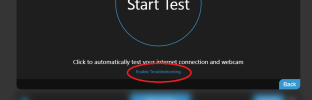
We've had no persistent or intermittent issues in the past week. Seeing that this is constantly happening on your machine, i suggest you run the Self Test located on the meeting join screen near your video preview.

Let it run and please post the detailed result by clicking the "Details" button after the test has finished. You can run the test either from your browser as you normally do or from the 3CX Desktop App by clicking on "Meet" then "Self Test", this way your CPU performance will also be measured.

Please post a screenshot of the detailed result here and save the result for troubleshooting as well but PM it to me directly (don't post it here) for further checks.

Just from what you've sent us here i see that your client is consistently having problems sending your video stream and is constantly acknowledging that there's errors (513 lost packets). We've had no other reports within the timeframe you've had this problem which would indicate this must be a problem with your connection or computer (most likely the first).

The issue here may be that your upload bandwidth is shared with other people and they intermittently do something (send a pic in a chat or upload a file attachment to a mail) and that can cause these intermittent notifications in quality changes. If these issues are persistent, you likely have a problem with a modem/routing device that may need a simple reboot.

Please try the above and let us know.
 
Hello,
Thank you for your feedback
I cant find that "self test function"
Not in the webclient and also not in the 3cx desktop app. Can you please send me a screenshot?
We will investigate regarding internet line and let you know.
 
Hello,
Thank you for your feedback
I cant find that "self test function"
Not in the webclient and also not in the 3cx desktop app. Can you please send me a screenshot?
We will investigate regarding internet line and let you know.

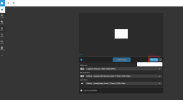
1675671670274.png
 
hy,
i dont have this button on productive system v18 u5
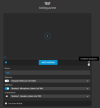
1675671920255.png

my test system ist on version v18 u6 and i have this button.
1675672099858.png

1675672117039.png

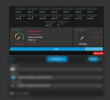
lets try to make this a happy face
 
Hi there,

This feature is available for PBX's U6 and above, sorry for that. I see that you webcam isn't even activating here. Try closing any apps that use the webcam including other VideoConferencing tabs & the Desktop App if that's open.
 
Hy,
i did a another test outside company network - guest wifi
the test result is good - happy face
 
Pretty interesting that the guest wifi is ok whilst other networks are not. You can view more details about the test if you click the "details" button at the bottom left near the "Happy/Sad" face.

Your network admin can save the result & then open the analyzer tool & import that test result to understand what the problem is.
1675673180316.png

As i previously said, it could be a congested/overused network or simply a network device like the router needing a restart.

We've found that the 3CX Video Conferencing solution works fairly smoothly even with severe networking issues when compared to most other video conferencing solutions out there. I'm confident in saying that you'll likely have a worse time using solutions with networking issues like that.

Regardless, i suggest you contact a network admin/IT admin in your workplace to try and get whatever this issue is resolved.
 
I think the first test was done with webcam blocked by some other window/app
In this case the self test, cannot work and will give that error.
I did another test with webcam access, and had the happy face - also in internal network.
I send you the troubleshooting info file.

I am the network admin and also responsible for VOIP/3CX.
 
I've checked and all looks pretty good. No issues at all with the test file you've sent me. Since the basic test is passing, it means that you don't have a permanent problem with your connection/environment there, just a momentary issues during the day.

Next time the issue occurs during a meeting, you can run the self-test in a separate window to see if there's network issues during that moment.
 
There's another way to capture any issues that happen live during your meeting.

1) Go here:
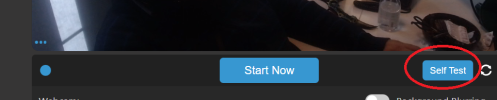
1675691308734.png

2) Click this:
1675691355192.png

3) The page will refresh. After it does, join your meeting and do your meeting normally as you would. When you're done with your meeting, it's important to exit it using the "Exit/End Meeting" button and not refreshing or killing the tab.

4) Once you end or exit the meeting gracefully using the exit/end button, a file will be automatically downloaded from your browser's memory with all meeting quality data that was recorded during your meeting.

5) At the end of your meeting you can click on the following text to open the troubleshooting analyzer tool:
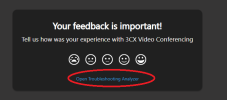
1675691524186.png


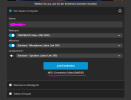
6) This will bring you to a WebRTC troubleshooting UI where you'll need to load the file that your browser just downloaded from it's memory. Load it using this button and select the file.
1675691559454.png

7) Once the file is loaded, please press the following button to load the data into the app:
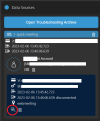
1675691627929.png

8) This will load the data like this:
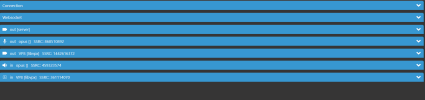
1675691681464.png


9) Connection/Websocket is your connection. You can expand them to view basic but in this case not helpful info about your connection during the meeting.

10) Out [Server], Out Opus, Out VP8 are your signalling, audio and video connections. You'll want to expand these. If you expand Out [Server] you'll see a couple of graphs, the second one that has "Cause" will likely tell you the reason why your connection was not working well during those moments in the meeting:
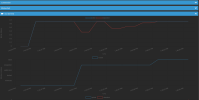
1675691860424.png


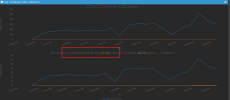
11) If you expand the Out VP8 tab, you'll see that the second chart has "retransmitted", "NACK received" and "PLI received". Since Out VP8 is your own video going out to others, if you see that there's Nacks received or Pli's received, then it means others have asked you to re-transmit your image to them because they were unable to receive you well. This could be an indication that either you have a problem with your connection or others have a problem with theirs.
1675692052145.png
 
Alternatively, you can enable troubleshooting mode on one of your meetings and once it ends, you could send us the troubleshooting file.
 
  • Like
Reactions: Evolute IT
Hy,
Thank you for your feedback
That feature is great! We will update our system today to U6.
Meanwhile we made tests on our second server.
I will send you another troubleshooting file - internal IT meeting.
Would you please be so kind and have a look at it.
 
  • Like
Reactions: N_G
During our meeting i made a speedtest
there should be enough bandwidth
1675766370169.png
 
hy, please mark this topic as solved
we made adjustments on a vpn-gw virtual machine, as most client laptops are bridged over ip-sec to the headquater
i believe this made the change
the new "Self Test / Troubleshooting" Feature is great, although I prefer not be in the need to use it
 
Status
Not open for further replies.

Forum statistics

Threads
111,972
Messages
590,065
Members
164,886
Latest member
784