There's another way to capture any issues that happen live during your meeting.
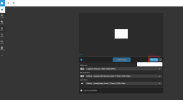
1) Go here:
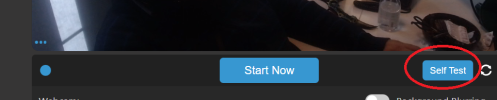
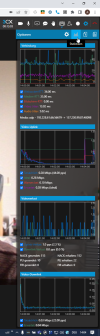
2) Click this:
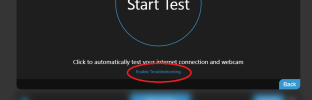
3) The page will refresh. After it does, join your meeting and do your meeting normally as you would. When you're done with your meeting, it's important to exit it using the "Exit/End Meeting" button and not refreshing or killing the tab.
4) Once you end or exit the meeting gracefully using the exit/end button, a file will be automatically downloaded from your browser's memory with all meeting quality data that was recorded during your meeting.
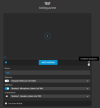
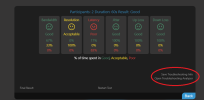
5) At the end of your meeting you can click on the following text to open the troubleshooting analyzer tool:
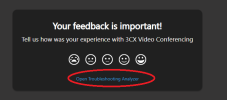
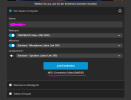
6) This will bring you to a WebRTC troubleshooting UI where you'll need to load the file that your browser just downloaded from it's memory. Load it using this button and select the file.
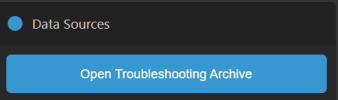
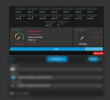
7) Once the file is loaded, please press the following button to load the data into the app:
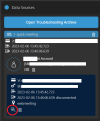
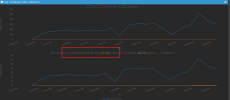
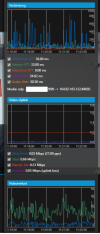
8) This will load the data like this:
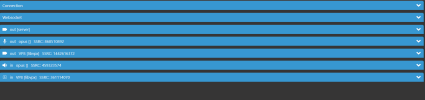
9) Connection/Websocket is your connection. You can expand them to view basic but in this case not helpful info about your connection during the meeting.
10) Out [Server], Out Opus, Out VP8 are your signalling, audio and video connections. You'll want to expand these. If you expand Out [Server] you'll see a couple of graphs, the second one that has "Cause" will likely tell you the reason why your connection was not working well during those moments in the meeting:
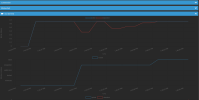
11) If you expand the Out VP8 tab, you'll see that the second chart has "retransmitted", "NACK received" and "PLI received". Since Out VP8 is your own video going out to others, if you see that there's Nacks received or Pli's received, then it means others have asked you to re-transmit your image to them because they were unable to receive you well. This could be an indication that either you have a problem with your connection or others have a problem with theirs.